
The reason I had to change the color of the cursor was simply because I kept having a recurring issue with the cursor “disappearing” on different platforms.
Changing your mouse color on Windows can improve cursor visibility, making it easier to locate on a complex screen and reducing eye strain. It also adds a personal touch to your workspace, enhancing both functionality and user experience.
Here’s how to eliminate that issue on a windows computer.
- Open “mouse settings” in the Windows start menu.

2. After you click on mouse settings, scroll down to “related settings” and click on the “mouse pointer” module.


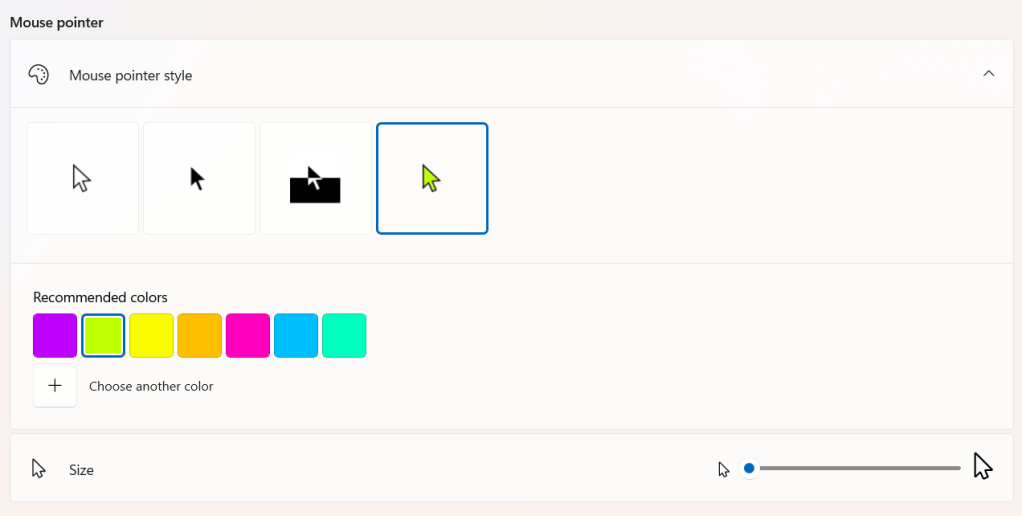
3. Choose your desired size and mouse color. They have default colors but you can also choose a custom color for your cursor (red, blue, etc).
 Bitcoin Versus
Leave a comment