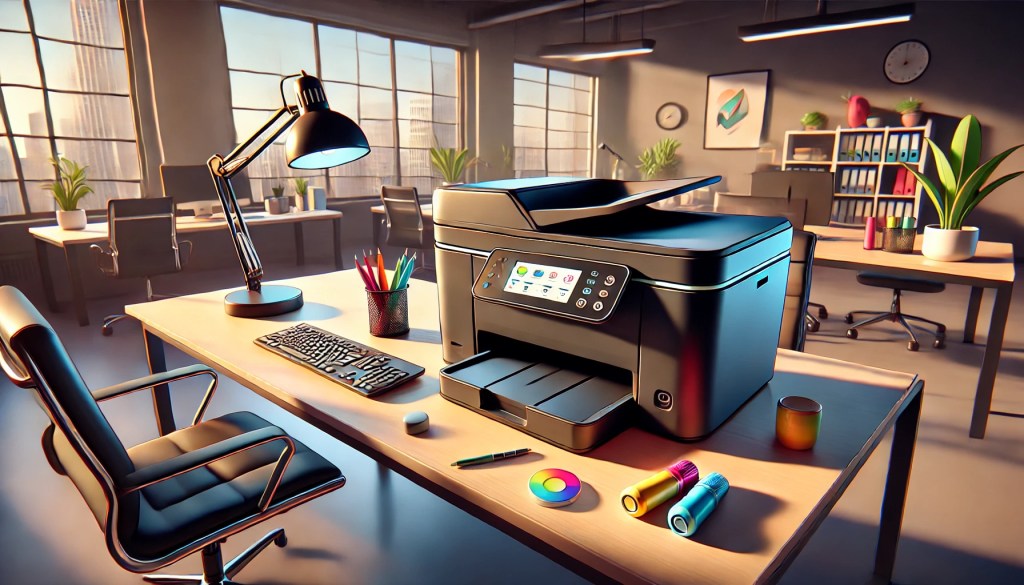
Printer issues are among the most frequent hardware-related problems in both home and business environments. Symptoms include paper jams, poor print quality, printer not found errors, or no print output at all.
Initial troubleshooting should start with physical inspection. Check for paper jams in the feed path, output tray, or duplex unit, and remove any debris or foreign objects that could block rollers.
Inspect consumables such as toner or ink cartridges to ensure they are properly seated and not empty or dried out. Misaligned paper trays or using the wrong paper size or weight can also trigger constant paper jam errors or print errors. Always verify that paper type settings in the printer match the physical media loaded.
Connectivity problems are another common source of printer issues. For networked printers, check if the device has a valid IP address, is reachable via ping, and is properly listed on the print server or workstation. Wireless printers may suffer from poor Wi-Fi signals, incorrect passwords, or SSID changes.
USB printers should be verified with known-good cables and ports. Driver-related issues are common, especially after system updates. Installing the latest manufacturer-supplied driver rather than relying on generic drivers helps resolve compatibility and feature problems. Some multifunction printers require additional software for scanning and advanced features to function correctly.
Print quality problems may result from worn-out consumables, dirty print heads, or miscalibrated components. Inkjet printers may experience clogged print heads leading to streaks or missing colors, which can often be fixed through built-in cleaning cycles.
Laser printers may produce faded prints or streaks if the toner is low, the drum is worn, or the fuser assembly is damaged. Running calibration or alignment utilities helps restore optimal image quality. Advanced diagnostics may require checking error logs available through the printer’s onboard display or embedded web server. These logs often provide specific error codes pointing directly to the failing subsystem.
For business-class or higher-end printers, it’s essential to check print spooler services, especially in Windows environments. A corrupted spooler can prevent print jobs from processing entirely.
Clearing the spooler queue or restarting the spooler service often resolves these problems. In environments where multiple users share printers, permissions, driver conflicts, and network printing policies should also be examined. For printers under heavy usage, periodic maintenance such as replacing fuser kits, rollers, and maintenance kits is critical to ensuring long-term reliability.
Technicians should always document findings and steps taken for recurring troubleshooting or handoff to other teams.
Use the code BILLBURTON at check out to Get 5% off Bitaxe Mining Products
Limited to one use per customer: https://tinychiphub.com/BILLBURTON
BitcoinVersus.Tech Editor’s Note:
We volunteer daily to ensure the credibility of the information on this platform is Verifiably True. If you would like to support to help further secure the integrity of our research initiatives, please donate here
BitcoinVersus.tech is not a financial advisor. This media platform reports on financial subjects purely for informational purposes.
 Bitcoin Versus
Leave a comment