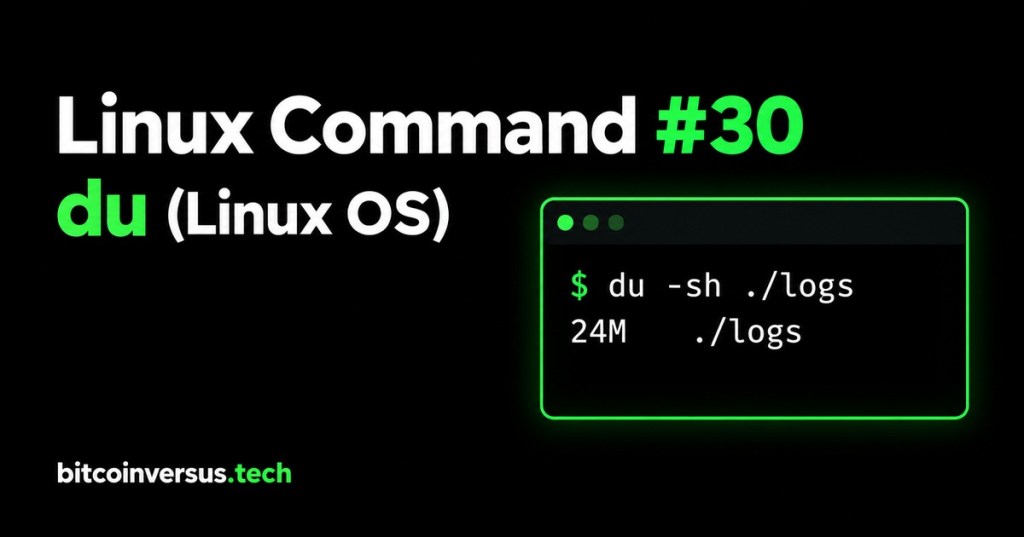
The Linux du command helps answer a practical question: which folder is using disk space? It follows Linux Command #29: df, which checks filesystem capacity and available space.
Start With One Folder
du -sh ./logs
Replace ./logs with a folder that exists on your computer. The -s option produces a summary for the supplied path. The -h option displays readable units.
An illustrative result might be:
24M ./logs
That result estimates roughly 24 mebibytes of disk usage for the logs folder and its contents. Your output will depend on the files and filesystem. The command reports usage; it does not remove anything.
Compare Two Folders
du -sh ./logs ./backups
Suppose the example reports 24M for logs and 1.2G for backups. The backup directory is the larger place to investigate. A large directory may still hold required information; size alone is not a reason to delete it.
The short demonstration below reviews readable output and summaries before we examine the next level of folders.
Inspect One Level Below
du -h --max-depth=1 ./logs
With GNU du, --max-depth=1 limits the displayed directory totals to the starting directory and its immediate subdirectories. It still counts deeper contents when calculating those totals. Start with a small known path rather than scanning an entire server.
Why du and df Can Differ
The commands measure different things. df reports filesystem space, while du walks the selected files and directories. Deleted files still held open by a process can remain allocated. Permission errors can leave a du scan incomplete. Filesystem details can also affect the comparison.
By default, du measures allocated usage rather than the file’s apparent length. Sparse files can therefore have a large apparent size but consume much less storage. For the beginner exercise, read the ordinary du -sh result and note any error messages.
Practice in a Small Folder
Create a new practice folder in your home directory using the file manager. Name it du-practice, place a small text file inside, then open a terminal in the parent folder. Run:
du -sh du-practicedu -h --max-depth=1 du-practice
Record the total. Add a subfolder and another text file, then run both commands again. Identify which line represents the whole practice folder and which represents its immediate subfolder. Tiny files may occupy more disk space than their text length because storage is allocated in blocks.
Data Center Use
When a management host approaches its storage limit, a technician can compare approved log and backup paths. Record the path, reported usage, and any permission errors. Use the result to guide a retention review rather than deleting logs during an incident.
Key Takeaway
df tells you how full a filesystem is. du helps locate the folders consuming space. Begin with du -sh folder, then inspect one directory level when you need more detail.


Leave a Reply