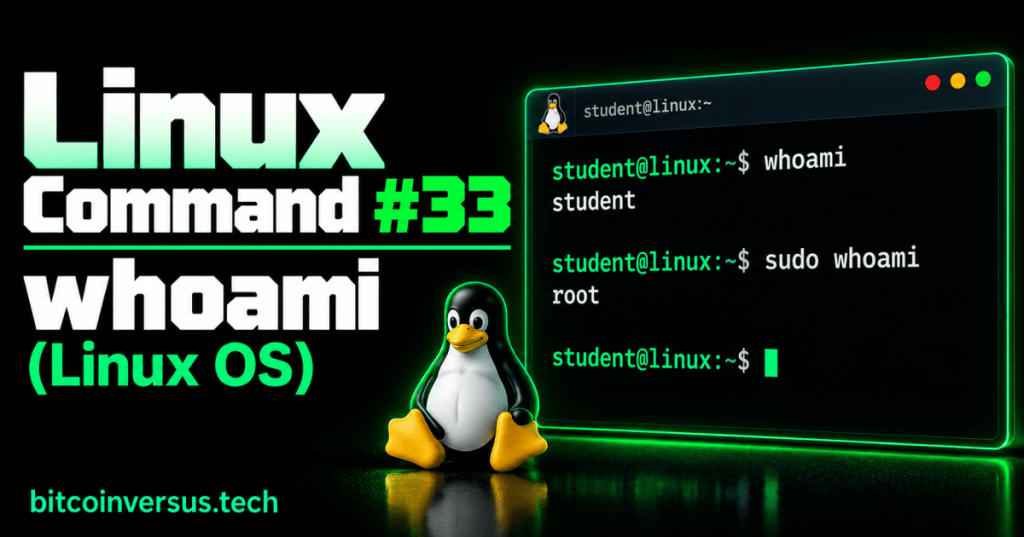
The Linux whoami command tells you which user account the current command is running as. It is one of the simplest Linux commands, but it is useful when troubleshooting permissions, working over SSH, using sudo, or checking which account a script is using.
Basic Syntax
whoamiIf your current effective user is student, the command prints:
studentWhy This Matters
Linux permissions depend on the user running a command. Before changing files, restarting services, or troubleshooting access problems, it can help to confirm your current user identity.
Video: Linux whoami Command
This short beginner tutorial demonstrates whoami, sudo whoami, and related identity commands.
Compare Normal and sudo
whoami
sudo whoami
The first command prints the effective user for your current shell. If your account is allowed to use sudo, the second command normally prints root because that individual command is running with root privileges.
Simple Troubleshooting Example
Suppose a file-editing command returns Permission denied. Running whoami helps confirm which user is attempting the operation. That makes it easier to compare the current user with the file’s ownership and permissions.
SSH Example
When you connect to several Linux servers, prompts can look similar. Run whoami after connecting to confirm which account you are using before making changes.
Data Center Example
A technician remotely logging into a server may have a normal account for everyday work and elevated privileges for specific administrative commands. whoami provides a quick identity check before troubleshooting access or service issues.
Practice
- Open a Linux terminal.
- Run
whoami. - Write down the username returned.
- If your account has sudo access, run
sudo whoami. - Explain why the two results may be different.
Key Takeaway
whoami prints the name of the current effective user. Use it whenever you need a quick check of the identity and privilege context under which a Linux command is running.


Leave a Reply