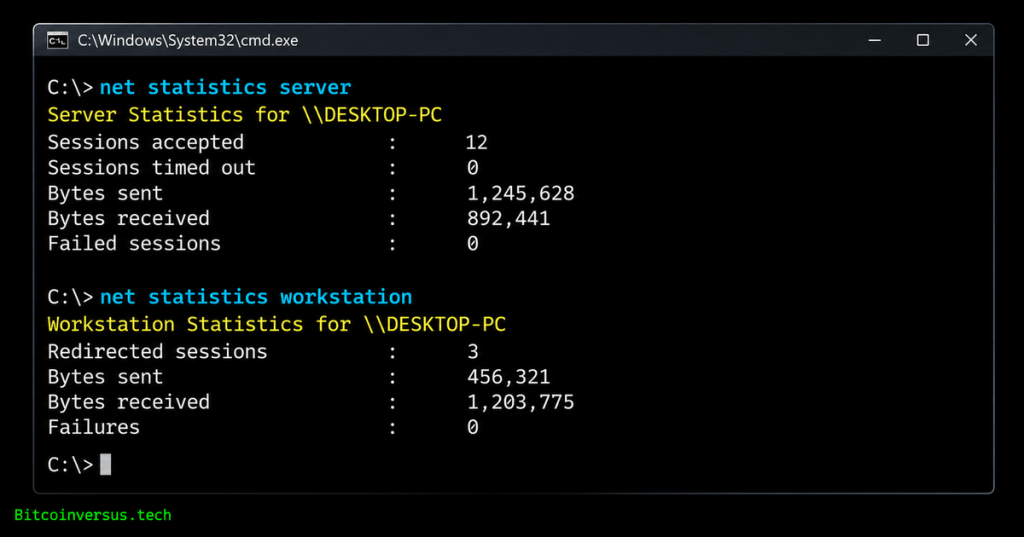
net statistics displays cumulative statistics for Windows Workstation and Server services, giving administrators a quick command-line view of service activity, sessions, traffic, failures, and the time from which the counters have been collected.
Windows Command #32 follows Windows Command #31 – net config. The previous lesson inspected Workstation and Server service configuration. This lesson moves from configuration to observed service activity: what the services have actually recorded since their statistics were initialized.
Command purpose
net statistics
net statistics workstation
net statistics server
Running net statistics without a service name lists the running services for which statistics are available. The common forms are workstation and server. net stats is accepted as a shorter form on Windows systems that support the command.
Microsoft’s Defrag Tools networking reference demonstrates net statistics server and net statistics workstation as part of the built-in Windows networking toolkit.
What the command measures
The command reports counters maintained by Windows networking services. Exact fields vary by Windows version and service implementation, but typical output can include:
- statistics start time;
- bytes sent and received;
- SMB operations or requests;
- sessions accepted or disconnected;
- failed or errored sessions;
- network errors;
- connections to shared resources;
- read and write activity;
- reconnects or other service-specific counters.
These counters are evidence, not a complete diagnosis. A nonzero failure counter proves that an event was recorded; it does not by itself identify the root cause.
Windows networking commands in context
Workstation statistics
net statistics workstation reports activity associated with the Windows Workstation service, which provides client-side SMB/network redirector behavior.
net statistics workstationAn illustrative output shape can include a statistics start time followed by received/transmitted bytes, read/write operations, network errors, failed sessions, disconnects, reconnects, and successful or failed connections to shared resources.
The most important diagnostic question is not whether every counter equals zero. The useful question is whether a counter changes while a reproducible problem is occurring.
Server statistics
net statistics server reports counters associated with the Windows Server service, which provides local SMB file and printer sharing to remote clients.
net statistics serverTypical Server-service output can include sessions accepted, sessions timed out, sessions errored out, bytes sent and received, response errors, and other server-side activity. Availability and field names can differ by Windows release and system configuration.
If only Workstation statistics are available, verify the system’s running services and actual role rather than assuming the Server-service counters must exist on every machine.
Current Windows network troubleshooting workflow
Statistics start time
The line beginning with Statistics since establishes the collection window. This matters because every cumulative counter needs a time context.
net statistics workstation | findstr /C:"Statistics since"The timestamp can sometimes provide a rough service-uptime clue, but it should not be treated as a universal system-uptime command. Service restart behavior, Windows version, fast startup, and other implementation details can make service statistics differ from actual system boot time.
Baseline before troubleshooting
Create the capture directory first. The following commands run in Command Prompt. Access to Server-service statistics may require an elevated prompt; record access errors rather than assuming that unavailable counters are zero.
if not exist C:\Temp mkdir C:\TempA single snapshot is less useful than a before-and-after comparison. Capture statistics before reproducing the fault:
net statistics workstation > C:\Temp\workstation-before.txt
net statistics server > C:\Temp\server-before.txt
Reproduce the issue, then capture again:
net statistics workstation > C:\Temp\workstation-after.txt
net statistics server > C:\Temp\server-after.txt
The difference between the two snapshots is usually more informative than the lifetime total.
Do not confuse net statistics with netstat
| Command | Primary purpose |
|---|---|
net statistics | Workstation/Server service counters |
netstat | Connections, listening ports, protocol statistics, routing information |
net config | Workstation/Server service configuration |
net session | Connected SMB client sessions on the local server |
net file | Remotely opened files handled by the local server |
The earlier Windows netstat lesson covers connection and listening-port inspection. Similar names do not mean the commands inspect the same layer.
Relating counters to SMB troubleshooting
Microsoft’s current SMB guidance emphasizes layered diagnosis: verify connectivity, the relevant services, TCP port 445, SMB configuration, authentication, signing, and permissions before weakening protocol security. See Microsoft Learn: SMB protocol guidance.
net statistics contributes one layer of that evidence. If a mapped drive fails while failed-session or disconnect counters increase at the same time, the counters support further investigation. They do not prove whether the cause is DNS, routing, firewall policy, SMB signing, credentials, the remote server, or storage latency.
A layered support workflow
- Confirm local IP configuration with
ipconfig /all. - Test name resolution and reachability.
- Test SMB reachability with PowerShell when appropriate:
Test-NetConnection SERVER -Port 445. - Inspect Workstation/Server configuration with
net config. - Capture
net statisticsbefore reproducing the fault. - Reproduce the exact user-visible problem.
- Capture the counters again and identify meaningful deltas.
- Check shares, sessions, open files, Event Viewer, SMB logs, firewall rules, authentication, and permissions as required.
Broader command-line troubleshooting practice
Common interpretation mistakes
- Treating a cumulative error count as proof that the current incident caused every recorded error.
- Ignoring the Statistics since timestamp.
- Comparing two machines whose counters cover different time windows.
- Confusing
net statisticswithnetstat. - Assuming successful statistics output proves TCP port 445, DNS, share permissions, or remote-server health.
- Restarting a service only to clear counters before evidence has been captured.
- Using service statistics as a substitute for event logs or packet captures when deeper evidence is required.
For session-level evidence, review Windows Command #29 – net session. Counter totals and the current session list answer different diagnostic questions.
Practical exercise
Use a disposable Windows lab machine and a reachable SMB share.
- Run
net statisticsand record which services expose counters. - Capture
net statistics workstationto a text file. - Open and close a remote SMB share several times.
- Capture the Workstation statistics again.
- Identify counters that changed.
- If Server statistics are available, capture them before and after a second client connects to a local share.
- Compare the statistics with
net sessionandnet filewhere available. - Explain why the counter deltas are useful evidence but do not identify root cause by themselves.
Knowledge check
1. Which service does each net statistics variant inspect?
2. Why must the Statistics since timestamp be captured?
3. Does a nonzero failure counter establish the current incident’s cause?
4. How should cumulative counters be compared during troubleshooting?
5. How does net statistics differ from netstat?
6. Which additional evidence is useful for an SMB failure?
Concise answer key
1. workstation reports client-side Workstation-service counters; server reports Server-service counters where available.
2. The timestamp identifies the collection window and reveals a reset between snapshots.
3. No. Earlier events may contribute to the total.
4. Capture a baseline, reproduce the problem, capture again, and compare deltas only within an unchanged collection window.
5. net statistics reports service counters; netstat inspects connections, listening ports, and protocol statistics.
6. Check IP configuration, DNS, TCP 445, service state, shares, sessions, open files, logs, authentication, and permissions.
Key takeaway
net statistics converts Workstation and Server service activity into counters that can be compared over time. Its greatest value is not a single total; it is the ability to establish a baseline, reproduce a problem, observe which counters changed, and use those changes to guide the next layer of Windows network or SMB troubleshooting.
Technical note: Counter names and availability vary by Windows release, role, and service state. Production troubleshooting should follow the exact Windows/Windows Server version and current Microsoft documentation.


Leave a Reply