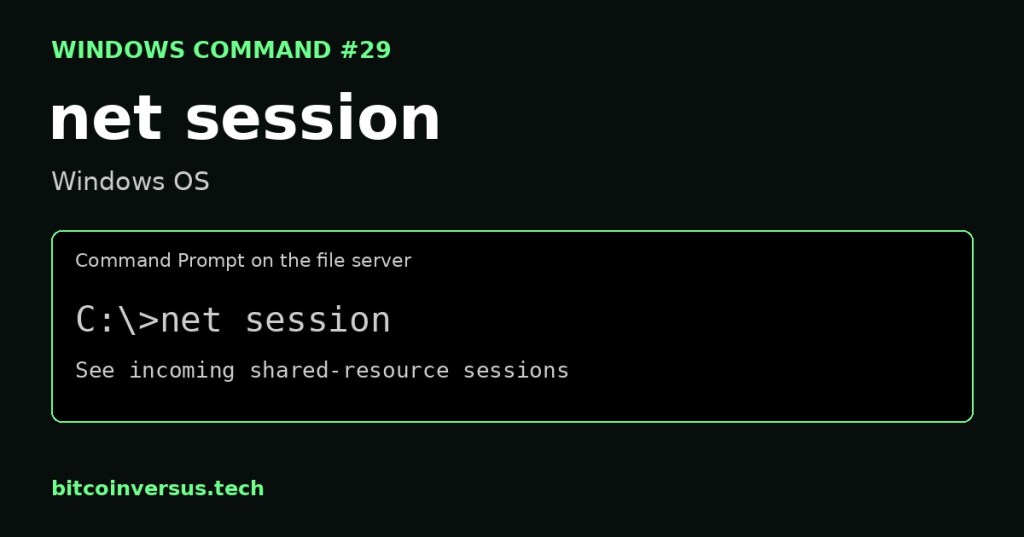
net session shows network sessions connected to the Windows computer where you run it. On a file server, it helps answer: “Which client computers are connected to this server’s shared resources?”
A client asks for a resource. A server provides it. Here, a session is the connection used to access shared resources through SMB, short for Server Message Block. A Windows PC can act as a file server even if it is not running Windows Server.
Video 1: Watch the command in action
Start on the computer that provides the share
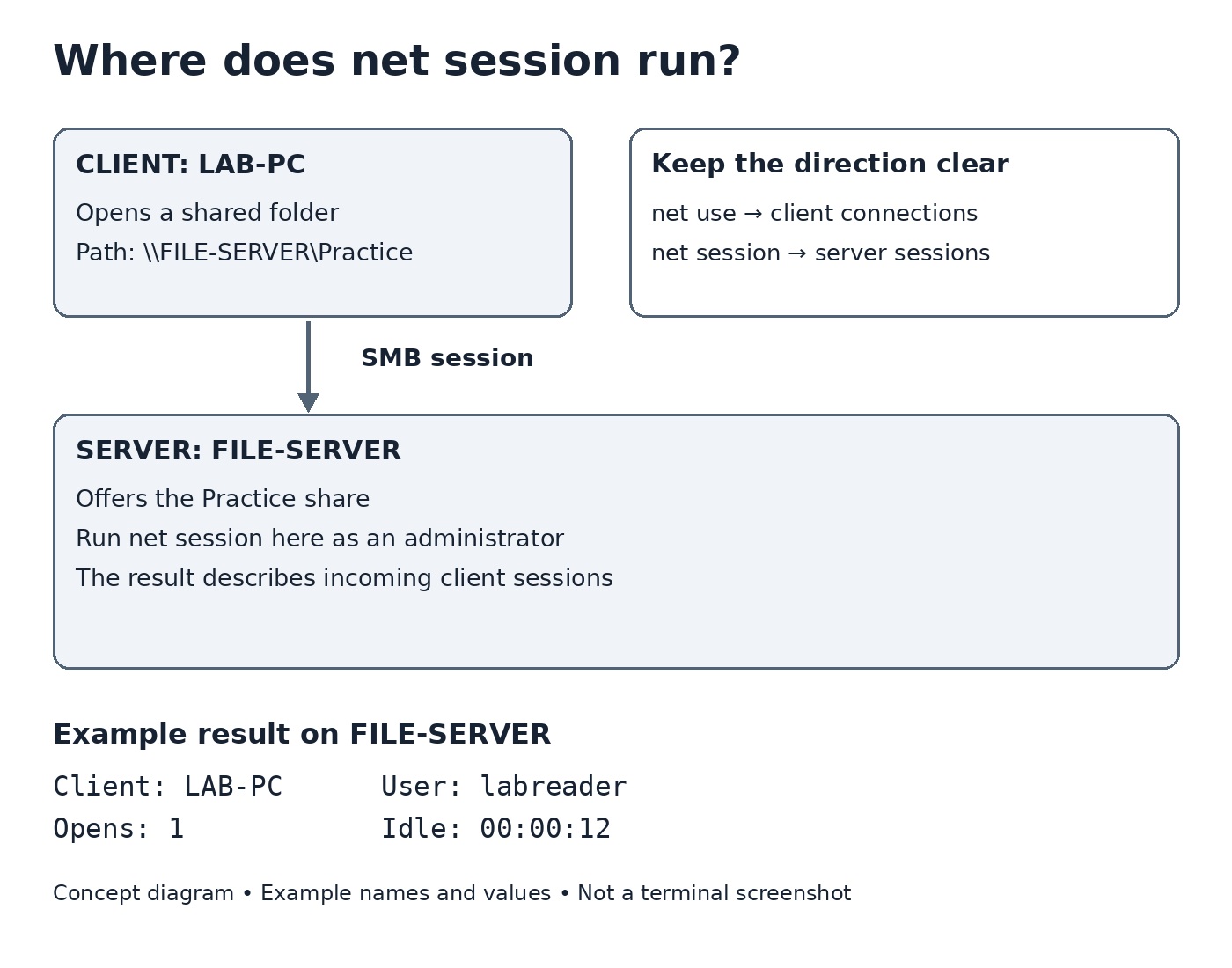
Suppose LAB-PC opens \\FILE-SERVER\Practice. Run net session on FILE-SERVER to inspect the incoming session. Running it on LAB-PC instead inspects incoming sessions to LAB-PC.
Use your lab file server or a computer you administer. Open Start, search for Command Prompt, choose Run as administrator, and approve the Windows prompt. Then enter:
net sessionThis inspection command does not disconnect anyone. It can return a list of sessions or report that there are no entries. The Server service must be running. An access-denied result means you should check your administrative access.
Microsoft’s net session reference documents the command’s syntax. That page is an older reference; use net help session to check the help installed on your Windows computer.
Read the result one part at a time
For a learning example, imagine these values. This is an explanation table, not a captured command result:
| Item | Example | Meaning |
|---|---|---|
| Computer | \\LAB-PC | Client connected to this server. |
| User name | labreader | Account associated with the session. |
| Client type | Depends on the client | Client information reported by Windows. |
| Opens | 1 | Reported open resources; not a count of people. |
| Idle time | 00:00:12 | Twelve seconds without session activity. |
A session with zero opens can still exist. An idle session also does not prove that a person has left their desk. Read these values as information about network activity, not a complete picture of what the person is doing.
Inspect one client
net session \\LAB-PCReplace LAB-PC with a client name shown in your result. The two leading backslashes identify the client. This does not switch the command to a remote server. It selects that client’s session on the local server.
For a list rather than the normal table layout, use:
net session /listTo read the built-in explanation before trying other options:
net help sessionVideo 2: Understand SMB
How the recent commands fit together
| Command | Question it helps answer |
|---|---|
net use | What network resources is this client connected to? |
net share | What resources does this computer share? |
net view \\FILE-SERVER | What shares can I list on that server? |
net session | What client sessions are connected to this computer? |
Review Windows #26: net use for the client’s connections, Windows #27: net share for the server’s shared resources, and Windows #28: net view for listing shares.
Disconnecting a session changes the situation
Inspection and disconnection are different actions. Adding /delete ends the selected session and closes its open resources. Someone may lose unsaved work. Before using it, identify the client, ask the user to save and close files, and follow your maintenance procedure.
For an approved disconnection of one lab client, the syntax is:
net session \\LAB-PC /deleteLeaving out the client name selects all sessions on the local server. That is a much broader action. Keep the beginner practice below read-only. Ending a session does not delete an account or remove the shared folder; an authorized client can establish a new session later.
Video 3: See a modern Windows file-sharing setup
Practice: observe a session in a two-computer lab
Use a server with an existing Practice share and a second Windows computer with permission to read it. There is no need to create accounts or change firewall settings for this exercise.
| Step | Action | What to notice |
|---|---|---|
| 1 — Client | On LAB-PC, open \\FILE-SERVER\Practice in File Explorer. | The client accesses a resource on the server. |
| 2 — Server | On FILE-SERVER, open an administrative Command Prompt and run net session. | Look for the client name or reported address. |
| 3 — Inspect | Use the reported client name with net session \\LAB-PC. | Inspect that client rather than every session. |
| 4 — Compare | Read Opens and Idle time, then repeat the inspection. | Values can change as the client uses resources. |
| 5 — Finish | Close the shared folder on LAB-PC. | A session may remain temporarily; closure need not remove it immediately. |
If your computer has no incoming sessions, an empty result is useful too: it tells you there is nothing in this session list at that moment. Do not add /delete to this observation exercise.
When the result is unexpected
| Result | What to check next |
|---|---|
| Access is denied | Confirm you opened an administrative Command Prompt on the server and have the required rights. |
| The Server service is not started | Check the service named Server. Do not enable sharing on a managed computer without its administrator’s approval. |
| No entries | Confirm a client actually opened this server’s share. Check that you ran the command on the server. |
| Client session not found | Use the client identifier shown in the current list; the session may have ended. |
| You wanted Remote Desktop users | This is a network-sharing session command. Remote Desktop sessions are a different kind of session. |
A modern PowerShell companion
For more detailed SMB information, Microsoft’s Get-SmbSession documentation describes the PowerShell cmdlet that reports current SMB sessions. It can show a session ID, client computer, client user, and number of opens.
Open PowerShell as an administrator on the SMB server and enter Get-SmbSession if that cmdlet is available on your system. It is a PowerShell command, so typing its name directly into Command Prompt will not run it.
Check your understanding
1. LAB-PC opens a folder on FILE-SERVER. Where do you run net session to see the incoming session? Answer: FILE-SERVER.
2. Does net session \\LAB-PC inspect a remote server called LAB-PC? Answer: No. It selects the client LAB-PC on the local server.
3. Does an idle time prove the user is finished? Answer: No. It describes inactivity in the session.
4. What changes when you add /delete? Answer: The command disconnects the selected session instead of only displaying information.
Remember the direction
The client uses the share. The server provides the share. Run net session on the server to inspect its incoming sessions.
Display note: command examples use a traditional Command Prompt presentation of light gray text on black, without syntax highlighting. Windows Terminal, VS Code, and customized consoles can use other configured palettes. The labeled diagram is a concept illustration.
BitcoinVersus.Tech
Advertisement
Editor’s Note:
We volunteer daily to ensure the credibility of the information on this platform is Verifiably True. If you would like to support our research initiatives, please donate here: 3C9o19EH5HSiwEPyCTmEKzxhNCbo2X6TTb
BitcoinVersus.tech is not a financial advisor. This media platform reports on financial subjects purely for informational purposes.


Leave a Reply