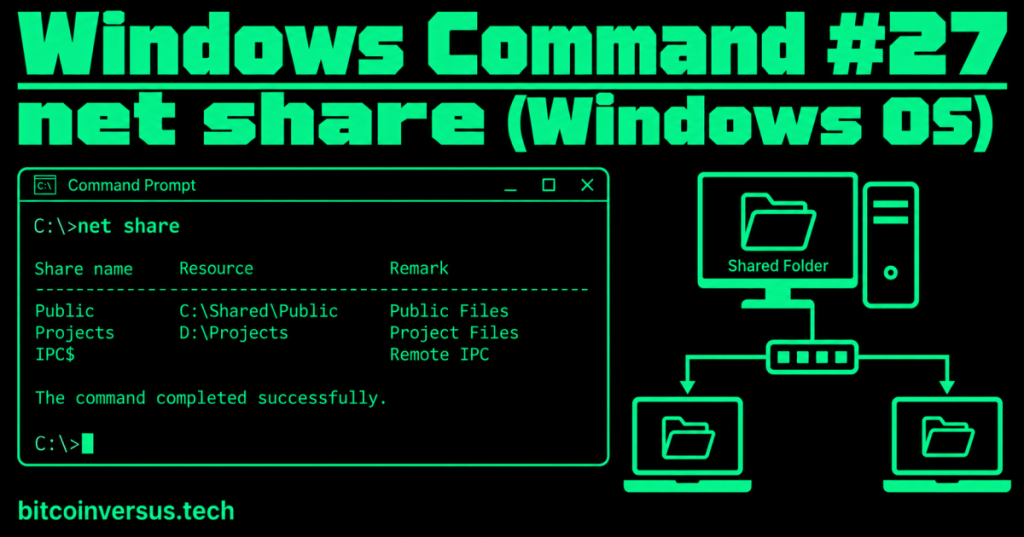
The Windows net share command shows and manages folders or other resources that your computer shares over a network.
Think of a shared folder like a team locker: the files stay on one computer, but approved people on other computers can reach that shared location over the network. net share lets you inspect that sharing from Command Prompt.
List the shares on your computer
net shareWith no additional parameters, net share displays the resources shared by the local computer. You may see ordinary folder shares plus built-in administrative shares such as IPC$.
C:\>net share

Share name   Resource
---------------------------------
Public       C:\Shared\Public
Projects     D:\Projects
IPC$
Video 1: Creating Windows network shares
Look at one specific share
net share PublicAdding the share name asks Windows for information about that particular shared resource.
Create a simple share
From an appropriately elevated Command Prompt, the basic pattern is:
net share Public=C:\Shared\PublicThis tells Windows to expose the local folder C:\Shared\Public on the network under the share name Public. The folder must already exist.
Be deliberate when creating shares. A network share can expose files to other systems, and both share permissions and the folder’s normal Windows security permissions matter.
Video 2: Windows file and folder sharing
net share vs. net use
The previous lesson, Windows Command #26 – net use, focuses on connecting your computer to a shared network resource. net share looks at the other side of that relationship: resources your local computer is making available.
net use: connect to or inspect network resources your computer is using.net share: inspect or manage resources your computer is sharing.
Stop sharing a folder
net share Public /deleteThis removes the share. It does not mean “delete all the files in the folder.” Still, read the command carefully and verify the share name before changing a real system.
Video 3: Create a Windows network shared folder
Simple workplace example
A small office keeps common documents in C:\TeamFiles. The computer hosting those files can publish the folder as TeamFiles. Other authorized computers can then connect to that network share. If someone asks, “What is this computer currently sharing?”, net share gives you a quick command-line answer.
Simple data-center example
A Windows maintenance workstation may expose a folder containing approved installers or documentation to other authorized machines. Before troubleshooting a client connection, a technician can run net share on the host to confirm that the expected share actually exists.
Common beginner mistakes
- Confusing the local folder path with the share name.
- Confusing
net sharewithnet use. - Creating a share and assuming that automatically gives every user permission to the files.
- Changing or deleting a share without first verifying which users or systems depend on it.
Practice
- Open Command Prompt.
- Run
net share. - Identify the share name and resource path columns.
- Compare the purpose of
net sharewithnet use. - Explain in one sentence why a shared folder and a normal local folder are not exactly the same thing.
Key takeaway
net share answers a simple Windows networking question: What resources is this computer sharing? It can also create, inspect, and remove shares, making it useful for basic file-sharing setup and troubleshooting.


Leave a Reply