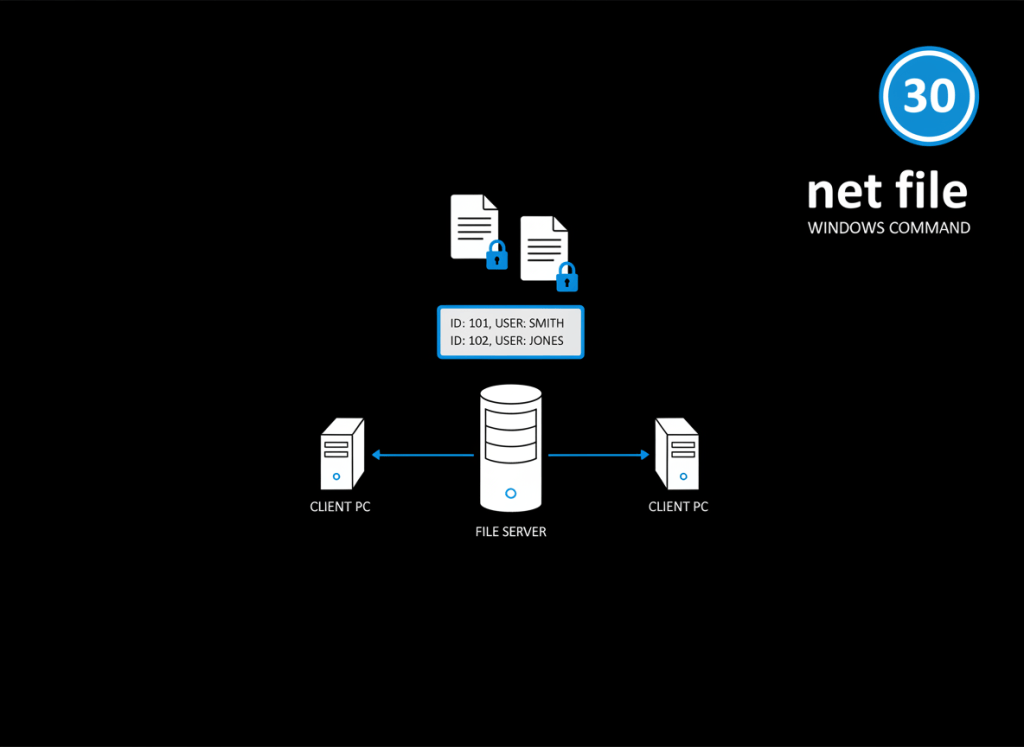
net file shows files that other computers have opened on the Windows computer where you run the command. It is a server-side view of remotely opened shared files.
This lesson follows Windows Command #29 – net session. That command answers, “Which clients have SMB sessions connected to this computer?” net file goes one level deeper and asks, “Which shared files are currently open through those connections?”
By the end: you will be able to list remotely opened files, understand file IDs and lock counts, inspect a specific entry, recognize when a file is being used over SMB, and understand why closing an open file is a maintenance action rather than a casual troubleshooting step.
Start with the basic command
net fileRun it from an elevated Command Prompt on the computer that is providing the shared files.
Client computer
      │
      │ opens \\FILE-SERVER\Practice\report.xlsx
      ▼
FILE-SERVER
      │
      ├── net session → shows the client session
      └── net file    → shows the remotely opened file
The direction matters. If LAB-PC opens a file stored on FILE-SERVER, run net file on FILE-SERVER to inspect that remote open.
Video 1: The net file command itself
What does net file list?
Microsoft’s Sysinternals documentation for PsFile describes net file as a command that shows files opened on the local system by other computers. A typical listing can include:
- File ID — a numeric identifier Windows assigns to that remote open file.
- File path — the server-side path to the opened resource.
- User name — the account associated with the open file.
- Lock count — the reported number of file locks.
The exact formatting can vary by Windows version and context. Do not treat the example below as captured output from every system.
ID     Path                         User name      # Locks
17     C:\Shares\Practice\report.xlsx   LAB\alex       1
Read it as: file ID 17 represents one remote open of report.xlsx by the listed account, with one reported lock.
Why does the file have an ID?
The ID gives Windows a concise way to refer to one open file entry.
Remote open file
      ↓
Windows assigns an open-file ID
      ↓
net file lists that ID
      ↓
Administrator can inspect or, if approved, close that specific entry
This is safer than guessing based only on a filename because multiple users or sessions may interact with similarly named files.
Inspect one file ID
If the listing shows ID 17, use:
net file 17Replace 17 with an ID from your own current listing. The ID is not a permanent identifier for the document; it represents that open-file entry.
How net file fits with the recent Windows commands
| Command | Question it answers |
|---|---|
net use | What shared resources is this client connected to? |
net share | What resources is this computer sharing? |
net view | What shared resources can be listed on another computer? |
net session | What client SMB sessions are connected to this server? |
net file | What files are remotely open on this server? |
SHARE
  ↓
SESSION
  ↓
OPEN FILE

net share
net session
net file
Video 2: View open shared files on Windows Server
A lock is not automatically a problem
A reported lock can simply mean an application is actively using the file in a way that requires coordinated access. Do not assume that every locked file is stale or broken.
Before intervening, identify:
- the file path,
- the user,
- the client session,
- whether the application is still using the file,
- whether the user has unsaved work.
A file lock is often protecting data consistency. Removing it carelessly can cause lost work or application errors.
Closing an open file changes the system
The read-only command is:
net fileClosing a file is different. The built-in syntax uses the file ID with /close:
net file 17 /closeDo not use this casually. Closing the server-side open file can interrupt the client application and can cause unsaved changes to be lost. Use it only after identifying the correct file and user, asking the user to save and close the file when possible, and following the maintenance procedure for the system.
Microsoft’s Defrag Tools networking episode demonstrates both listing open files with net file and closing a selected entry with net file NNN /close.
Reference: Microsoft Learn — Defrag Tools #129: Networking, Part 2.
SMB is the protocol context
These network-share sessions and remotely opened files normally exist in the context of SMB, the Server Message Block protocol used by Windows file sharing.
Client application
      ↓
SMB connection
      ↓
SMB session
      ↓
Shared file opened on server
      ↓
net file can list the remote open
Video 3: Understand SMB before troubleshooting shared files
Modern PowerShell companion: Get-SmbOpenFile
Modern Windows Server administration also provides the PowerShell cmdlet Get-SmbOpenFile. Microsoft’s current documentation says it retrieves information about files open on behalf of SMB clients.
Get-SmbOpenFileIt can expose richer properties such as FileId, SessionId, Path, ShareRelativePath, ClientComputerName, and ClientUserName.
Reference: Microsoft Learn — Get-SmbOpenFile.
This is a PowerShell cmdlet, not a Command Prompt command. Keep the environments distinct:
| Environment | Example |
|---|---|
| Command Prompt | net file |
| PowerShell | Get-SmbOpenFile |
net file has an important limitation
Microsoft’s PsFile documentation notes that net file can truncate long path names and is oriented around the local system. That is one reason newer administrative tools can be useful when you need richer information or remote-management capabilities.
Do not confuse the age of a command with uselessness. net file remains valuable for learning the relationship between a file server, remote clients, SMB sessions, and server-side open-file state.
Safe two-computer practice lab
Use two Windows machines or VMs that you administer. One will be the file server and one the client.
| Step | Where | Action |
|---|---|---|
| 1 | FILE-SERVER | Use an existing training share such as Practice. |
| 2 | LAB-PC | Open a document inside \\FILE-SERVER\Practice. |
| 3 | FILE-SERVER | Open Command Prompt as administrator and run net session. |
| 4 | FILE-SERVER | Run net file. |
| 5 | FILE-SERVER | Match the open-file information to the client and file you intentionally opened. |
| 6 | LAB-PC | Close the document normally. |
| 7 | FILE-SERVER | Run net file again and compare. |
The practice exercise is intentionally observational. You do not need to use /close to understand the command.
Troubleshooting without guessing
| What you see | What to check |
|---|---|
| Access denied | Confirm the Command Prompt is elevated and that your account has the required administrative rights. |
| No entries | Confirm a remote client currently has a file open from a share hosted by this computer. |
| You expected a local application file | net file is about files opened remotely through server sharing, not every file handle used by local processes. |
| The path appears shortened | Older net file output can truncate long paths. Use a modern tool such as Get-SmbOpenFile when appropriate. |
| A user reports a locked file | Identify the user, session, file, and application before considering any forced close. |
| The command reports the Server service is unavailable | Check the Server service and the computer’s intended file-sharing role. Do not enable services on managed systems without authorization. |
Check your understanding
- Where should you run
net file: on the client opening the shared file or on the server providing it? - What does a file ID identify?
- Does a reported lock automatically mean something is broken?
- What does
/closedo? - Why can
/closecause data loss? - Which modern PowerShell command provides richer SMB open-file information?
- How is
net filedifferent fromnet session?
Answers: Run net file on the server providing the share. The file ID identifies one server-side remote open-file entry. A lock is not automatically an error. /close closes the selected remote open file and removes its locks. Doing that while an application has unsaved work can interrupt the application and lose changes. Get-SmbOpenFile is the modern PowerShell companion. net session lists client sessions; net file lists remotely opened files.
What to remember
Think from broadest to most specific: share → session → open file.
net share   → what this computer shares
net session → who is connected
net file    → what remote files are open
Presentation note: Command Prompt examples use the classic console default concept of light gray (#C0C0C0) text on black. This is not presented as the default for Windows Terminal or VS Code, whose appearance depends on the selected profile and theme. Non-terminal diagrams are plain educational graphics.
BitcoinVersus.Tech
Advertisement
Editor’s Note:
We volunteer daily to ensure the credibility of the information on this platform is Verifiably True. If you would like to support our research initiatives, please donate here: 3C9o19EH5HSiwEPyCTmEKzxhNCbo2X6TTb
BitcoinVersus.tech is not a financial advisor. This media platform reports on financial subjects purely for informational purposes.


Leave a Reply