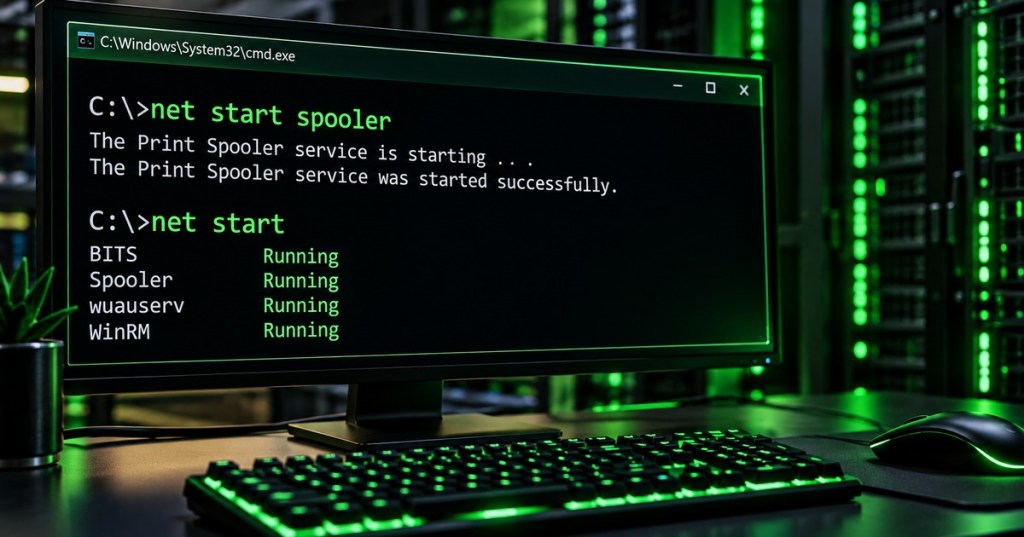
net start lists running Windows services when used by itself and starts a named service when a service name or display name is supplied. Windows Command #33 follows Windows Command #32 – net statistics and Windows Command #31 – net config. The earlier lessons inspected service configuration and counters; this lesson moves into direct service control, with emphasis on safe startup, name resolution, verification, and troubleshooting.
1. What net start does
net start
net start spooler
net start "Print Spooler"
net start— lists services that are currently running.net start SERVICE— requests that Windows start the specified service.- Quotation marks are useful when a display name contains spaces.
- The command controls Windows services; it is not the same command as the separate
startcommand that launches programs or opens a new Command Prompt window.
2. Service names, display names, and elevation
Windows services have a short service name and a human-readable display name, and command-line administration is more reliable when the exact identity is confirmed before making a change. Microsoft service documentation uses examples such as net start winmgmt, net start MSSQLSERVER, and quoted display names such as net start "SQL Server Browser". Starting protected services normally requires an elevated administrative shell, so an access-denied result should first trigger a permissions check rather than repeated retries.
3. Identify the service before starting it
sc query type= service state= all
sc query spooler
sc qc spooler
sc query type= service state= all— lists installed services and states.sc query spooler— checks the current state of one service.sc qc spooler— shows configuration such as the binary path, start type, account, and dependencies.services.msc— opens the graphical Services console when visual inspection is useful.
4. Start and verify a service
net start spooler
sc query spooler
net start "Print Spooler"
sc query spooler- Run the start request.
- Verify that the state becomes
RUNNING. - Do not assume a success message proves the application that depends on the service is healthy.
- Test the actual function that required the service, such as printing, backup, update, database, or management activity.
5. Why verification matters
A service can fail to start, start and then stop, remain blocked by a disabled startup type, or run successfully while the application above it still fails for another reason. Microsoft’s service-management guidance pairs service start operations with state inspection because service control and service health are separate questions. A technician should therefore treat net start as the requested action and sc query, logs, and functional testing as the evidence that follows.
6. Check startup type when a service refuses to start
sc qc spoolerAUTO_START— Windows normally starts the service automatically.DEMAND_START— the service can be started when required.DISABLED— the service cannot be started until its configuration is changed.
sc config ExampleService start= demand
net start ExampleService- Change a startup type only when the system or application design requires it.
- Do not enable an unfamiliar disabled service simply because a start command failed.
- Document the original state before changing production configuration.
7. Compare net start, sc start, and PowerShell
| Tool | Example | Best use |
|---|---|---|
net start | net start spooler | Simple interactive service start and running-service listing. |
sc start | sc start spooler | Service Control Manager command workflows and scripting. |
| PowerShell | Start-Service -Name spooler | Object-based administration, pipelines, automation, and richer scripting. |
Get-Service -Name spooler
Start-Service -Name spooler
Get-Service -Name spooler
8. Services console as a visual cross-check
The graphical Services console and the command line operate on the same Windows service-management layer but expose different strengths. services.msc is useful for visually checking display names, startup types, dependencies, logon accounts, and current state, while net start is faster for repeatable command-line work. The best troubleshooting workflow often uses both: inspect the service identity and configuration, perform the smallest required change, then confirm the resulting state.
9. Common failure patterns
- Access denied: reopen Command Prompt or PowerShell with the required administrative rights.
- Service does not exist: verify the short service name and display name.
- Service is disabled: inspect startup type before changing configuration.
- Service starts and stops: inspect application and system logs and determine whether the service is designed to stop when idle.
- Dependency failure: inspect
sc qc SERVICEand the Services console for dependency information. - Already running: verify current state instead of repeatedly issuing start requests.
- Application still broken: test the application layer; a running service is only one dependency.
10. Safe technician workflow
- Identify the exact service name and display name.
- Record current state with
sc query SERVICE. - Record configuration with
sc qc SERVICE. - Confirm the requested service is appropriate to start.
- Use an elevated shell if the service requires administrative control.
- Run
net start SERVICE. - Verify
RUNNINGstate withsc query SERVICE. - Test the real application or feature that depends on the service.
- Check Event Viewer or application logs if startup fails or the service immediately stops.
- Document any startup-type or dependency changes.
11. Restart pattern
net stop spooler
net start spooler
net stop spooler && net start spooler- Restart only when service interruption is acceptable.
- Understand dependencies before stopping production services.
- Capture useful evidence before a restart if the purpose is troubleshooting.
12. Practical exercise
- Use a disposable Windows VM.
- Run
net startand record several running services. - Open
services.mscand compare display names with service names. - Select a safe training service that can be stopped and started without affecting the lab.
- Run
sc query SERVICEandsc qc SERVICE. - Stop the service through the approved lab method.
- Start it with
net start SERVICE. - Verify the state with
sc query SERVICE. - Repeat the verification with
Get-Service -Name SERVICEin PowerShell. - Record the differences between NET, SC, PowerShell, and the Services console.
13. Knowledge check + answers
- What does
net startdo with no service name? It lists services that are currently running. - What does
net start SERVICEdo? It requests that Windows start the named service. - Why are quotation marks sometimes required? Display names containing spaces should be quoted.
- Which command checks the current state of one service?
sc query SERVICE. - Which command shows service configuration and startup type?
sc qc SERVICE. - Can a disabled service be started normally? No. Its startup configuration must first be changed intentionally.
- Does a RUNNING state prove the application is healthy? No. Functional testing and logs may still be required.
- What PowerShell cmdlet performs a similar start action?
Start-Service.
Useful prior lessons
- Windows Command #32 – net statistics
- Windows Command #31 – net config
- Windows Command #29 – net session
- Windows Command #30 – net file
Technical references
- Microsoft Learn — Administer a Server Core installation
- Microsoft Learn — Starting and stopping the WMI service
- Microsoft Learn — Start-Service
- Microsoft Learn — CMD and PowerShell service commands
Key takeaway
net startis simple, but safe service administration is a verify-before-and-after workflow. Identify the service, inspect its state and configuration, start only the intended service, confirm that it reachesRUNNING, and then test the real application function that depends on it.
BitcoinVersus.Tech
Advertisement
Editor’s Note:
We volunteer daily to ensure the credibility of the information on this platform is Verifiably True. If you would like to support our research initiatives, please donate here: 3C9o19EH5HSiwEPyCTmEKzxhNCbo2X6TTb
BitcoinVersus.tech is not a financial advisor. This media platform reports on financial subjects purely for informational purposes.


Leave a Reply