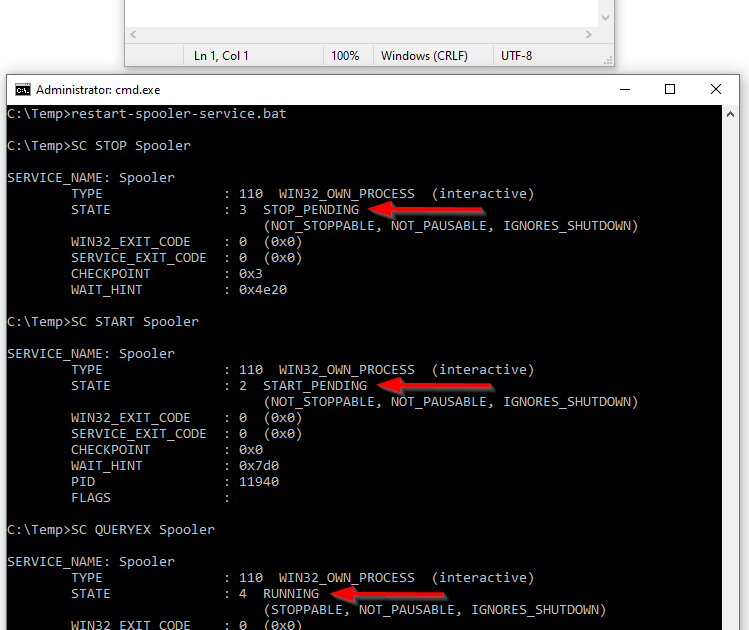
sc stop sends a stop control request to a Windows service. It is the natural follow-up to Windows Command #34 — sc query and Windows Command #35 — sc start. Use it when a service is currently running and you need to request a controlled shutdown from an elevated Command Prompt.
Use the Service Name
The basic syntax is sc stop ServiceName. Microsoft’s current SC documentation defines stop as one of the service-control commands sent through Sc.exe. The value after stop should be the service name assigned when the service was installed—not merely the friendly display name shown to users. If you are unsure, query the service first with sc query or inspect it in the Services console before sending a stop request.
sc query, sc start, and stop/start workflow.STOP_PENDING Does Not Mean the Service Is Already Stopped
After sc stop, Windows may report STATE : 3 STOP_PENDING. That means the Service Control Manager accepted the stop request, but the service is still shutting down. Do not assume the service is finished just because the prompt returned. Run sc query ServiceName again and wait for STATE : 1 STOPPED. This distinction matters during troubleshooting, scripting, updates, and service restarts because the next action may fail if the service has not completed its shutdown.
Not Every Service Can Be Stopped
Some Windows services reject stop controls because they are protected, critical, already stopping, disabled in a way that prevents the expected workflow, or have dependencies that make a stop unsafe. Microsoft’s sc stop documentation explicitly notes that not all services can be stopped. For training, use a lab VM or a harmless test service rather than stopping security, storage, networking, update, authentication, or other production-critical services simply to practice the command.
Use sc.exe in PowerShell
In classic Windows PowerShell, sc can be an alias for Set-Content. To avoid ambiguity, call the executable explicitly: sc.exe stop ServiceName. This is an important difference between Command Prompt and PowerShell. If you are writing documentation or scripts that may run from PowerShell, using sc.exe makes the intent unambiguous.
sc alias ambiguity and recommends calling sc.exe explicitly when controlling Windows services.Quick Commands
sc query ServiceName— check the current service state.sc stop ServiceName— request that a service stop from Command Prompt.sc.exe stop ServiceName— explicit executable form, especially useful in PowerShell.sc start ServiceName— start the service again after verifying it is stopped.sc queryex state= all type= service— list service states when you need to identify a service.
Safe Lab
- Use a disposable Windows lab VM or a noncritical test service.
- Open Command Prompt as Administrator.
- Run
sc query ServiceNameand confirm that the service is running. - Run
sc stop ServiceName. - Read the returned state. If it says
STOP_PENDING, wait briefly. - Run
sc query ServiceNameagain until the state isSTOPPED. - If the lab requires it, restore the service with
sc start ServiceName.
Knowledge Check + Answers
- What does
sc stopdo? It sends a stop control request to a Windows service. - What does
STOP_PENDINGmean? The service accepted the stop request but has not finished shutting down. - How do you verify that a service fully stopped? Run
sc query ServiceNameand confirmSTATE : 1 STOPPED. - Can every Windows service be stopped? No.
- Why use
sc.exein PowerShell? Becausesccan resolve to theSet-Contentalias instead of the Service Controller executable. - Should you practice by stopping random production services? No. Use a lab VM or an explicitly noncritical test service.
Prior Windows Command Lessons
Editor’s Note
The featured image directly shows the Windows SC STOP Spooler command and resulting service-state output. No unrelated generic Windows or computer photograph is used. Technical references include Microsoft’s current SC documentation and current Windows service-management documentation. Every video is distinct and directly related to Windows service control; the Reddit embed is directly about the sc/sc.exe PowerShell behavior.
Support and donation options are available through BitcoinVersus.Tech.
BitcoinVersus.Tech is not a financial advisor. Content is provided for informational and educational purposes.


Leave a Reply