
sc.exe getkeyname is a Windows command that looks up the internal service name associated with a service’s human-readable display name. Windows services are managed by the Service Control Manager (SCM), which distinguishes between a service’s stable internal name and the label shown in administrative interfaces. This is Windows Command #51, following Command #50 — sc showsid.
Internal names and display names
A service’s service name is the identifier used by many management commands, scripts and configuration records. Its display name is a descriptive label intended for people using tools such as services.msc. For example, the Windows Print Spooler commonly uses the internal name Spooler and the display name Print Spooler. These are related but not interchangeable strings.
The distinction matters when a technician receives a service name from an event message or graphical interface and needs to run sc query, sc qc or other commands that identify services by internal name. The lookup operation is read-only and does not start, stop or reconfigure the service.
Command syntax
Open Command Prompt or a compatible Windows shell and enter the command with the service’s display name in quotation marks when it contains spaces.
sc.exe getkeyname "Print Spooler"On a system with the expected service installed, the response reports the internal service name, typically Spooler. The precise text and formatting can vary by Windows version and localization. If the display name is not found, verify its spelling and confirm the service exists on that computer. A remote computer can be specified with the supported \\ComputerName target syntax when permissions, connectivity and remote service management are configured.
sc.exe \\SERVER01 getkeyname "Print Spooler"Remote queries may fail because of firewall rules, service-control access permissions, host availability or name resolution. An unsuccessful remote lookup is not proof that the target service is absent.
Using Services to confirm the result
The Services management console displays service labels and lets administrators inspect properties. The following previously published image illustrates a Windows service administration environment. It is editorial context, not a captured result of this particular command.

A technician can compare the display name in the graphical console with the internal service name returned by sc.exe getkeyname. The sc qdescription command reports a different property: the service’s description, which is not necessarily the same as its display name.
The reverse lookup
Windows also provides sc.exe getdisplayname, which takes an internal service name and returns its display name. These two commands answer opposite questions.
sc.exe getkeyname "Print Spooler"
sc.exe getdisplayname Spooler
The first resolves a user-facing label to the internal key; the second resolves the key to its user-facing label. For automation, internal service names are generally more stable than localized display names, although scripts should still verify that the expected service exists. When working in PowerShell, specify sc.exe rather than relying on the bare sc command, which can be an alias for a different command in some PowerShell environments.
Combining service discovery with diagnostics
Once the internal name is known, an administrator can inspect its current state and configuration without changing it.
sc.exe query Spooler
sc.exe qc Spooler
The query command reports service status, while qc provides configuration details such as start type and binary path. Other commands in this curriculum cover starting, stopping, configuring and deleting services. Those operations have different permissions and operational risks; getkeyname itself is a lookup.
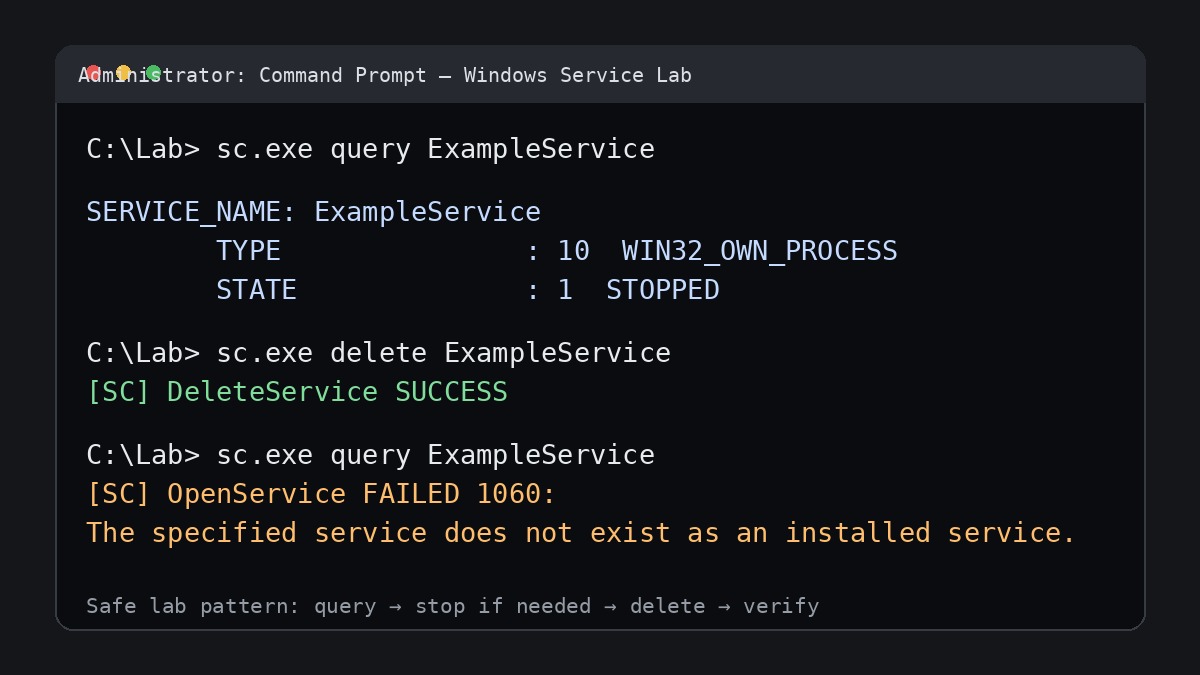
This existing image of Windows service management equipment illustrates the operational setting in which technicians may compare a service’s identity with its configuration.
Troubleshooting common lookup failures
A failed lookup can result from an incorrect display name, a service that is not installed, localization differences, an inaccessible remote computer or insufficient privileges for remote inspection. First list the relevant services using an approved local interface and confirm the exact display name. Next verify the computer target and administrative permissions. Avoid guessing a service name and immediately issuing a state-changing command; identify the service first.
When investigating why a service fails to start, correlate its verified internal name with the Windows Event Viewer logs, its dependencies and its configured executable. See Windows Services Fundamentals for broader service troubleshooting. Related service security topics include service SID types and service SIDs.
Knowledge check
What does getkeyname return? The internal service name associated with a display name. How is getdisplayname different? It performs the reverse lookup. Does either command restart a service? No; both are informational queries.
References and further reading
Consult Microsoft Learn: sc getkeyname, Microsoft Learn: sc getdisplayname and Microsoft Learn: sc query. Review the linked BitcoinVersus.Tech Windows command lessons for service inspection and management.
BitcoinVersus.Tech Editor’s Note: We volunteer daily to ensure the credibility of the information on this platform is Verifiably True. If you would like to support our work and help further secure the integrity of our research initiatives, please scan the QR code below to donate 5,000 sats (best results on a laptop or larger screen).

BitcoinVersus.tech is not a financial advisor. This media platform reports on financial subjects purely for informational purposes.


Leave a Reply