
Key Takeaways
- A Windows service is a background component managed by the Service Control Manager, and many services can run even when no user is signed in.
- Startup type, current status, dependencies, service account, and executable path are separate properties; a technician should inspect all of them before changing anything.
- The safest beginner workflow is to verify a service in
services.msc, cross-check it withsc.exeor PowerShell, and change only settings you understand and can restore.
Windows services are long-running background components that make many operating-system and application features work without requiring a user to keep an ordinary desktop program open. Printing, Windows Update, networking, security software, databases, monitoring agents, VPN software, backup tools, and many other systems rely on services.
This lesson follows OSITC.004: Windows Event Viewer Fundamentals. Event Viewer teaches you how to read evidence. Windows Services adds another essential troubleshooting question: is the required background component installed, configured correctly, and actually running?
The important beginner idea is that a service is not the same thing as a normal startup app. A startup app normally launches inside a user session. A service is managed by Windows through the Service Control Manager, or SCM, which maintains service configuration, starts services, tracks status, and sends control requests such as start and stop.
What the Service Control Manager Actually Does
The SCM starts during Windows boot. Microsoft documents it as the system component that maintains the database of installed services, starts services and driver services, tracks their status, processes control requests, and exposes management interfaces to local and remote administration tools.
That means services.msc is not itself the thing running every service. It is a graphical management console. When you click Start, Stop, or change a startup setting, the console is requesting the SCM to perform or save that action.
A useful mental model is: SCM is the engine; Services is one dashboard for the engine. PowerShell and sc.exe are other management interfaces that can query or control the same underlying service system.
Open Windows Services
The fastest graphical path is:
Win + R
services.msc
You can also search Start for Services. Merely viewing the console may not require elevation, but controlling or reconfiguring protected services normally requires administrator permissions.
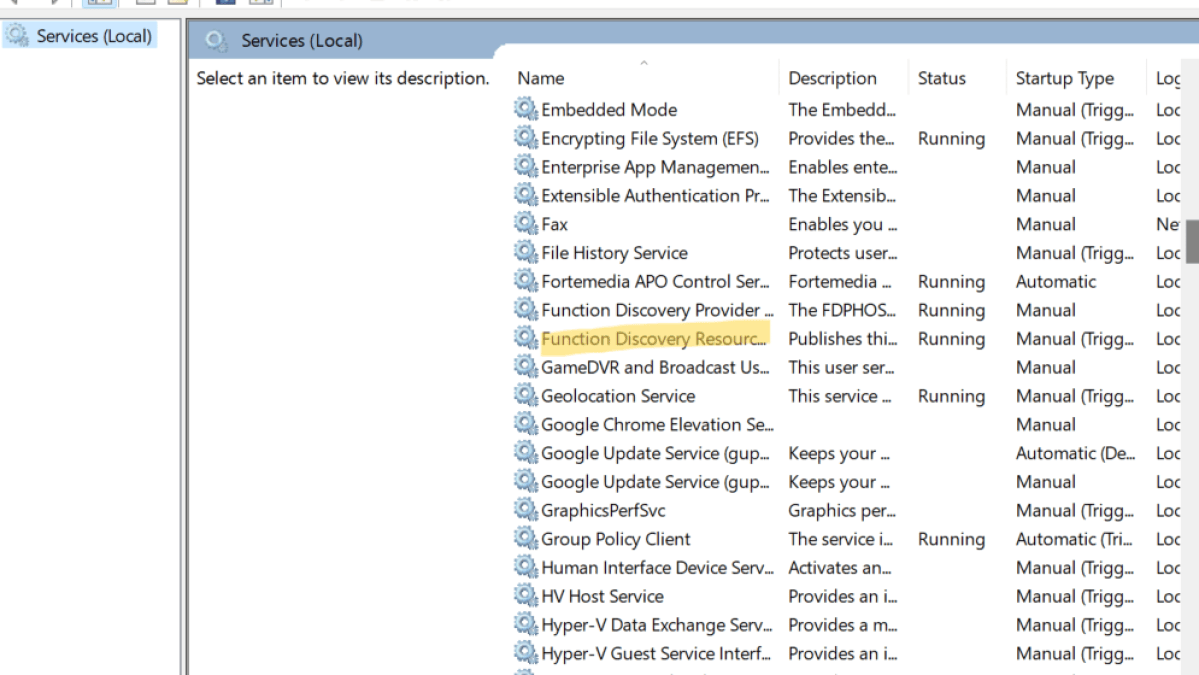
The list shows a display name, description, current status, startup type, and account information. Double-clicking a service opens its properties. Before changing anything, record the original values.
Status and Startup Type Are Not the Same Thing
Status answers what the service is doing now. A service might be Running, Stopped, Start Pending, Stop Pending, or another transitional state. Startup type answers how Windows is allowed or expected to start the service.
Microsoft’s service model includes automatic, demand/manual, and disabled behavior, plus driver-specific boot and system start types. In the Windows Services GUI, technicians commonly encounter Automatic, Automatic (Delayed Start), Manual, and Disabled. Modern Windows also supports trigger-start behavior, where a service can remain stopped until an event such as network availability or device arrival requires it.
Understand the Common Startup Types
- Automatic: Windows starts the service during system startup according to service ordering and dependency rules.
- Automatic (Delayed Start): the service is still automatic, but Windows starts it after the initial automatic-start phase to reduce competition during boot.
- Manual: the service starts only when a user, application, trigger, dependency, or management process requests it.
- Disabled: the service cannot be started until its configuration is changed.
A common beginner mistake is to assume Manual means “this service will never run unless I personally start it.” That is not necessarily true. Applications and Windows components can request a manual service, and dependencies or triggers can cause it to start when needed.
Another common mistake is disabling unfamiliar services because a website claims they are “unnecessary.” That can break networking, authentication, updates, printing, security, device features, applications, or management tools. Do not treat service disabling as a generic performance tweak.
Service Name vs. Display Name
Windows services often have two names. The display name is the friendly label shown to humans, while the service name is the short internal identifier used by many command-line tools.
For example, the friendly display name Windows Update commonly uses the internal service name wuauserv. Command-line troubleshooting becomes much easier once you learn to identify the internal name instead of guessing.
Inspect a Service With sc.exe
Microsoft’s sc.exe query command displays service status information. A simple example is:
sc.exe query wuauservYou can enumerate active services with:
sc.exe queryOr ask for active and inactive services:
sc.exe query state= allNotice the spacing in state= all. The sc.exe command has older syntax conventions that differ from modern PowerShell.
Inspect Configuration Before Changing It
Status alone does not tell you why a service behaves the way it does. Use sc.exe qc to inspect configuration:
sc.exe qc wuauservThe output can show details such as service type, start type, executable path, dependencies, account, and error-control configuration. Microsoft’s service database includes exactly these kinds of properties, including startup behavior, executable path, dependency information, and service account.
If you later learn service configuration commands, BitcoinVersus.Tech’s Windows Command #37 — sc config is a useful companion. For this fundamentals lesson, however, the priority is query first, change second.
Use PowerShell for a Cleaner View
PowerShell provides service-management cmdlets that are easier to filter and script. Start with:
Get-ServiceQuery a specific service by its internal name:
Get-Service -Name wuauservFind stopped services:
Get-Service | Where-Object Status -eq 'Stopped'This does not mean every stopped service is broken. Many services are designed to remain stopped until required. The command is a filter, not a diagnosis.
Dependencies Explain Why One Service Can Affect Another
A service can depend on another service or load-order group. Microsoft documents dependencies as part of the service database because the SCM may need to start required components before the target service can function.
PowerShell can show required services:
Get-Service -Name Spooler -RequiredServicesIt can also show services that depend on the target:
Get-Service -Name Spooler -DependentServicesThis is why stopping or disabling a service can have consequences beyond that one row in the Services console. Dependencies should be checked before major changes.
A Safe Service Troubleshooting Workflow
- Start with the user or system symptom.
- Identify the application or Windows feature involved.
- Open
services.mscand find the likely service. - Record its service name, status, startup type, account, and dependencies.
- Cross-check status with
sc.exe queryorGet-Service. - Check Event Viewer around the time of failure for Service Control Manager or application errors.
- Verify dependencies before restarting or changing configuration.
- Make the smallest justified change.
- Retest the original symptom.
- Restore the original configuration if the change did not help.
This combines the troubleshooting method from OSITC.003: Windows Process Troubleshooting with the evidence-gathering habits from OSITC.004. The goal is not to randomly restart services until the problem disappears. The goal is to understand which component failed and why.
Example: The Print Spooler Is Stopped
Suppose a user cannot print. Instead of immediately reinstalling the printer, check whether the Print Spooler service is running.
Get-Service -Name SpoolerIf it is stopped, inspect the service in services.msc, note its startup configuration, check dependencies, and examine Event Viewer for events around the time printing stopped. Only then decide whether restarting the service is an appropriate next step.
The same method applies to many real support cases: VPN service stopped, backup agent failed, database service unavailable, monitoring service missing, or an application reporting that a required background service is unavailable.
Services and Event Viewer Work Together
If a service refuses to start, Windows often records useful information in the System or Application logs. The Service Control Manager provider can record service start failures, timeouts, installation events, or configuration-related problems.
That means “the service is stopped” is only the beginning of the investigation. The next question is often “what happened immediately before or during the failed start?” OSITC.004’s timeline method applies directly.
Common Beginner Mistakes
- Disabling services to make Windows faster: this can break features and often produces little benefit.
- Assuming every stopped service is broken: many services are demand-start or trigger-start by design.
- Confusing display name with service name: command-line tools frequently expect the internal service name.
- Changing startup type before recording the original value: always preserve a rollback path.
- Ignoring dependencies: one service may require another or may support several dependent services.
- Restarting repeatedly without reading logs: this can hide the timeline instead of explaining the failure.
- Editing service registry entries directly: Microsoft recommends using the SCM interfaces rather than directly modifying the service database.
Practical Exercise
- Open
services.msc. - Choose one familiar Windows service but do not change it.
- Record its display name, service name, status, startup type, and Log On account.
- Open Command Prompt or Terminal and run
sc.exe query <servicename>. - Run
sc.exe qc <servicename>and compare the configuration with the GUI. - Open PowerShell and run
Get-Service -Name <servicename>. - Check whether it has required services or dependent services.
- Open Event Viewer and look for recent Service Control Manager entries without clearing or modifying the log.
- Write down what each tool told you that the others did not.
Knowledge Check + Answers
- What manages Windows services? The Service Control Manager.
- What does
services.mscprovide? A graphical management console for viewing and controlling services. - Is startup type the same as current status? No. Startup type describes how a service may start; status describes what it is doing now.
- Does Manual always mean the user must manually start the service? No. Applications, triggers, dependencies, or management tools can request it.
- What does Disabled mean? The service cannot start until its configuration is changed.
- Why should dependencies be checked? Stopping or disabling one service can affect services that require it.
- What command queries a service with
sc.exe?sc.exe query <servicename>. - What PowerShell cmdlet lists services?
Get-Service. - Why should you record the original configuration? So you can restore it if a troubleshooting change does not solve the problem.
- What is the core troubleshooting habit? Observe, verify, change the smallest justified thing, and retest the original symptom.
Prior IT Fundamentals Lessons
- OSITC.001: IT Systems Fundamentals
- OSITC.002: Storage and File Systems
- OSITC.003: Windows Process Troubleshooting
- OSITC.004: Windows Event Viewer Fundamentals
Primary References
- Microsoft Learn — Service Control Manager
- Microsoft Learn — About Services
- Microsoft Learn — Database of Installed Services
- Microsoft Learn — sc.exe query
- Microsoft Learn — Set-Service
Elementary Review
A Windows service is a background component controlled by the Service Control Manager. Use services.msc to inspect it visually, sc.exe or PowerShell to verify it from the command line, and Event Viewer to understand failures. Do not disable unfamiliar services simply because they are stopped or because a tuning guide says to. Learn the service’s purpose, startup behavior, dependencies, and original configuration first.
Editor’s Note
The featured image is a separate 1200×630 lesson cover and is not reused inside the lesson. The body uses a dedicated Windows Services console image. The YouTube video uses a native responsive Gutenberg YouTube block with the canonical watch URL, and the Reddit discussion is separated from it by substantive lesson content. Standard Gutenberg headings, paragraphs, lists, code, image, and embed blocks are used throughout; no normal lesson text is placed inside bordered, shaded, card-style, callout, panel, or fixed-width text boxes.
BitcoinVersus.Tech content is provided for informational and educational purposes.


Leave a Reply