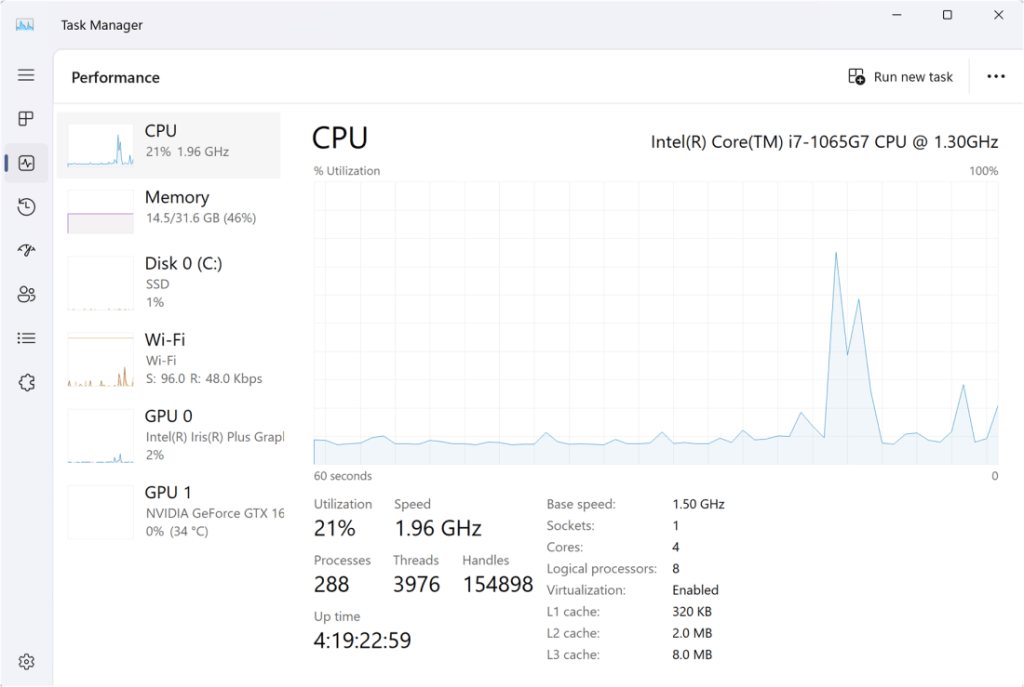
Windows process troubleshooting starts by identifying exactly which process is using resources or failing—not by randomly ending tasks. In this lesson, you will use processes, Task Manager, process IDs (PIDs), CPU and memory usage, and Microsoft Sysinternals Process Explorer to isolate a problem safely.
Start With the Symptom and Sort by the Resource
Open Task Manager with Ctrl+Shift+Esc. If the computer is slow, first ask which resource is under pressure: CPU, memory, disk, network, or GPU. Microsoft’s Task Manager troubleshooting guide describes Task Manager as the built-in Windows tool for monitoring application/process performance and resource use. On the Processes tab, click the CPU, Memory, Disk, or Network column to bring the heaviest current users to the top.
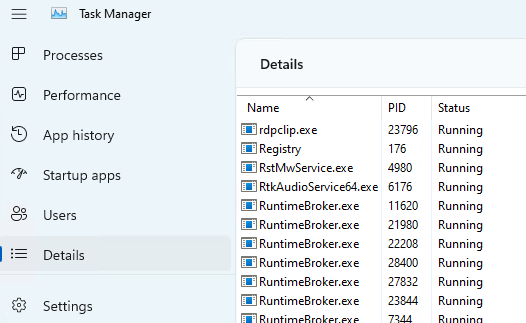
Use the PID to Identify the Exact Process
A process ID, or PID, is the numeric identifier Windows assigns to a running process. Two processes can have similar names, and several copies of the same executable may run at once, so the PID lets you correlate the exact instance across Task Manager, command-line tools, logs, debuggers, and monitoring utilities. Microsoft’s PID guide shows how to find a PID in Task Manager, with tasklist, or with PowerShell Get-Process.
tasklist, process names, PIDs, and how Windows process IDs are used from the command line.Do Not End a Process Until You Know What It Is
A process using high CPU is not automatically broken. It may be compiling code, scanning files, installing an update, compressing data, rendering video, or performing legitimate background work. Before using End task, note the process name, PID, user account, resource pattern, and whether the application is responding. Ending a process can discard unsaved work or interrupt a dependent service. If termination is truly required, the older taskkill lesson covers the command-line method.
Escalate to Process Explorer When Task Manager Is Not Enough
Process Explorer from Microsoft Sysinternals gives deeper visibility than Task Manager. It shows the process tree, owning account, open handles, loaded DLLs and memory-mapped files, and can search for which process has a particular file or object open. Use it when you need to understand parent/child relationships, identify a process holding a file open, investigate handle leaks, or inspect what a suspicious or misbehaving process has loaded.
Use a Repeatable Troubleshooting Flow
Use the same sequence every time: reproduce the symptom → open Task Manager → sort by the affected resource → record process name and PID → check the user and application context → verify whether the load is expected → use Process Explorer if deeper inspection is needed → only then restart or end the process if justified. This prevents the common help-desk mistake of killing the first process with a high number without understanding why it is active.
Exercise
- Open Task Manager with
Ctrl+Shift+Esc. - Sort the Processes tab by CPU, then by Memory.
- Select one normal user application and note its process name.
- Open the Details tab and record its PID.
- Run
tasklist /fi "PID eq PID_NUMBER", replacingPID_NUMBERwith the PID you recorded. - Open Process Explorer and locate the same process.
- Compare the process name, PID, parent process, CPU usage, and memory usage.
- Do not terminate the process unless you intentionally chose a disposable test application.
Knowledge Check + Answers
- What is a PID? A numeric identifier Windows assigns to a running process instance.
- Why sort Task Manager by CPU or Memory? To quickly identify which processes are currently consuming the resource associated with the symptom.
- Does high CPU automatically mean a process is broken? No. High usage can be legitimate work.
- What should you record before ending a process? At minimum, its name, PID, user/context, resource usage, and whether the workload is expected.
- What does Process Explorer add? Deeper process-tree, handle, DLL, ownership, and object-search information.
- What is the safe troubleshooting order? Observe, identify, correlate, verify, inspect deeper if needed, then take action.
Prior IT Lessons
- OSITC.001: IT Systems Fundamentals
- OSITC.002: Storage and File Systems
- Command #7 —
tasklist - Command #11 —
taskkill
Editor’s Note
Images are official Microsoft Task Manager screenshots that directly show the exact process/PID and CPU-performance views taught in this lesson. They are used at their authentic source proportions rather than stretched or replaced with unrelated stock photography merely to satisfy a size target. Technical references are Microsoft Learn and Microsoft Sysinternals. Every YouTube embed is distinct and directly relevant to Task Manager, PIDs, process termination, or Process Explorer; the Reddit embed is directly about Windows process/CPU troubleshooting tools.
Support and donation options are available through BitcoinVersus.Tech.
BitcoinVersus.Tech is not a financial advisor. Content is provided for informational and educational purposes.


Leave a Reply