Elementary Overview
A computer needs more than a CPU and memory. It also needs persistent storage for the operating system, applications, configuration, logs, and user files. OSITC.001 introduced hardware, operating systems, networks, and troubleshooting; this lesson follows the storage path from the physical drive to the files an operating system can actually use.
HDDs And SSDs Store Data Differently
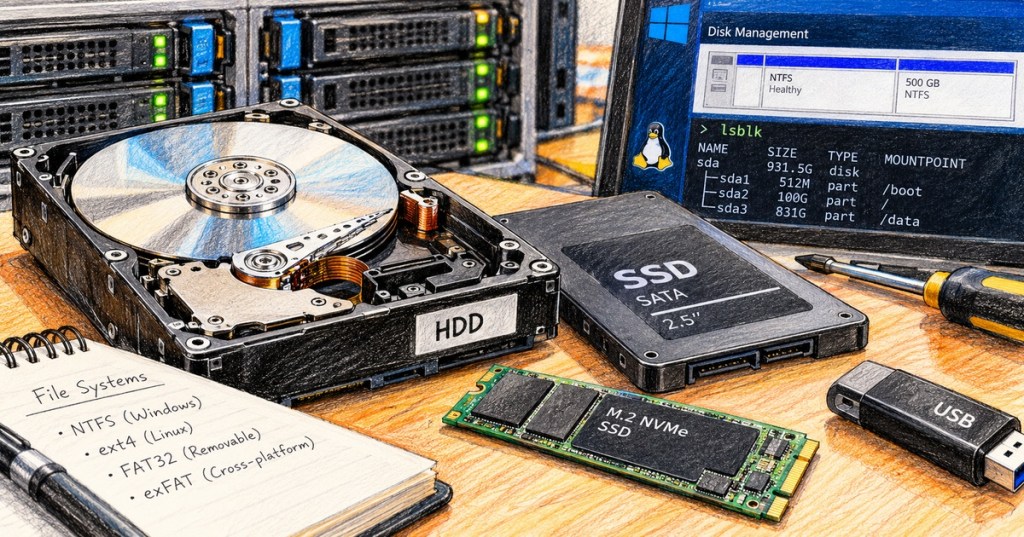
A hard disk drive stores bits magnetically on rotating platters and moves read/write heads across their surfaces. A solid-state drive has no spinning platter; it stores data in NAND flash and uses a controller to map logical addresses to physical flash cells. Our SSD anatomy guide explains the NAND, controller, and DRAM-cache roles in more detail. The operating system ultimately sees addressable storage rather than having to understand every physical operation inside the drive.
Interfaces Connect Storage To The Computer
Storage devices need an electrical and logical path to the system. SATA is common for 2.5-inch SSDs and hard drives, while NVMe SSDs commonly communicate over PCI Express. A device driver helps the operating system communicate with hardware controllers, while drive firmware manages device-specific behavior below that software layer. The interface can strongly affect maximum throughput and latency even when two devices have similar capacities.
A Physical Disk Can Be Divided Into Partitions
A partition is a defined region of a storage device. Partition tables describe where those regions begin and end so software can treat one physical disk as one or more logical areas. Modern systems commonly use GPT, while older systems often used MBR. Partitioning is not the same thing as formatting: partitioning defines the region; formatting creates a file system inside a usable region.
File Systems Organize Files And Metadata
A file system defines how files, directories, names, timestamps, permissions, allocation information, and other metadata are represented on storage. Windows commonly uses NTFS for system volumes, while Linux installations commonly use file systems such as ext4. Different file systems make different design choices, but all solve the basic problem of turning raw addressable storage into organized data that applications and users can navigate.
Formatting Creates The File-System Structures
Formatting prepares a partition or volume with a selected file system. That operation creates the structures the file system needs to track files and free space. Because formatting can destroy or replace existing file-system metadata, an IT technician should verify the target disk, partition, backups, and intended file system before running destructive storage commands. “Wrong disk” is one of the simplest ways to turn a routine task into a data-loss incident.
Windows Uses Drive Letters And Mount Points
On Windows, a volume is often exposed through a drive letter such as C: or D:, although Windows can also mount volumes into folders. Disk Management provides a graphical view of disks, partitions, and volumes, while command-line and PowerShell tools can expose the same storage stack for automation and diagnostics. The Windows Server guide provides broader administrative context for managing Windows systems.
Linux Mounts File Systems Into One Directory Tree
Linux normally exposes storage by mounting a file system at a directory called a mount point. Instead of assigning every volume a new drive letter, another file system can appear at locations such as /home, /mnt/data, or /srv. This fits the larger Linux directory hierarchy, where system libraries, configuration, logs, devices, and user data occupy defined parts of one tree; for example, our /lib directory lesson covers one portion of that hierarchy.
Basic Linux Storage Inspection Commands
Three useful Linux inspection tools are lsblk, df, and mount. lsblk shows block devices and their relationships, df -h reports file-system space in human-readable units, and mount can display mounted file systems. A technician should inspect first and modify second, especially on systems containing production data.
lsblk
lsblk -f
df -h
mountCapacity And Free Space Are Different
A drive may have a physical capacity of 2 TB while a particular file system exposes less usable space because of partition boundaries, formatting overhead, reserved space, recovery partitions, or other storage structures. Free space is the unused capacity currently available inside a mounted file system or volume. Always identify whether a number describes the physical device, a partition, a logical volume, or a file system before comparing storage figures.
RAID Is Not A File System
RAID combines multiple storage devices using techniques such as striping, mirroring, or parity. A RAID virtual disk can then be partitioned and formatted with a file system, so RAID and the file system occupy different layers. RAID can improve performance or tolerate some device failures depending on the level, but it is not a substitute for a separate backup.
Troubleshoot Storage From The Bottom Up
A useful storage troubleshooting sequence is physical device → firmware/interface → operating-system detection → partition or volume → file system → mount or drive letter → application. If the system cannot see the physical device, repairing permissions inside the file system is premature. If the disk is visible but the file system is damaged, replacing an Ethernet cable will not help. Our dedicated storage-drive and RAID troubleshooting guide expands this diagnostic approach.
Practical Command Set
lsblk— list Linux block devices.lsblk -f— include file-system and UUID information.df -h— display mounted file-system usage.mount— display mounted file systems.Get-Disk— list disks in Windows PowerShell.Get-Partition— inspect Windows partitions.Get-Volume— inspect Windows volumes and file systems.
Exercises
- Identify whether your lab computer uses an HDD, SATA SSD, or NVMe SSD.
- On Linux, run
lsblk -fand identify the physical device, partition, file-system type, and mount point without changing anything. - On Windows, run
Get-Disk,Get-Partition, andGet-Volumein PowerShell and map one physical disk to its volume. - Explain the difference between partitioning and formatting.
- Explain the difference between physical capacity and free file-system space.
- Draw the path: physical drive → interface/controller → partition → file system → mount point or drive letter → file.
Knowledge Check + Answers
- What is a partition? A defined region of a storage device described by a partition table.
- What does a file system do? It organizes files, directories, allocation information, and metadata on storage.
- Is RAID a file system? No. RAID combines storage devices at another layer; a file system can be created on the resulting logical storage.
- What does
lsblkshow? Linux block devices and their relationships. - What does
df -hshow? Human-readable space usage for mounted file systems. - What is a Linux mount point? A directory where a file system is attached to the directory tree.
- Why inspect before formatting? Formatting the wrong target can destroy or replace existing file-system data.
Elementary Conclusion
The easiest storage model is a stack. The HDD or SSD stores bits; SATA, NVMe, PCIe, controllers, firmware, and drivers connect the device to the operating system; partitions divide address space; file systems organize data; and a mount point or drive letter exposes that data to applications and users. When troubleshooting, move through those layers in order instead of guessing. That simple model scales from a laptop SSD to storage inside a rack-mounted server.
BitcoinVersus.Tech
Advertisement
Editor’s Note:
We volunteer daily to ensure the credibility of the information on this platform is Verifiably True. If you would like to support our research initiatives, please donate here: 3C9o19EH5HSiwEPyCTmEKzxhNCbo2X6TTb
BitcoinVersus.tech is not a financial advisor. Content is provided for informational purposes.


Leave a Reply