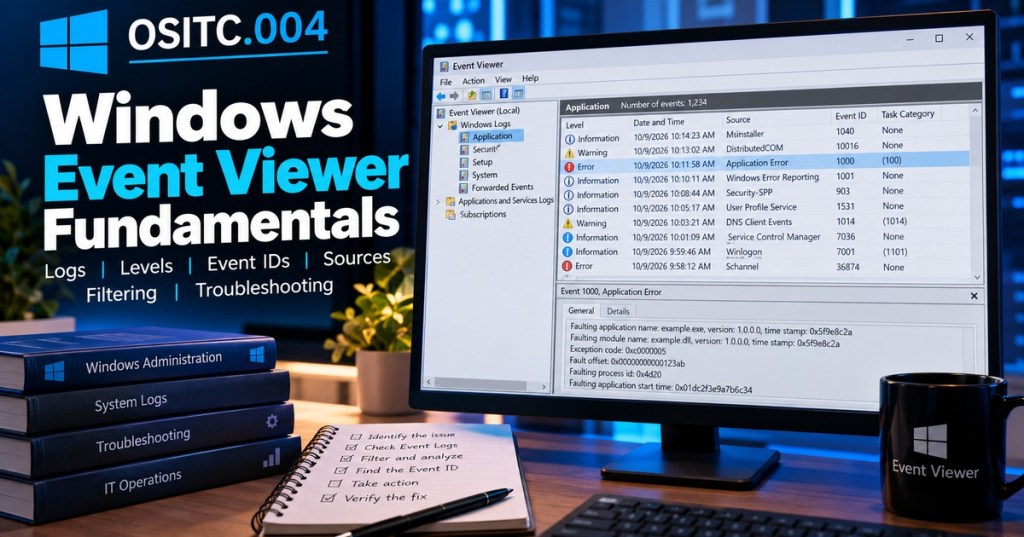
Windows Event Viewer is the built-in place to read many of the records Windows and its applications write about what happened on a computer. In beginner IT work, the goal is not to memorize thousands of Event IDs. The goal is to start with a symptom and time window, open the correct log, narrow the noise, identify the event source and ID, read the details, and correlate the entry with what the user or system was doing.
This lesson builds directly on OSITC.001: IT Systems Fundamentals, OSITC.002: Storage and File Systems, and OSITC.003: Windows Process Troubleshooting. Event Viewer adds another evidence source to the same troubleshooting habit: observe → narrow → verify → act.
What You Should Learn
- What Event Viewer is and when an IT technician should use it.
- The difference between the Application, Security, Setup, System, and Forwarded Events logs.
- What Critical, Error, Warning, Information, and Verbose levels mean.
- Why an Event ID must be read together with its provider/source and context.
- How to filter by time, level, provider, and Event ID.
- How to use a simple PowerShell
Get-WinEventquery as a second view of the same evidence. - How to correlate events with a user-reported symptom instead of treating every warning as a failure.
Open Event Viewer
The quickest GUI path is to press Win+R, type eventvwr.msc, and press Enter. You can also search Start for Event Viewer. Microsoft’s Event Viewer overview identifies the Application, Security, and System logs as core Windows logs and notes that component-specific logging also appears under Applications and Services Logs.
eventvwr.mscKnow Which Log to Open First
- Application: events written by applications and application components.
- Security: audit events defined by Windows security and audit policy.
- Setup: events related to Windows setup and servicing activity.
- System: operating-system components, drivers, services, hardware-related conditions, startup, shutdown, and other system activity.
- Forwarded Events: events collected from other computers when Windows Event Forwarding is configured.
- Applications and Services Logs: more specific logs for Windows components and applications.
Do not search every log at once unless you have a reason. Start with the symptom. An application crash usually points you toward Application. A driver, service, reboot, or hardware-related symptom often starts in System. Authentication and audit questions often start in Security. Component-specific failures may have a dedicated log under Applications and Services Logs.
Understand Event Levels Without Panicking
- Critical: a serious condition requiring attention, often associated with major failure or loss of normal operation.
- Error: a significant problem occurred, but the system or application may continue operating.
- Warning: something unusual happened or may become a problem, but it is not automatically a failure.
- Information: normal operational activity, state changes, startup messages, or successful operations.
- Verbose: detailed diagnostic information when a provider exposes that level.
A healthy Windows machine can contain warnings and errors. The useful question is not “Does Event Viewer contain red icons?” The useful question is “Which events match the time, component, and symptom I am investigating?” This is why random Event Viewer screenshots without a timeline rarely prove a root cause.
Event ID + Source + Time + Message
An Event ID is an identifier assigned by the event provider. It is useful, but the number by itself is not enough. Microsoft explicitly warns in its unexpected-reboot troubleshooting guide that Event ID numbers can be associated with different sources. A technician should record at least the log name, timestamp, level, provider/source, Event ID, and the message.
Log: System
Time: 2026-10-09 14:31:08
Level: Critical
Source: Microsoft-Windows-Kernel-Power
Event ID: 41
Message: ...
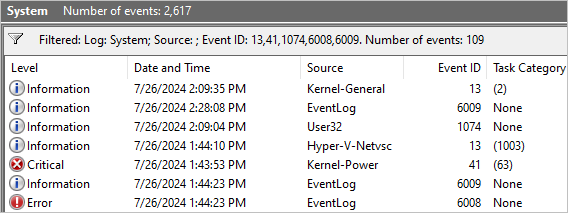
For example, Kernel-Power Event ID 41 means Windows detected that the computer restarted without a clean shutdown. It does not by itself prove a bad power supply. The underlying cause could be power loss, a crash, a freeze followed by reset, or another interruption. The event is evidence of the shutdown state, not a complete diagnosis.
Filter the Log Around the Symptom
In Event Viewer, select a log and choose Filter Current Log. A beginner-friendly filter starts with a narrow time window and the event levels most likely to matter. If you already know the provider or Event ID, add those too. Filtering reduces thousands of unrelated entries to a manageable timeline.
- Ask when the problem happened.
- Open the most relevant log.
- Filter to a few minutes before and after the reported time.
- Start with Critical, Error, and Warning if the symptom is a failure.
- Look for providers that match the affected component.
- Read the full General and Details information for promising events.
- Compare neighboring events to build a sequence.
Get-WinEvent -FilterHashtable against the Windows Security log to retrieve account-lockout events—directly reinforcing this lesson’s event-log filtering workflow.Cross-Check with PowerShell
The GUI is excellent for learning, but the same event data can be queried from PowerShell. Get-WinEvent is useful when you want repeatable filters, scripting, remote administration, or cleaner output. Microsoft recommends building -FilterHashtable queries one key at a time so you can verify each part of the filter.
Get-WinEvent -LogName System -MaxEvents 20That command returns the newest twenty events from the System log. A more focused example is:
Get-WinEvent -FilterHashtable @{
    LogName = 'System'
    Id      = 41,1074,6008
} | Select-Object TimeCreated, Id, ProviderName, LevelDisplayName, Message
This example looks for several reboot-related IDs in the System log and returns the timestamp, ID, provider, level, and message—the same fields you should correlate in the GUI. See Microsoft’s Get-WinEvent FilterHashtable guide for the query model.
Build a Timeline, Not a Collection of Red Icons
Suppose a user says, “The PC restarted at about 2:44 PM.” The useful workflow is to inspect System events around 2:40–2:48 PM, identify shutdown/restart evidence, and then look immediately before it for driver, update, bug-check, service, disk, thermal, or other relevant activity. Microsoft’s reboot guide demonstrates this exact timeline approach with events such as Kernel-Power 41, User32 1074, EventLog 6008/6009, and Windows Error Reporting 1001.
The strongest conclusion you can make depends on the evidence. “Event ID 41 exists” is weak. “At 14:43:58 a bug check was recorded, followed by an unclean restart and Event ID 41 at 14:44:23” is much stronger because the sequence connects related evidence.
Common Beginner Mistakes
- Assuming every Error is the root cause: some errors are consequences of another failure.
- Ignoring timestamps: an event from last week does not explain today’s five-minute outage.
- Searching only by Event ID: always include the provider/source and log.
- Clearing logs during troubleshooting: that destroys evidence and should not be a default “fix.”
- Changing settings before collecting evidence: record the original state first.
- Reading thousands of events manually: use filters based on the symptom.
- Ending the investigation at Event Viewer: logs can point toward the next tool—Task Manager, Process Explorer, Device Manager, Reliability Monitor, networking tools, storage diagnostics, or application logs.
Practical Exercise
- Open Event Viewer with
eventvwr.msc. - Open Windows Logs → System.
- Find one recent Information event and record its timestamp, source, Event ID, and message.
- Use Filter Current Log to show only Critical, Error, and Warning events from the last 24 hours.
- Select one event and identify its provider/source before searching the Event ID.
- Open PowerShell and run
Get-WinEvent -LogName System -MaxEvents 20. - Find one event that appears in both PowerShell and Event Viewer and confirm the timestamp, ID, and provider match.
- Remove the filter when finished. Do not clear the log.
Knowledge Check + Answers
- What is Event Viewer? A Windows management console for viewing event logs written by Windows components and applications.
- Which log commonly contains driver, service, startup, shutdown, and system-component events? The System log.
- Does a red Error icon automatically identify the root cause? No. It must match the symptom, time, provider, and surrounding evidence.
- Why is an Event ID alone insufficient? The same numeric ID can be used by different providers, so the source/provider and log context matter.
- What should you filter first? The time window and the log most closely related to the symptom; then add level, provider, or Event ID as needed.
- What PowerShell command reads Windows event logs?
Get-WinEvent. - What does Kernel-Power Event ID 41 prove? That Windows detected a restart without a clean shutdown; it does not by itself prove the underlying cause.
- What is the core troubleshooting habit? Start with the symptom, narrow the evidence, correlate a timeline, and make the smallest justified next action.
Prior IT Lessons
- OSITC.001: IT Systems Fundamentals
- OSITC.002: Storage and File Systems
- OSITC.003: Windows Process Troubleshooting
Primary References
- Microsoft Learn — Event Viewer
- Microsoft Learn — Troubleshoot unexpected reboots using system event logs
- Microsoft Learn — Creating Get-WinEvent queries with FilterHashtable
Elementary Review
Event Viewer is a timeline of evidence, not a magic error detector. Start with the user’s symptom and the time it happened. Open the most relevant log, filter the noise, read the source and Event ID together, compare neighboring events, and only then decide what tool or repair step comes next.
Editor’s Note
The featured image is an original 1200×630 BitcoinVersus.Tech lesson cover created specifically for OSITC.004 and is not reused in the body. The body uses a separate Microsoft Learn Event Viewer screenshot. The YouTube section uses a native responsive Gutenberg 16:9 YouTube embed block with the canonical watch URL. The lesson otherwise uses standard Gutenberg paragraphs, headings, lists, code, image, and social-embed blocks only; ordinary lesson prose is never placed inside bordered, shaded, card, callout, panel, or fixed-width text boxes.
BitcoinVersus.Tech content is provided for informational and educational purposes.


Leave a Reply