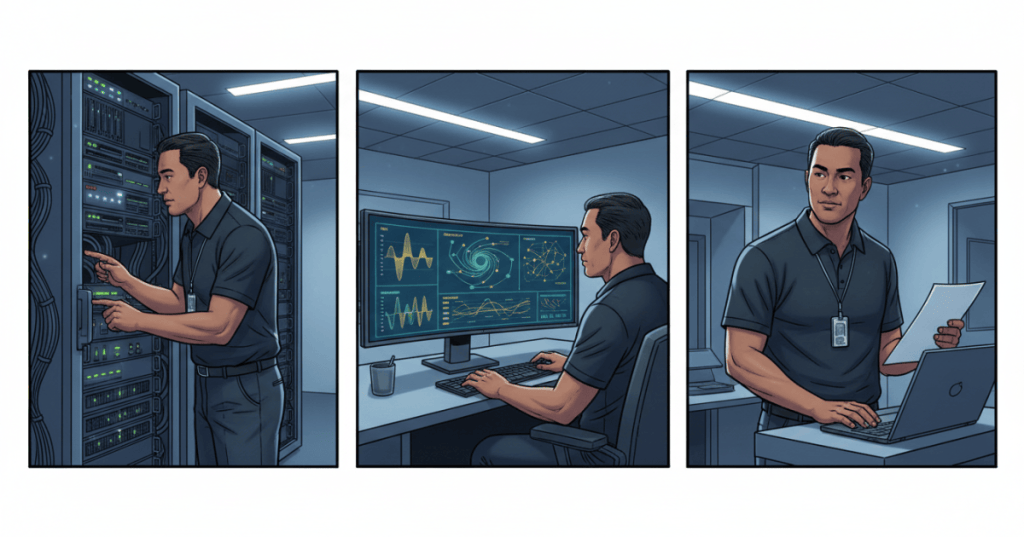
Windows Performance Monitor (PerfMon) is an operating-system tool for collecting numerical performance counters and viewing them as live or recorded time series. Rather than simply asking “is the computer slow right now?”, PerfMon lets an IT technician measure how CPU, memory, storage and networking conditions change over seconds, minutes or hours. Data Collector Sets preserve measurements for later comparison, turning an intermittent complaint into time-stamped evidence.
This lesson advances OSITC.011: Windows Resource Monitor. Resource Monitor helps explore active processes and resource pressure; Performance Monitor emphasizes counter definitions, baselines, historical recordings and trend analysis. Windows Reliability Monitor instead emphasizes dated failures and reliability history. The tools complement rather than replace each other.
Learning objectives
- Define performance counter, counter object, instance, sample, baseline, interval, Data Collector Set and binary log.
- Open PerfMon and distinguish live counter graphs from stored BLG recordings.
- Choose counters for CPU, available memory, disk latency, network throughput and process activity.
- Capture and stop a bounded performance log safely with the GUI or
logman. - Compare measurements with a baseline without treating a single threshold as a universal fault.
- Document a reproducible troubleshooting conclusion and preserve evidence appropriately.
Architecture of a performance counter
A provider is a Windows component, service, driver or application that publishes measurable state. A counterset/object groups related measurements, such as Memory, Processor or PhysicalDisk. An instance identifies one entity within a multi-instance object, such as a particular network adapter or disk. A counter identifies the property measured, and a sample records the measured value with a timestamp. Microsoft’s performance-counter architecture documentation distinguishes providers from consumers such as PerfMon and TypePerf.
A typical path looks like \Processor(_Total)\% Processor Time. The Processor object includes the _Total instance, while % Processor Time is the counter. Instances available on one PC might not appear on another. Counter names can differ by Windows language, installed roles and device drivers. Always enumerate the real target system before assuming a path exists.
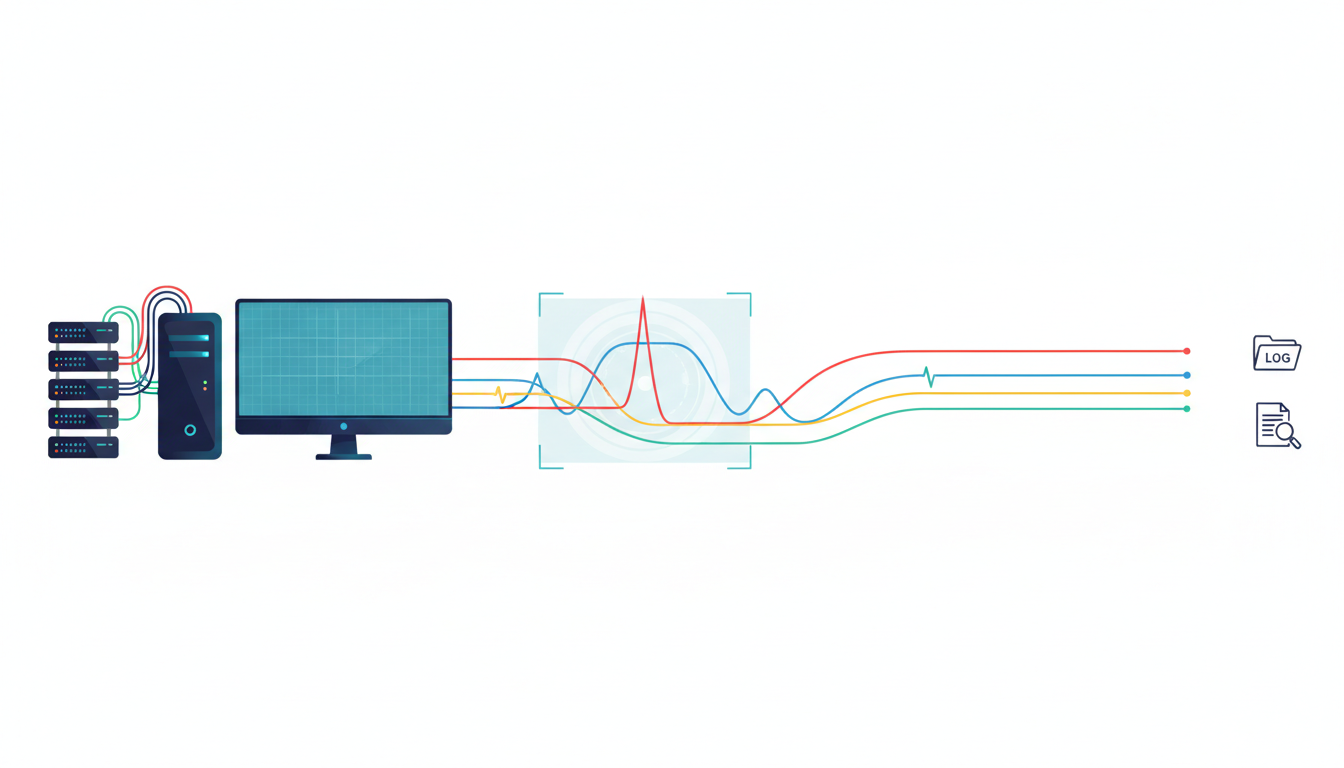
What a baseline means
A performance baseline is a set of observations captured when a computer is behaving acceptably under a known workload. A baseline is more useful than an unsupported universal number. For example, a video-editing workstation can legitimately consume most of its CPU while rendering, whereas an ordinary office workstation may use little CPU at idle. Compare the same application, workload, hardware state and sample interval whenever possible.
A good record states the device and operating-system version, collection times and timezone, local or remote source, workload being run, hardware changes and visible symptoms. Add the number of sample points, log path and any monitoring limitations. A sample interval is a tradeoff: brief spikes may require seconds-level capture, whereas a multiday baseline may justify a longer interval and bounded storage.
Launching Windows Performance Monitor
- Open Windows + R, enter
perfmon.exe, and press Enter. On compatible Windows versions, the console opens Microsoft Management Console with Performance Monitor, Data Collector Sets and Reports. - Select Monitoring Tools → Performance Monitor to inspect a live counter graph.
- Choose the + control to add counters, first from the local computer. Start with a small, relevant group instead of hundreds of counters.
- Select an object and an appropriate instance. Observe the actual legend, scale and unit—an auto-scaled chart line is not itself a numerical performance finding.
- For a historical capture, open Data Collector Sets → User Defined, create a named counter Data Collector Set, select counters and a sample interval, and choose a safe output folder.
- Run the collection only as long as needed, stop it deliberately, and inspect the resulting file through Reports or PerfMon’s log-source view.
Microsoft’s Performance Monitor troubleshooting guide describes live counter graphs, User Defined Data Collector Sets and Reports. Remote collection and privileged diagnostic operations can require explicit authorization. Do not alter permissions on protected system folders merely to make data collection easier.
Video study: counters, baselines, logging and alerts
Darien’s Tips demonstrates how to add counters, review Data Collector Sets, open Reports and understand alert thresholds. It also includes remote monitoring and log-storage discussion. Follow your own company’s Windows edition, security rules and approved storage paths rather than copying another organization’s access changes.
Video: Darien’s Tips — “Windows Performance and Monitoring: Performance Monitor Tutorial” (January 18, 2026). Practical English walkthrough of PerfMon counters, collector sets and recorded diagnostics; third-party demonstration, not Microsoft certification.
Selecting counters that answer a question
| Counter | What it describes | Diagnostic caution |
|---|---|---|
\Processor(_Total)\% Processor Time | Aggregate percentage of processor busy time | CPU usage alone cannot prove which application caused an incident |
\System\Processor Queue Length | Threads waiting for processor time | Interpret with core count, CPU use and workload, not a single hard cutoff |
\Memory\Available MBytes | Physical memory available for immediate use | Low values can be meaningful only with sustained pressure and related evidence |
\Memory\Pages/sec | Rate of pages read from or written to storage to resolve hard faults | Not identical to pagefile usage or a direct count of application memory defects |
\PhysicalDisk(_Total)\Avg. Disk sec/Read | Average latency per completed disk read | Check storage type, write latency and workload; _Total may hide one slow drive |
\Network Interface(*)\Bytes Total/sec | Bytes transmitted plus received on each network adapter | Compare against negotiated rate, utilization, drops and errors |
\Process(*)\% Processor Time | CPU time consumed by named process instances | Multi-core totals can exceed 100%; process instance names may shift |
A storage latency is measured in seconds by the Avg. Disk sec/Read counter even though engineers often express it in milliseconds: multiply seconds by 1,000 before comparing it with a drive’s expected response. A rate counter may require more than one sample to calculate a useful value. Some process-CPU counters on multicore machines can exceed 100% when aggregating time across processors; this is not necessarily erroneous. Microsoft’s performance-data guide explains these semantics and notes that Process V2 includes process IDs in the instance names on newer Windows releases.
Recording a bounded Data Collector Set
An authorized administrator can use the graphical wizard for a straightforward capture. For a controlled Windows Server or Windows workstation lab, the logman command also creates a counter Data Collector Set. The following is an illustrative, deliberately small collection that records CPU utilization, available memory and disk latency at 15-second intervals. Confirm counter names and permissions on your own machine, use a writable directory, and stop the collector after the test.
logman create counter OSITC012_Diag -o "C:\PerfLogs\OSITC012_Diag.blg" -f bin -si 00:00:15 -c "\Processor(_Total)\% Processor Time" "\Memory\Available MBytes" "\PhysicalDisk(_Total)\Avg. Disk sec/Read"
logman start OSITC012_Diag

REM Reproduce the approved workload, then stop collection:
logman stop OSITC012_Diag
This example writes to C:\PerfLogs. On devices where the folder or a counter is inaccessible, use the approved path and the appropriate rights rather than weakening directory permissions. The selected sample interval is 15 seconds, but it can miss brief sub-second latency spikes; tighter capture or a different diagnostic tool may be needed. Microsoft’s scenario guide documents logman.exe create, start and stop operations and offers a larger set of counters for authorized support captures.
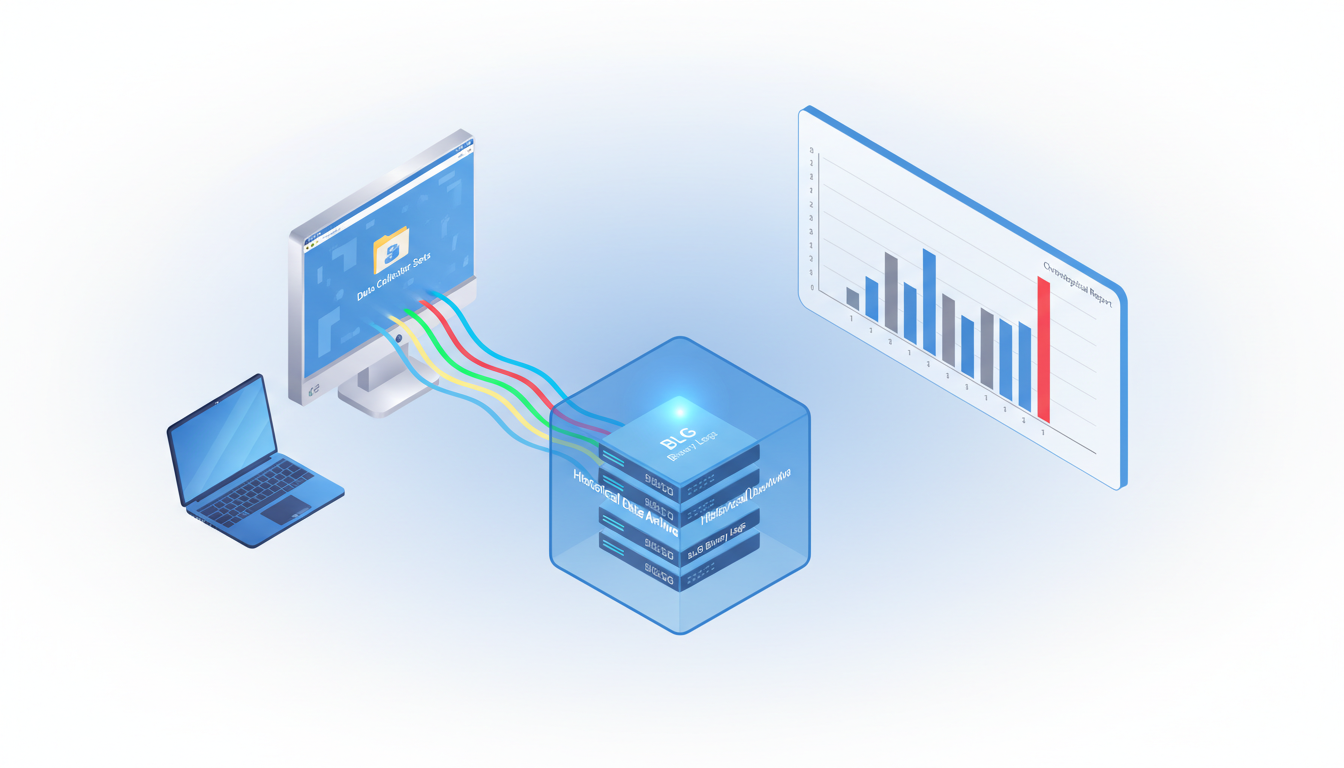
Prefer bounded logs to unlimited background collection: log files can accumulate and can expose application names, user activity, host identifiers and usage patterns. Store diagnostics according to retention rules, avoid personal folders and credentials in shared report packages, and remove temporary collectors when a troubleshooting ticket is closed.
Understanding file formats and reporting
BLG is a Windows binary performance-counter log format used for efficient, time-stamped capture. CSV is a text table format that can support external analysis. TSV separates fields with tabs. Microsoft documents typeperf for counter listing or collection, logman for Data Collector Set management and relog for format conversion and log merging. The presence of a report file does not establish that its counters are valid or complete.
PerfMon can load a previous BLG file through its data-source selector. Choose the recorded time window, verify timestamps and inspect meaningful minimum, maximum and average values. Long collections with dense sampling can be summarized or compressed by the graph interface; check displayed values and the real number of samples rather than relying on the shape of a downsampled line.
Video study: creating a collector set and an alert
A separate video by David Dalton demonstrates selecting performance counters and setting up Data Collector Sets and alerts. An alert is a configured response to a condition; it is not an automatic diagnosis. Decide how noisy the threshold would be during the host’s real workload before enabling notification or automated remediation.
Video: David Dalton — “Using Windows Performance Monitor” (November 13, 2025). Distinct English demonstration of counters, Data Collector Sets and alerts. Verify steps against the current Windows release and Microsoft documentation.
Practical example: slow application every afternoon
Imagine a managed Windows workstation whose business application becomes slow around 3 p.m. but is responsive when IT inspects it at 9 a.m. A live Resource Monitor view alone may miss the event. The engineer records one normal day and one incident window at a comparable 15-second interval, collecting CPU use, available memory, disk read/write latency and interface throughput. The measurements here are hypothetical and are not from a real customer.
Suppose the trace shows CPU use near its ordinary baseline, available memory holding steady, but read latency climbing sharply while the application’s response time worsens. That pattern shifts investigation toward storage or storage-path contention, not proof of a defective SSD. Next steps include checking actual per-disk instances, active I/O processes, storage configuration, event logs and backup or antivirus schedules. Compare the incident with a baseline after controlled remediation.
If instead CPU time increases while the storage counters remain healthy, inspect process-level counters, and compare with Process Explorer and Windows process diagnostics. For a suspected driver or service issue, correlate the timestamps with Windows Event Viewer and Services, rather than asserting that a single counter proves root cause.
Limits and frequent mistakes
- Confusing averages with brief peaks: a 15-second average can hide a one-second stall. Select sampling and tools based on the event duration.
- Comparing unlike workloads: a busy system under a planned render job cannot be judged using an idle laptop baseline.
- Misreading scale: graph rescaling can make a tiny change look dramatic, so record the raw numbers and units.
- Overinterpreting one counter: memory, CPU and disk metrics interact. Correlate multiple observations with symptoms.
- Ignoring counter instance identity: duplicate process names, restarts and storage renumbering can change which instance a graph represents.
- Leaving collectors running: diagnostics must have a defined time window, data budget and retention policy.
- Assuming local and remote permissions are identical: enterprise policies may prevent remote counter access or certain security-sensitive data collection.
Knowledge check
- What is the difference between a performance counter’s object, instance and counter name?
- Why is a workload-matched baseline preferable to a universal CPU or disk threshold?
- Why can
\Process(*)\% Processor Timeexceed 100% on a multicore machine? - What advantages does a Data Collector Set have over checking Resource Monitor only after an incident?
- How would you verify that an apparent disk-latency spike was real rather than a graph-scaling artifact?
- What should you record and clean up before closing a performance troubleshooting ticket?
Answer guide: An object groups related counters, an instance identifies one entity and a counter names the metric. Baselines control for workload. Process CPU may total usage over multiple logical processors. Data Collector Sets preserve timed evidence. Compare units and minimum/maximum/raw samples and correlate with independent logs. Close with observed symptom, counter paths, dates, collection settings, proposed cause versus confirmed cause, outcome and removal of temporary collectors.
References and related lessons
Primary documentation: Microsoft — Troubleshoot Windows performance problems; Microsoft — Troubleshoot using Performance Monitor; Microsoft — Performance Counter Tools; Microsoft — Collecting Performance Data; Microsoft — Get-Counter. Continue with related Windows Update evidence collection and virtual-memory fundamentals.
Editor’s Note: We volunteer daily to ensure the credibility of the information on this platform is Verifiably True. If you would like to support our work and help further secure the integrity of our research initiatives, please scan the QR code below to donate 5,000 sats.

For mobile scanning, open this lesson on a laptop or larger screen and scan the original QR code with a compatible Bitcoin wallet. Confirm the address before sending: 3C9o19EH5HSiwEPyCTmEKzxhNCbo2X6TTb.
BitcoinVersus.tech is not a financial advisor. This media platform reports on financial subjects purely for informational purposes.


Leave a Reply