
OSITC.010 — Windows Reliability Monitor. A Windows computer can freeze, restart, or crash without immediately explaining why. Windows Reliability Monitor provides a dated summary of significant failures, warnings, and software changes so technicians can find where to investigate first. In this lesson, you will use its built-in perfmon /rel command to compare a system failure with recent changes. This follows OSITC.009 on Windows Update failures and complements OSITC.004 on Event Viewer.
Learning Objectives
- Open Reliability Monitor without installing any third-party software.
- Interpret the reliability timeline and recognize critical events.
- Investigate a dated crash without automatically blaming the most recent update.
1. Open Reliability Monitor
- On a Windows 10 or Windows 11 computer, press Windows + R.
- Type
perfmon /reland press Enter. - Allow Windows a moment to assemble the stability history. Alternatively, search Start for View reliability history.
The tool is provided with supported desktop Windows versions. In corporate or locked-down environments, management policy can restrict access or reporting. Dell’s support guide independently documents this launch method.
Watch the Command in Action
The first tutorial demonstrates the perfmon /rel command and explains why the Windows Reliability Monitor is useful. It is embedded as a native WordPress YouTube player, with a direct link underneath in case a viewer’s browser blocks third-party embeds.
Video tutorial: Guide e Tutorial, “Learn about Windows Reliability Monitoring — The perfmon /rel command” (September 2025). Watch the source video directly on YouTube.
2. Interpret the Timeline
Reliability Monitor plots a system stability index over time and associates days with specific problem reports, warnings, and informational events. A downward movement is a clue about the timing of failures, not a diagnosis or proof that the device is physically defective. Select a day or week to inspect the events listed beneath the graph. This is especially helpful when several people report intermittent crashes at different times.
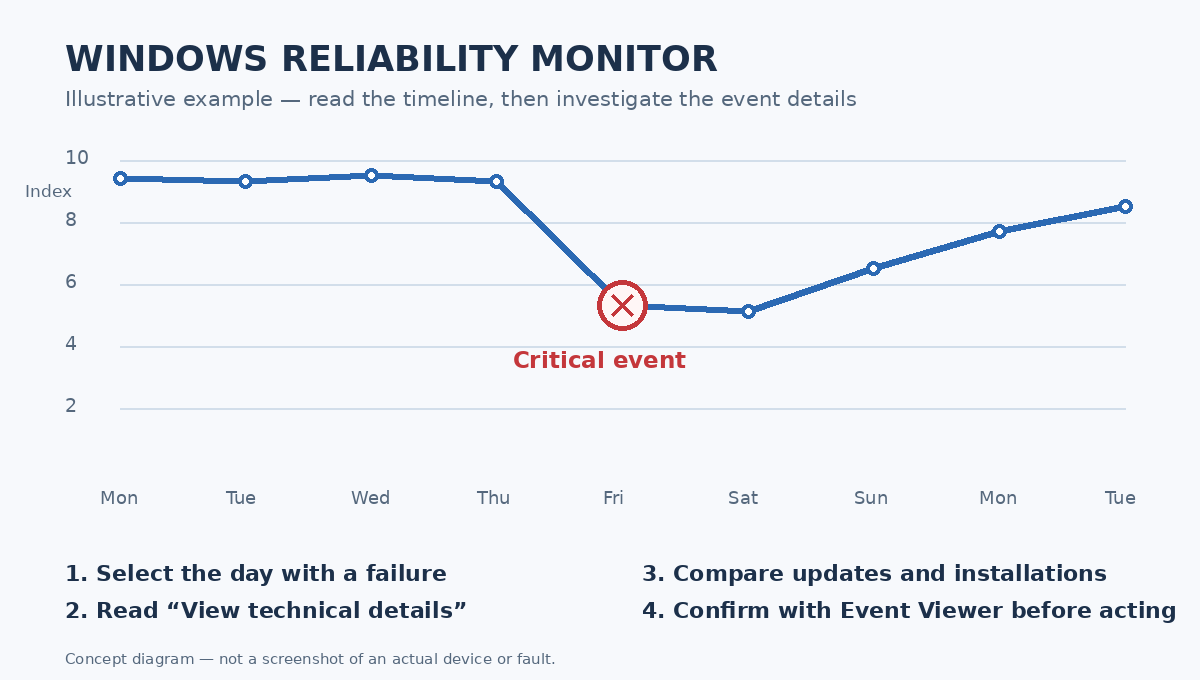
Original instructional illustration. The example stability readings are fictional and do not represent a specific Windows installation.
3. Open a Critical Event
- Select a day showing a red X or another relevant failure indicator.
- Find the affected application or Windows component in the event list.
- Choose View technical details when available, and record the application name, failure time, error information, and other useful identifiers.
- Compare the time with application installs, driver changes, Windows updates, and earlier incidents.
A red X could represent an app that stopped working, for example, while an information entry may record a successful installation. Do not assume adjacent events have a causal relationship. Microsoft’s Reliability Monitor troubleshooting guidance explicitly cautions that apparent post-update failures can sometimes involve the reboot or earlier software changes rather than the update itself.
A Second Video — Finding Reliability History in Windows 11
This short companion video shows a separate Windows 11 launch workflow. Keeping both demonstrations gives learners another way to find the tool when menus differ across versions.
Video tutorial: Компьютерные Ошибки, “How to open Reliability Monitor in Windows 11” (September 2024). Open the second tutorial directly on YouTube.
4. A Data-Center Troubleshooting Scenario
Consider a Windows workstation used by a datacenter technician to manage a hardware monitoring console. The console begins closing unexpectedly after a planned patch window. First, open perfmon /rel and locate the first reported application crash. Then review its technical details and compare the dates of the application, driver, and Windows changes. Confirm relevant details using Event Viewer rather than reinstalling software immediately. If failures correlate with specific processes, OSITC.003 on process troubleshooting helps investigate them further.
If the timeline shows a recurring failure, note exactly when the error began and whether it affects one application or the whole machine. If you must export a reliability report, follow organizational data-handling rules; diagnostics may reveal application names, installed software, and information about the system.
Safety and Common Mistakes
- Do not treat the index as a benchmark. A low number signals recent reliability events; it does not independently measure CPU or storage performance.
- Do not confuse timing with cause. Verify an event with technical details, broader logs, and controlled troubleshooting.
- Do not disable security tools or uninstall patches without authorization. Investigate the evidence first.
- Do not expect full history on a new installation. The view depends on data Windows has collected and retained.
Knowledge Check
- What Run command opens Reliability Monitor?
- Why is a red X useful but not enough to identify root cause?
- Where should you look for more detailed Windows diagnostic events?
Answers: 1. perfmon /rel. 2. It points to a failure on a particular date but does not establish the cause. 3. View technical details within Reliability Monitor, then consult Event Viewer and relevant application or system logs.
Conclusion and Verified Sources
Reliability Monitor turns scattered failure reports into a dated investigation timeline. Start with perfmon /rel, inspect the specific incident, compare nearby changes, then corroborate before acting. Source references: Microsoft’s Reliability Monitor troubleshooting article, Dell’s step-by-step guide, and Microsoft’s separate Windows Security device-health overview. The last tool is complementary, not a replacement for Reliability Monitor.
BitcoinVersus.Tech Editor’s Note: We volunteer to provide practical, accurate, accessible technology education. If you’d like to support our research and lesson development, consider a 5,000-sat donation using the QR code below.

For easy scanning, open this lesson on a larger screen and scan the QR code with your Bitcoin wallet on a mobile device. Thank you for supporting independent technology education.


Leave a Reply