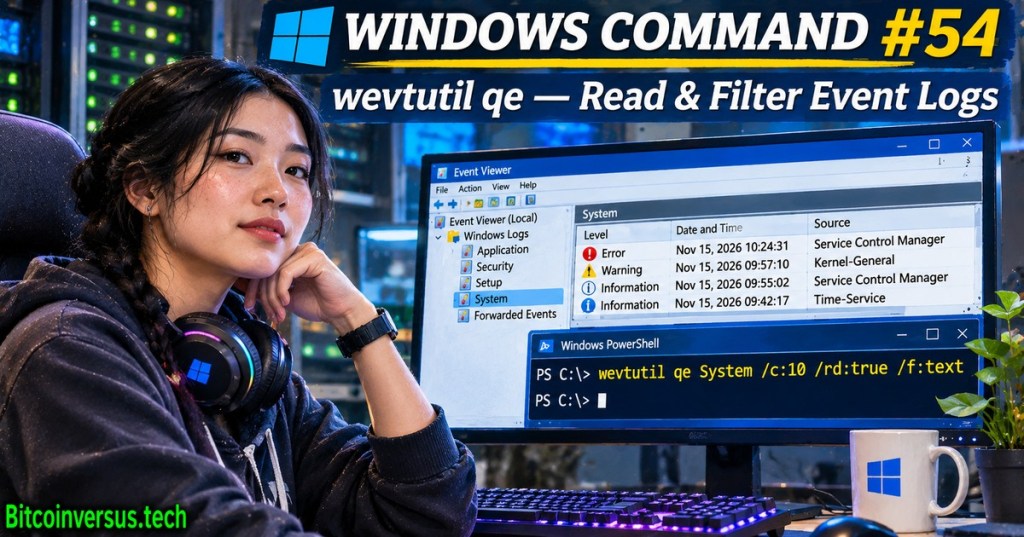
Windows Command #54 examines wevtutil qe, the command-line tool for reading Windows Event Log records without opening the graphical Event Viewer. The subcommand qe stands for query-events. Administrators can inspect the newest system events, narrow a channel to matching Event IDs, and select text or XML output without clearing or reconfiguring the log. The lesson follows Windows Command #53 on service recovery policies.
Tech In Moments, Windows Event Viewer tutorial. An independent demonstration of log channels, severity, event sources and filtering in the graphical tool. Credit: Tech In Moments / YouTube; previously sourced in the OSITC.004 Event Viewer lesson.
Start with a bounded, read-only query
Microsoft’s official wevtutil reference identifies qe as an event reader, unlike cl, which clears a log, or sl, which changes log settings. Run the first command below in an authorized Command Prompt or PowerShell session. The System channel stores operating-system and service events, while Application often contains software-generated entries.
wevtutil qe System /c:10 /rd:true /f:text
wevtutil qe System /q:"*[System[(EventID=7031)]]" /c:10 /rd:true /f:text
wevtutil qe Application /c:5 /rd:true /f:xml
The first command requests at most 10 events. The option /rd:true reads newest first, and /f:text requests human-readable output. Without /rd:true, the results may begin with older records; without /c:10, a busy channel can produce extensive output. The third command returns five recent Application entries as XML for structured inspection.
Filter a failed Windows service by Event ID
The second command uses /q: with an XPath expression matching Event ID 7031 inside the System channel. Microsoft documents Event 7031 when a Service Control Manager-monitored service terminates unexpectedly, including in its Exchange service troubleshooting example. Finding a matching event establishes that Windows recorded a termination; it does not establish the underlying cause.
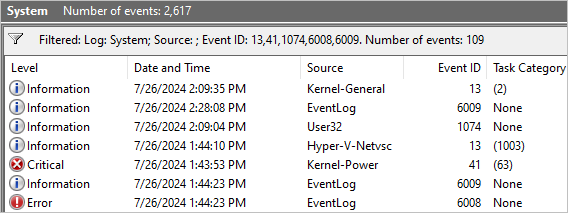
Compare the event timestamp, provider, message and adjacent records before proposing a repair. An event may describe a configured restart action even if the restart later fails. Command #52 on service triggers helps explain why services start, while Windows Services Fundamentals covers service states and dependencies.
TheWindowsClub, “How to open and use Windows Services Manager (Services.msc),” September 20, 2020. A graphical service-management walkthrough relevant to correlating log events with service configuration, rather than a direct wevtutil qe demonstration. Credit: TheWindowsClub / YouTube.
Limits and operational safeguards
Reading protected channels can require higher privileges or appropriate access rights. A channel may have rolled over, an event message may need provider metadata, and timestamps must be interpreted using the relevant time zone. Microsoft also documents /lf:true for examining a saved .evtx file and /sq:true for structured-query files. Use wevtutil el to discover exact channel names. Preserve evidence before making changes and avoid running wevtutil cl during diagnostic collection.
For a broader crash timeline, correlate retrieved records with OSITC.010 on Reliability Monitor. The command can accelerate repeatable triage, but a single log entry should never be treated as a complete root-cause finding.
Editor’s Note: Syntax and option meanings were checked against Microsoft Learn; Event ID 7031 context was verified against Microsoft’s service troubleshooting reference. No native Windows session or production event log was accessed for the lesson. The original 1200 × 630 photorealistic cover includes a neon-green Bitcoinversus.tech watermark and fictional screen contents. The in-story image comes from Microsoft Learn, not an invented diagram. YouTube video identities were checked against prior verified BitcoinVersus.Tech posts; WordPress iframe rendering and browser playback remain separate audit steps.
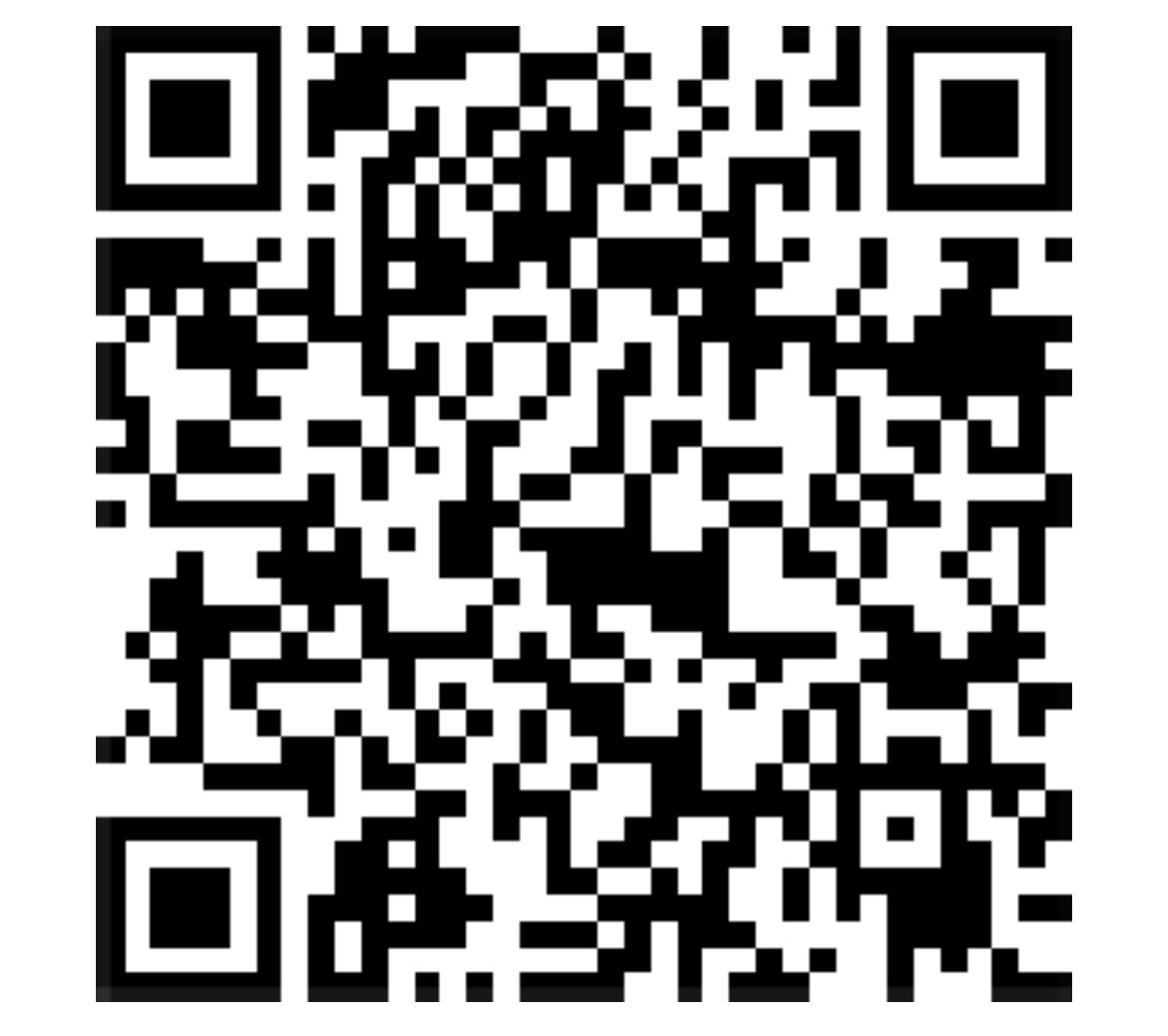
BitcoinVersus.Tech is volunteer-run and publishes independent technical education. An optional 5,000-satoshi donation supports research. Display the original QR on a second screen and scan with a compatible Bitcoin wallet; on the same phone, use a wallet that supports importing a saved QR image. Independently verify recipient 3C9o19EH5HSiwEPyCTmEKzxhNCbo2X6TTb and amount before payment. Bitcoin transfers are generally irreversible.
We volunteer daily to ensure the information on BitcoinVersus.Tech is Verifiably True. Coverage is educational and informational, not authorization to alter production infrastructure, financial advice or investment advice.


Leave a Reply