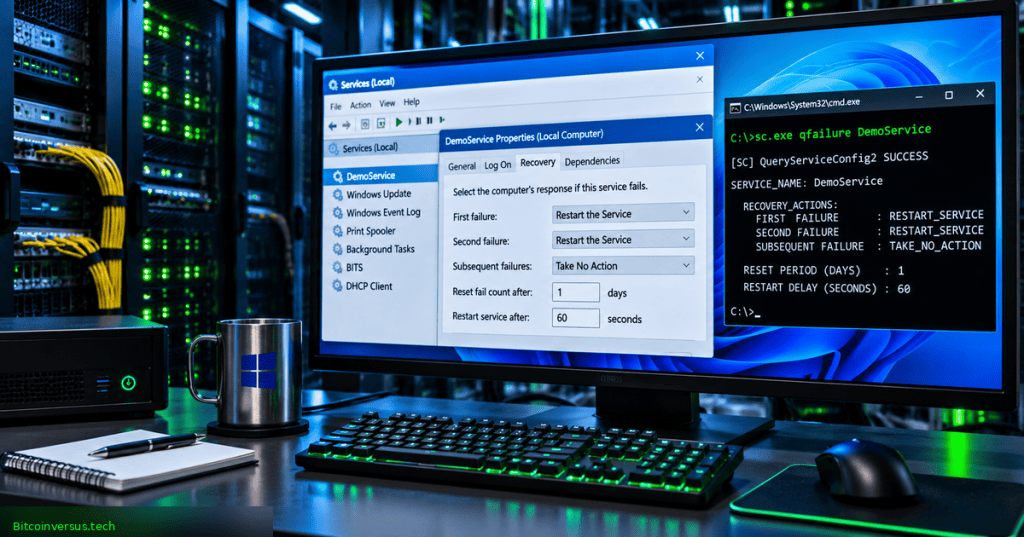
sc.exe qfailure reads the recovery actions configured for a Windows service. The Service Control Manager may be instructed to restart a failed service, launch a program, reboot a computer, or take no action. Reading a recovery policy is useful during incident diagnosis because it establishes planned responses without modifying the service or forcing an interruption.
Elementary Overview
Many Windows programs run quietly in the background. When one stops after an error, Windows may have a plan for what to do next. The qfailure command lets someone read that plan, including whether Windows should try again and how long it should wait. A service can have a plan without ever needing it, and a plan does not guarantee successful recovery.
Begin with the Windows Services fundamentals guide. The previous qtriggerinfo lesson examined service starts initiated by device, network, and other registered events. Recovery policy serves a different purpose: actions after qualifying failures.
Learning Objectives and Prerequisites
- Identify a Windows service by its internal SCM name rather than its display label.
- Query recovery actions in Command Prompt or PowerShell using the explicit
sc.exeexecutable. - Read reset periods in seconds, action delays in milliseconds, and any reboot message or recovery command.
- Separate a service’s configured policy from actual runtime state and observed historical failures.
- Compare
qfailurewithqfailureflagwhile avoiding unauthorized configuration changes.
Use Windows 10, Windows 11, or a supported Windows Server edition with an account allowed to query the service. No crash injection, registry modification, service stoppage, or administrator elevation should be required merely to practice permitted queries. Service access rights and local enterprise policy can still restrict some results.
TheWindowsClub, “How to open and use Windows Services Manager (Services.msc)” (September 20, 2020). Independent instructional demonstration of the graphical service manager and its properties tabs. The video supplies interface context rather than a direct qfailure walkthrough.
The Service Control Manager and Recovery Policy
The Windows Service Control Manager (SCM) maintains the service database, executes start and stop operations, and tracks service status. Recovery actions are configured separately from the startup type. A service may start automatically but have no recovery actions, or it may start manually and still have a configured response for an unexpected failure.
Microsoft’s SERVICE_FAILURE_ACTIONS reference defines an action array, a failure-count reset period, and optional recovery command or reboot message. If a service process terminates without reporting the stopped state, the SCM can treat the termination as a failure eligible for configured actions. An additional flag governs other error-stop cases.
Run the Read-Only Query
Query the Windows Print Spooler service by internal name on a machine where the service exists:
sc.exe qfailure Spooler
The same command accepts the Windows Time service name on systems where it is installed:
sc.exe qfailure W32Time
Those examples inspect the local SCM configuration; their returned settings are not universal Windows defaults. Use sc.exe explicitly in PowerShell because the shorter token sc may be interpreted as an alias for Set-Content in Windows PowerShell. The Microsoft SC reference confirms the operation and general syntax.
A service display label may differ from its command-line identifier. Use the previous sc getkeyname guide to resolve the internal name before querying. A not-found response should prompt name validation rather than repeated guesses against production systems.
Interpret the Output Fields
- SERVICE_NAME: the internal name of the service in the SCM database.
- RESET_PERIOD (in seconds): the failure-free interval that resets the accumulated failure count.
- REBOOT_MESSAGE: optional message associated with a recovery action that reboots the host.
- COMMAND_LINE: optional executable or command used for a run-process recovery action.
- FAILURE_ACTIONS: the ordered actions and their delays, reported in milliseconds.
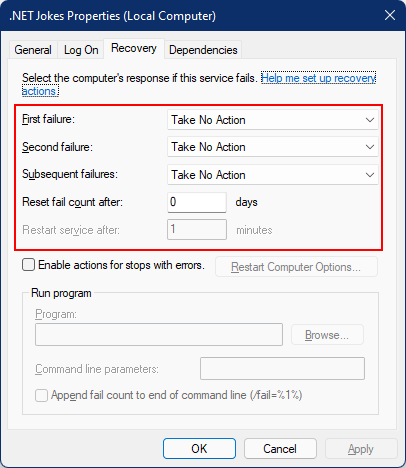
A service with no configured actions may show the general fields without a populated action sequence. That finding is a configuration observation, not evidence of a stable application. Microsoft’s .NET Windows Service tutorial includes real example output both before and after actions were configured.
Failure Sequence and Delay Units
The first qualifying failure selects the first recovery action; the next qualifying failure selects the second. If failures exceed the configured array length, the SCM repeats the last action. The reset interval can return the count to zero after the specified failure-free period. An action list can therefore restart a service twice and then stop trying, or continue applying the final restart policy.
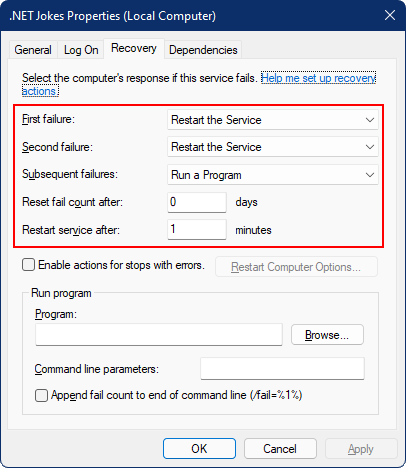
Microsoft’s published .NET example shows restart delays of 60,000 milliseconds after each of two failures, followed by a run-program action delayed by 1,000 milliseconds. Those correspond to 60 seconds, 60 seconds, and one second. If the reset period is 3,600 seconds, the specified failure-free duration is one hour. Such numbers illustrate units, not measured service availability or an independently reproduced event sequence.
When Do Failure Actions Apply?
A recovery action is not necessarily triggered whenever an application disappears from the Running list. Normal administrative stops differ from unexpected termination. An additional SCM flag can allow certain services that report a stopped state with a nonzero error code to become eligible for recovery.
Inspect the separate read-only flag:
sc.exe qfailureflag Spooler
The qfailureflag lesson covers the query; Microsoft’s SERVICE_FAILURE_ACTIONS_FLAG reference explains how an enabled flag permits some non-crash error stops to trigger configured actions. A flag without any actions has nothing to execute. Actual policy modifications belong under change control, as explained in the sc failure configuration and sc failureflag lessons.
Compare Configuration With Runtime Evidence
Check the current state of the same service without modifying it:
sc.exe query Spooler
The STATE field is a snapshot. A running service might have restarted many times; a stopped service may be intentionally idle. Compare service state with its recovery action list, configured trigger conditions, and relevant logs. Event Viewer’s System log often contains records from the Service Control Manager; correlate timestamps, service names, and application log entries before asserting the cause of an outage.
Microsoft’s .NET BackgroundService example also explains a subtle failure mode: some application exceptions can terminate a host gracefully, which may not satisfy the SCM’s failure criteria. A correctly populated recovery tab is therefore insufficient proof of automatic restoration after every fault. Application error handling and event evidence matter.
Buffer Size and Remote Administration
Microsoft’s legacy command reference documents an optional buffer size in bytes. A larger buffer may be useful when a service has extensive recovery configuration:
sc.exe qfailure Spooler 2048
The general sc.exe format also permits a remote computer name before the operation when the account, network, and remote SCM policy permit access. Remote queries can reveal administrative command lines, so access should be limited to authorized operators. Check the installed command help for platform-specific behavior.
Troubleshooting and Operational Safety
- Service not found: verify the internal identifier instead of relying on a display name.
- Access denied: request appropriate approved read access; do not change permissions solely to run an exercise.
- Recovery actions absent: distinguish an empty policy from missing monitoring evidence and from a failed query.
- Unexpected restarts: examine SCM events and the failure flag before blaming the configured restart policy.
- Restart loops: repeated restarts may hide application bugs, missing dependencies, or corrupt data; investigate the root cause.
- Run-program action: a stored executable path may pose a security or operational risk; a policy listing does not prove execution.
- Reboot action: any recovery-induced host restart may disrupt other services and require formal change-management review.
Knowledge Check With Answers
- Does
qfailurechange a recovery policy? No, the query is read-only. - Are restart delays measured in seconds? No, individual action delays are presented in milliseconds.
- What resets the failure count? A configured failure-free interval expressed in seconds.
- Does Running prove recovery actions worked? No; verify incident logs and application health.
- Which command reads the non-crash eligibility flag?
sc.exe qfailureflag. - What occurs after the last configured action? The final action is repeated for additional qualifying failures.
Official References
Primary sources: Microsoft Learn Windows Service recovery example, SC command reference, SERVICE_FAILURE_ACTIONS, SERVICE_FAILURE_ACTIONS_FLAG, and Microsoft’s earlier qfailure syntax documentation. The authoritative descriptions and example figures come from Microsoft; the local service configuration varies by machine.
Elementary Conclusion
qfailure lets someone read Windows’ backup plan for a background service. The plan may instruct Windows to wait, restart a failed service, launch a recovery program, or stop trying. Good administrators read the plan and check the actual events separately. A printed recovery policy is not proof of a successful repair.
Editor’s Note: Internal Open Source TechCert curriculum slot Windows Command 53 follows the published Windows Command 52 service-trigger lesson. Official Microsoft documentation supplies the command syntax, action semantics, and numeric example. A native Windows SCM session was unavailable for live command execution, failure injection, and recovery verification. The branded featured cover is an AI-created conceptual illustration rather than a real Windows screenshot. Both genuine in-story screenshots come from Microsoft’s .NET service tutorial. The video demonstrates the Services interface, not qfailure directly; rendered player and actual playback require separate checks.
For mobile scanning, display the QR on another screen and scan it with a compatible Bitcoin wallet. Certain wallets can read an image saved to the same phone. Verify the destination before donating 5,000 sats: 3C9o19EH5HSiwEPyCTmEKzxhNCbo2X6TTb.
We volunteer daily to ensure the credibility of the information on this platform is Verifiably True. If you would like to support our work and help further secure the integrity of our research initiatives, please scan the QR code above to donate 5,000 sats.
BitcoinVersus.tech is not a financial advisor. This media platform reports on financial subjects purely for informational purposes.

