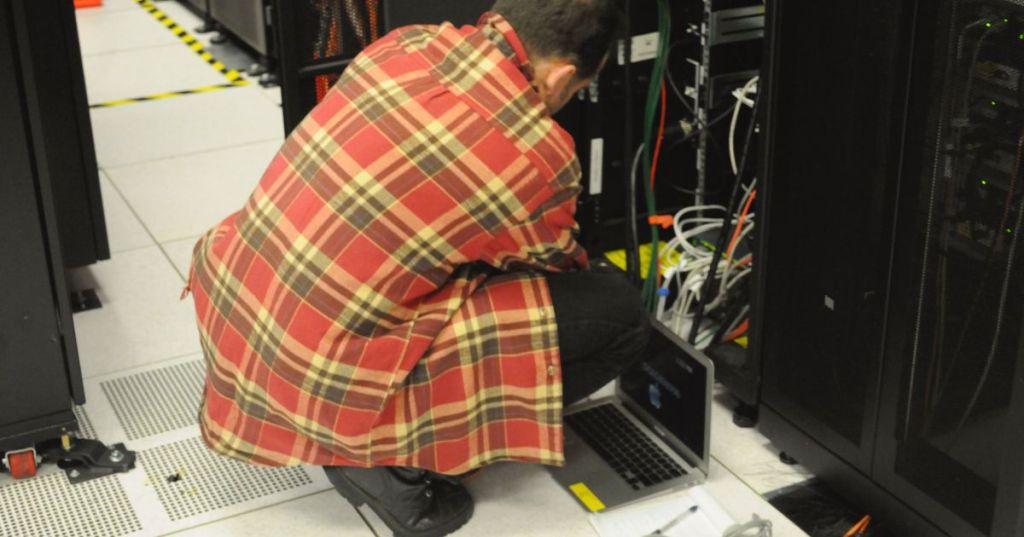
A virtual machine, or VM, is a software-defined computer that runs inside a physical computer. It can have its own operating system, virtual CPU, memory, storage, network interface, applications, user accounts, and configuration even though the underlying hardware is being shared with other virtual machines.
The layer that makes this possible is the hypervisor. The hypervisor takes the real processor, RAM, disks, and network adapters inside a physical host and presents controlled slices of those resources to each VM.
A VM Looks Like a Real Computer From the Inside
To the guest operating system, a virtual machine looks surprisingly normal. It sees processors, RAM, disks, firmware, network adapters, controllers, and other devices. Those devices are virtualized, but the software running inside the VM can use them much like it would use physical hardware.
A Windows VM can boot Windows, install applications, join a domain, receive an IP address, run services, and accept remote connections. A Linux VM can boot a Linux distribution, run a web server, expose SSH, install packages, and mount filesystems. The software inside the VM does not need to know that another VM may be running on the same physical server.
The Physical Server Is the Host
The real machine underneath the VMs is commonly called the host. The host supplies the physical CPU, RAM, storage, and networking that the virtual machines ultimately consume.
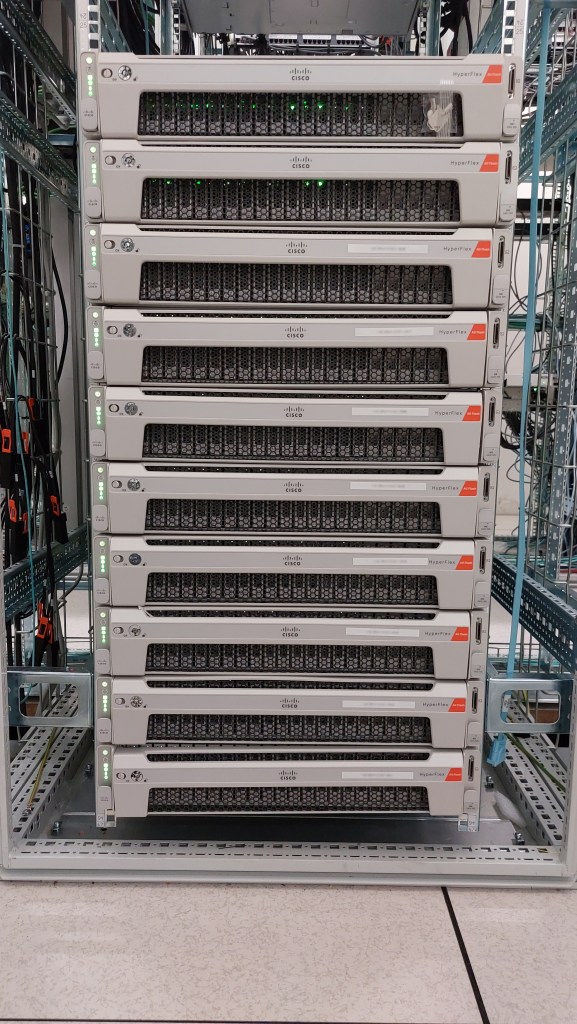
This photograph shows a real VMware ESXi cluster built from multiple server nodes. A virtualization cluster like this turns racks of physical compute, memory, storage, and networking into pools that can support many VMs instead of tying every workload to one dedicated box.
The VM Is the Guest
A virtual machine running on a host is commonly called a guest. Each guest is isolated from the other guests by the virtualization layer. One VM can reboot, crash, update, or run a different operating system without requiring every other VM on the host to do the same.
That separation is one of virtualization’s biggest advantages. A single physical server can simultaneously host a Windows application server, a Linux web server, a database VM, a test environment, and an administrative VM while each behaves like a separate computer.
A Virtual CPU Is Scheduled Onto a Real CPU
When a VM is assigned four virtual CPUs, or vCPUs, that does not necessarily mean four physical CPU cores are permanently reserved for it. The hypervisor schedules virtual processors onto the host’s real processor resources.
This resembles the way an operating system schedules processes and threads onto physical cores. The difference is that the hypervisor is scheduling complete virtual machines while the guest operating system then performs its own scheduling inside that VM.
Modern CPUs include virtualization extensions such as Intel VT-x and AMD-V that make this hardware-assisted virtualization much more efficient.
Virtual RAM Still Uses Physical Memory
If a VM is configured with 16 GB of RAM, the guest operating system sees a 16 GB memory space. Behind the scenes, the hypervisor maps the guest’s virtual memory to physical memory resources on the host.
That makes RAM capacity one of the most important limits on VM density. A server can have unused CPU capacity and still be unable to comfortably run more VMs if its active guests are consuming most of the available memory.
Virtual Disks Behave Like Hard Drives or SSDs
A VM typically boots from a virtual disk. The guest sees that disk as a normal storage device, but the disk may actually be a file, logical volume, SAN-backed device, cloud-managed disk, or another storage object controlled by the virtualization platform.
Inside the VM, that disk can be partitioned and formatted with filesystems such as NTFS or ext4. Underneath the VM, the host may be using HDDs, SSDs, NVMe drives, shared storage arrays, or RAID.
Microsoft’s Azure VM documentation describes managed disks as one of the resources supporting cloud VMs and notes that VM size determines processing power, memory, storage capacity, and network bandwidth.
Virtual NICs Put the VM on a Network
A VM can have one or more virtual network adapters. The guest treats a virtual NIC much like a physical network interface card: it can have an IP address, subnet, gateway, DNS settings, MAC address, firewall rules, and routes.
Virtual NICs usually connect to virtual switches or cloud virtual networks. Traffic can stay inside one physical host, move between hosts, or leave through a physical NIC and continue through the normal network, including top-of-rack switches, routers, firewalls, and upstream networks.
Microsoft’s Azure virtual-network documentation notes that Azure VMs use virtual NICs and can communicate with other VMs over private IP addresses inside virtual networks and subnets.
A VM Has Its Own Operating System
Unlike a normal application, a VM usually includes an entire guest operating system. That is why a VM can run Windows on a Linux-based virtualization platform or Linux on a Windows-based virtualization platform when the hardware architecture and hypervisor support it.
BitcoinVersus.Tech’s Ubuntu VirtualBox setup shows the desktop version of the same concept: the host computer keeps its normal operating system while Ubuntu runs inside a separate VM.
The Hypervisor Keeps the VMs Separate
The hypervisor controls access to the hardware and helps isolate one VM from another. Red Hat explains that KVM allows Linux to function as a hypervisor and run multiple isolated virtual machines while pooling processor, memory, and storage resources.
That isolation is not magic and it is not a substitute for patching, endpoint security, access control, or network segmentation. But it creates a boundary that allows multiple operating systems and workloads to safely share a physical host under normal operating conditions.
Virtual Machines Can Be Paused, Cloned, and Moved
Because much of a VM’s hardware state is represented in software, administrators can do things that are difficult with a physical server. A VM can often be cloned from a template, copied, paused, restarted on another host, replicated to another site, or moved through live migration.
This portability is a major reason VMs became central to enterprise IT. Instead of treating every server as a unique physical machine, administrators can manage compute as a pool of resources and move workloads around that pool.
A Snapshot Is a Point-in-Time VM State
Many virtualization systems support snapshots or checkpoints. A snapshot preserves enough of a VM’s state to let an administrator return to an earlier point after a software change, test, patch, or configuration experiment.
A snapshot is useful, but it should not automatically be treated as a full backup. If the physical host or underlying storage fails, a snapshot stored on that same infrastructure may disappear with it.
Cloud VMs Are Still Virtual Machines
When a cloud provider sells a virtual machine, the basic idea is the same: the customer receives a configurable virtual computer while the provider owns and maintains the physical data-center hardware underneath it.
Microsoft describes Azure Virtual Machines as on-demand scalable compute resources that provide the flexibility of virtualization without requiring the customer to buy and maintain the physical hardware. The customer still manages the guest operating system, applications, configuration, and many security responsibilities.
The New Stack’s Bluesky post highlights Microsoft Hyperlight using KVM or Hyper-V to run untrusted code inside microVMs, showing how VM isolation continues evolving alongside containers and WebAssembly.
Why IT Teams Use Virtual Machines
VMs are useful for server consolidation. If five physical servers are each using only a small fraction of their CPU and RAM, those workloads may be candidates to run as separate VMs on fewer larger hosts.
They are also useful for development and testing. A technician can create a disposable Windows or Linux VM, make changes, break it, restore it, or delete it without risking the primary workstation.
VMs also support disaster recovery, virtual desktops, isolated security labs, application hosting, legacy software, database servers, infrastructure services, and cloud workloads.
Virtual Machines vs. Physical Machines
A physical machine has direct ownership of real hardware. A VM sees virtualized hardware supplied by a hypervisor. That additional layer can make a VM easier to clone, move, resize, automate, and recover, while a physical server can offer the most direct access to specialized hardware and avoids sharing host resources with neighboring VMs.
Neither approach is automatically better. The right choice depends on performance, isolation, licensing, hardware access, operational flexibility, and failure-domain requirements.
Virtual Machines vs. Containers
A VM generally includes a complete guest operating system. A container usually shares the host operating system kernel while isolating an application and its dependencies.
That usually makes containers lighter and faster to start, while VMs provide a complete operating-system boundary. Modern environments frequently run both: VMs provide infrastructure boundaries, and containers run application workloads inside or alongside them.
A VM Is Not the Same Thing as the Java Virtual Machine
The term virtual machine can also appear in software runtimes such as the Java Virtual Machine, or JVM. That is a different use of the phrase. A JVM provides an execution environment for Java bytecode; a system VM such as a Hyper-V, KVM, VMware, or VirtualBox guest emulates or virtualizes an entire computer environment capable of running a full operating system.
What Can Go Wrong With a VM?
VM troubleshooting follows the same layered logic as physical IT troubleshooting. A slow VM might be short on vCPU or RAM, but the problem could also be overloaded host storage, a saturated physical NIC, a virtual-switch issue, an unhealthy guest operating system, or contention from neighboring VMs.
This is where understanding the abstraction matters. If a guest cannot reach the network, check the guest IP configuration, the virtual NIC, the virtual switch, the host’s physical NIC, and the upstream network rather than assuming the problem exists only inside the guest.
The Simple Way to Remember a Virtual Machine
A virtual machine is a software-defined computer that gets virtual CPU, memory, storage, and networking from a physical host through a hypervisor.
From inside, it can behave like an independent PC or server. From outside, it is one workload sharing a larger pool of physical hardware. That simple abstraction is the bridge from traditional servers to modern private clouds, public clouds, virtual labs, and much of enterprise computing.
Editor’s Note
Featured photograph: Derrick Coetzee via Wikimedia Commons/Flickr, released under CC0 1.0 and cropped to 1200×630. Body photograph: Btrs via Wikimedia Commons, CC BY-SA 4.0. The directly relevant social embed is The New Stack’s Bluesky post about Microsoft Hyperlight, KVM, Hyper-V, and microVM isolation.
Support and donation options are available through BitcoinVersus.Tech.
BitcoinVersus.tech is not a financial advisor. Content is provided for informational purposes.


Leave a Reply