sc.exe delete removes a Windows service registration from the Service Control Manager database and its service registry subkey. It is the natural follow-up to Windows Command #41 — sc create: #41 showed how a service entry is registered; this lesson shows how an intentionally created or obsolete service entry is removed.
Deletion is a small command with a large consequence, so the important skill is not memorizing two words. The important skill is verifying the exact service, stopping it when appropriate, understanding what Windows means by marked for deletion, and confirming the result afterward.
1. What sc.exe delete Actually Does
Microsoft documents sc delete as deleting a service subkey from the registry. The command operates on the service registration known to the Windows Service Control Manager; it is not a general-purpose application uninstaller.
That distinction matters. A service may have program files, configuration files, scheduled tasks, drivers, shortcuts, logs, or an installer-owned uninstall process outside the service registration itself. Removing the service entry does not automatically clean up every other component of the software.
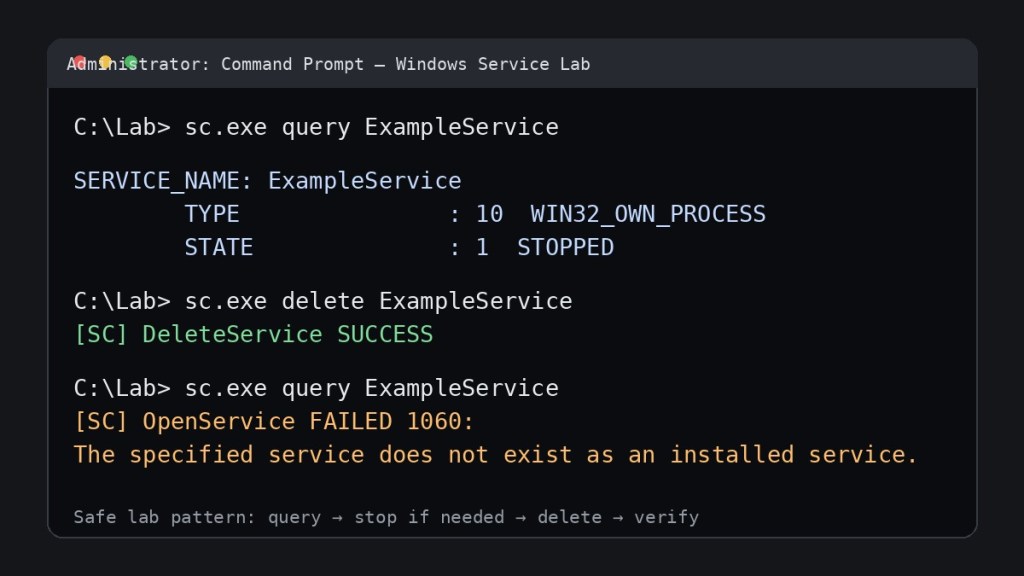
sc.exe delete: verify the service, delete the intended registration, then query again to confirm it is gone.2. Basic Syntax
sc.exe delete ServiceNameFor a local service named ExampleService:
sc.exe delete ExampleServiceA successful request normally reports:
[SC] DeleteService SUCCESSUse sc.exe explicitly in Windows PowerShell. The short command name sc can resolve to the PowerShell Set-Content alias, while sc.exe unambiguously runs the Windows Service Controller utility.
3. Verify the Service Before You Delete It
Never begin with deletion. First confirm that the internal service name is the one you intend to remove. sc.exe query shows the service state, while sc.exe qc shows stored configuration such as the binary path and startup type.
sc.exe query ExampleService
sc.exe qc ExampleService
The service name is the identifier used by SC commands. It is not always identical to the friendlier display name shown in services.msc. Microsoft’s syntax specifically expects the service name, so verification prevents deleting the wrong registration.
4. Stop the Service When Appropriate
If the service is running and it is safe to stop it, use the procedure from Windows Command #36 — sc stop before deletion:
sc.exe stop ExampleService
sc.exe query ExampleService
sc.exe delete ExampleService
Microsoft’s .NET Windows Service guidance explicitly recommends ensuring a service is stopped before issuing the delete command. If the service is still running, Windows can accept the deletion request without removing the entry immediately.
sc delete command.5. “Marked for Deletion” Does Not Mean “Gone Right Now”
This is the most important behavior in the command. Microsoft states that if the service is running or another process still has an open handle to it, the service is marked for deletion. The underlying service entry is removed only after the service is no longer running and the relevant open handles have been closed.
That explains the common error:
[SC] CreateService FAILED 1072:
The specified service has been marked for deletion.
Error 1072 can appear when an administrator tries to recreate a service too quickly after deleting it. A Services console, management tool, remote session, or another process may still hold an open service handle. Microsoft’s lower-level DeleteService documentation explains that the database entry remains until all open handles are closed and the service is stopped; if necessary, removal completes after a restart.
6. Verify the Result
After deletion, query the same service name again:
sc.exe query ExampleServiceOnce the service is fully removed, Windows normally reports that the specified service does not exist as an installed service. If the service still appears, do not immediately start deleting registry keys. First determine whether the service is still running, whether a management console is holding a handle, or whether the software’s own installer should be used instead.
7. Do Not Use This as a General Windows Cleanup Command
Important: practice only with a disposable lab service that you intentionally created or with an obsolete third-party service whose removal procedure you understand. Microsoft specifically warns against using sc delete to remove built-in operating-system services such as DHCP, DNS, or IIS components. Windows roles and components should be removed with their supported installation or feature-management tools.
The safest mental model is: sc.exe delete removes a service registration. It does not decide whether the entire application, driver package, Windows feature, or supporting files should also be removed.
8. Remote Service Deletion
SC can target a remote Windows computer by placing the server name before the command:
sc.exe \\SERVER01 delete ExampleServiceThe account running the command must have the required rights on the target system, and the remote Service Control Manager must be reachable. Because remote deletion changes another machine’s service database, verify the target server and service name separately before executing it.
9. Safe Lab: Finish the Service You Created in #41
If you completed Windows Command #41 in a disposable Windows VM with a genuine test service executable, finish that lab with the same temporary service. Do not substitute a built-in Windows service.
sc.exe query ExampleService
sc.exe qc ExampleService
sc.exe stop ExampleService
sc.exe query ExampleService
sc.exe delete ExampleService
sc.exe query ExampleService
Read every line of output. The goal is to understand the lifecycle: identify the service, inspect its configuration, stop it when appropriate, request deletion, and verify the final state.
10. Exercises
- In a disposable Windows lab VM, identify a test service that you intentionally created.
- Run
sc.exe queryand record its current state. - Run
sc.exe qcand identify its binary path and startup type. - If the test service is running and designed to stop cleanly, stop it and confirm the
STOPPEDstate. - Run
sc.exe deleteagainst the test service only. - Query the same service name again and record the final message.
- Explain in your own words why successful deletion does not necessarily uninstall the application that supplied the service.
- Explain why a service may remain “marked for deletion” for a short time.
11. Knowledge Check
- What does
sc.exe deleteremove? - Which identifier should you pass to the command: the service name or merely the friendly display name?
- Why should a service normally be stopped before deletion?
- What does “marked for deletion” mean?
- Does
[SC] DeleteService SUCCESSprove every application file was uninstalled? - Which two commands are useful for verifying a service before deletion?
- Why should you avoid using this command on built-in Windows services?
- How do you verify that the service entry is gone?
Answers
- It removes the service registration/subkey from the Service Control Manager database and registry.
- Use the internal service name expected by SC.
- A running service cannot be fully removed immediately; stopping it helps deletion complete cleanly.
- Windows accepted the deletion request, but the service is still running or one or more processes still hold open handles to it.
- No. It confirms the service deletion request succeeded, not that the entire software package and all files were uninstalled.
sc.exe queryandsc.exe qc.- Built-in roles and components have supported installation/removal mechanisms and dependencies that
sc deletedoes not manage. - Run
sc.exe query ServiceNameagain and confirm Windows reports that the service is no longer installed.
12. What You Should Remember
sc.exe delete is simple syntax wrapped around an important administrative operation. Verify the service first, stop it when appropriate, delete only a service you are authorized and prepared to remove, and query it again afterward. If Windows says the service is marked for deletion, think about running state and open handles before reaching for the registry.
Previous Windows Commands
- #34 —
sc query - #35 —
sc start - #36 —
sc stop - #37 —
sc config - #38 —
sc qc - #39 —
sc qdescription - #40 —
sc description - #41 —
sc create
Editor’s Note
The featured image and body image are separate assets. This lesson uses responsive Gutenberg headings, paragraphs, lists, code blocks, one unique body image, one directly relevant YouTube video, and one directly relevant social embed. No normal prose appears in decorative text boxes, cards, panels, callouts, or fixed-width containers.
BitcoinVersus.Tech content is provided for informational and educational purposes.


Leave a Reply