
Key Takeaways
pwdtells you where you are.lsshows what is in a directory.cdchanges your current working directory.- An absolute path starts from the filesystem root. A relative path starts from your current directory.
.means the current directory,..means the parent directory, and~commonly expands to your home directory.PATHcontrols where Bash searches for command names that do not contain a slash.
OSBash.001 introduced Bash as a shell and scripting language, along with shebangs, executable scripts, and the meaning of ./script.sh. This lesson slows down and focuses on the navigation ideas underneath those examples: commands, directories, paths, and command lookup.
Most beginner Bash mistakes become easier to diagnose once you can answer two questions: “Where am I?” and “How is Bash finding the command I typed?” The first is about the current working directory. The second is about explicit paths and the PATH environment variable.
ls, pwd, and cd for beginners.Your Shell Always Has a Current Working Directory
Every interactive Bash session has a current working directory. Many relative operations begin there. If you create a file named notes.txt without giving a longer path, the shell and the program you launch interpret that name relative to the current directory unless the program defines different behavior.
pwdpwd means print working directory. A typical result might be:
/home/user/projectsThe leading slash means this is an absolute path beginning at the filesystem root.
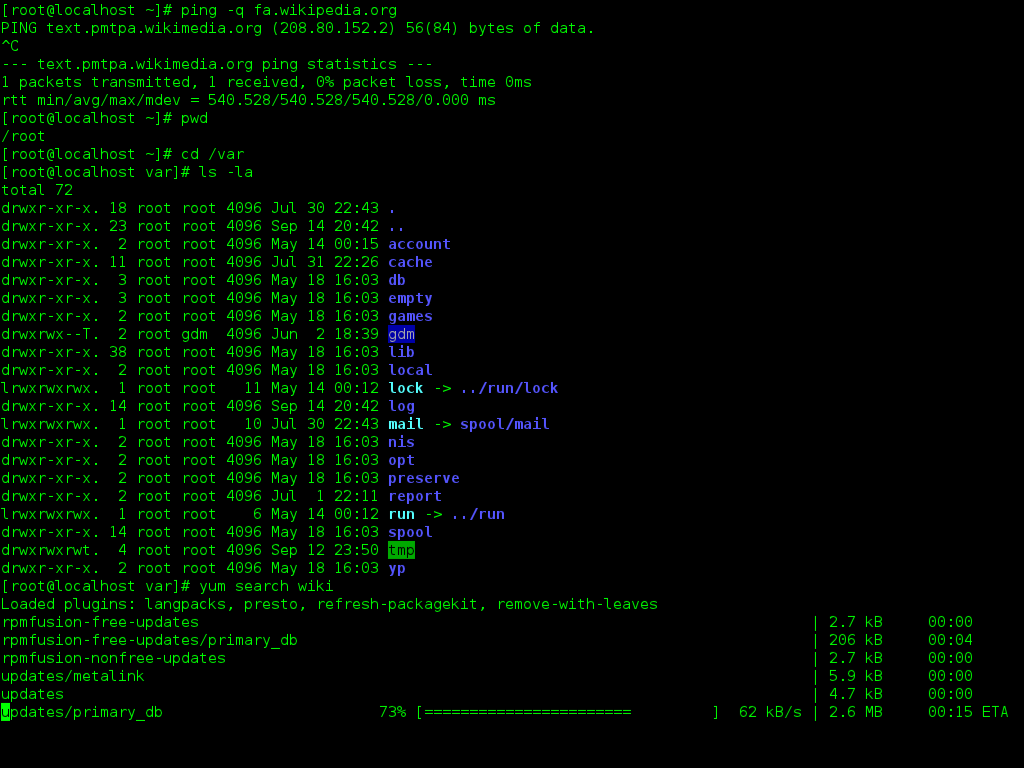
pwd, cd, and ls. Source: Wikimedia Commons.ls Lists Directory Contents
The basic ls command lists entries in a directory.
lsYou can also give ls a path:
ls /etc
ls ~/Downloads
ls ../
A common inspection form is ls -la. The -l option requests a long listing, while -a includes entries whose names begin with a dot. This is often useful when troubleshooting shell configuration files such as .bashrc.
cd Changes the Current Directory
cd /var/logAfter that command, pwd should report /var/log. You can also move using a relative path:
cd projects
cd app
pwd
If your starting directory was /home/user, those commands move into /home/user/projects/app.
Absolute Paths Start at /
An absolute path identifies a location from the filesystem root, represented by /.
/home/user/projects/app
/etc/ssh/sshd_config
/usr/bin/bash
Absolute paths do not depend on your current working directory. If /home/user/projects/app exists, that path names the same location whether your shell is currently in /tmp, /var/log, or your home directory.
Relative Paths Start Where You Are
A relative path is interpreted from the current working directory. If pwd prints /home/user/projects, then:
cd appmeans “enter /home/user/projects/app.” The shorter spelling is convenient because your current location supplies the missing beginning of the path.
ls, pwd, cd, and the difference between absolute and relative pathnames.Three Path Shortcuts You Need Immediately
| Symbol | Meaning | Example |
|---|---|---|
. | Current directory | ./script.sh |
.. | Parent directory | cd .. |
~ | Home-directory expansion in common Bash usage | cd ~/projects |
These shortcuts are small but fundamental. ./tool explicitly names a program in the current directory. ../file.txt names a file one directory above you. ~/Downloads expands from your home directory.
cd With No Argument Goes Home
cdIn normal Bash usage, cd with no directory argument moves to your home directory. You can confirm with pwd. Bash also supports cd - to switch back to the previous working directory, which is useful when moving between two locations.
Paths With Spaces Must Be Protected
Bash normally treats spaces as separators between words. If a path contains spaces, quote it or escape the spaces.
cd "My Projects"
cd My\ Projects
Quoting is usually easier to read, especially when paths come from variables. A later Bash lesson will go deeper into quoting and expansion rules.
A Command Name Is Not Always a Path
When you type a command such as:
python
ssh
git
you normally are not giving Bash a path containing a slash. Bash must decide what that command name refers to. The GNU Bash manual documents the shell’s command-search process, including functions, builtins, hashed commands, and the directories listed in PATH.
Our earlier PATH explainer covers the same idea across Windows and Linux: PATH is an ordered list of directories searched for executable command names.
Inspect PATH
echo "$PATH"On Linux, the entries are commonly separated by colons. A value might look like:
/usr/local/bin:/usr/bin:/binIf you type git, Bash can search those directories in order until it finds a suitable executable command.
Use command -v and type to See What Bash Will Run
command -v bash
command -v python
type cd
type ls
command -v is a useful portable shell-oriented way to ask how a command name resolves. Bash’s type builtin can tell you whether a name is an alias, function, builtin, or external executable.
The POSIX command specification defines the standardized command -v behavior used to describe how a command name would be interpreted.
Why ./script.sh Works When script.sh Does Not
If the current directory is not in PATH, typing script.sh asks Bash to search its command locations and may produce “command not found.” Typing ./script.sh is different: the slash tells Bash you supplied a path explicitly, so no ordinary PATH search is needed.
That connects directly to the execution model introduced in OSBash.001. It also connects to our fork() and exec() explainer, which describes the lower-level Unix process-launch path beneath shell command execution.
A Practical Navigation Session
pwd
ls
cd ~/projects
pwd
ls -la
cd app
pwd
cd ..
pwd
cd -
pwd
Do not just memorize the commands. Watch how the output changes after every cd. The goal is to build a mental map between the path printed by pwd and the relative paths you use next.
Troubleshoot “Command Not Found” in a Fixed Order
- Check the spelling of the command.
- Run
command -v commandname. - Inspect
echo "$PATH". - If it is a local file, ask whether you meant an explicit path such as
./tool. - Run
ls -lon the target path and confirm the file actually exists. - If you changed directories, run
pwdand verify you are where you think you are.
This sequence separates path problems from installation problems. A missing executable and a perfectly valid executable in the wrong directory can produce similar symptoms until you inspect the path deliberately.
Common Beginner Mistakes
- Assuming
lschanges directories: it only lists;cdchanges location. - Forgetting to run
pwd: many relative-path errors begin with an incorrect assumption about the current directory. - Confusing an absolute path with a relative path: leading
/changes the meaning completely. - Forgetting quotes around spaces: Bash splits unquoted words on spaces.
- Typing a local script name without
./: Bash may searchPATHinstead of the current directory. - Assuming
PATHis one folder: it is an ordered list of directories. - Relying only on
which: shell builtins and aliases can makecommand -vortypemore informative about Bash’s own resolution.
Practice
- Run
pwdand write down the absolute path. - Use
lsandls -laand compare the outputs. - Create or choose a directory one level below your current location and enter it with a relative path.
- Return to the parent directory with
cd ... - Move to your home directory with
cd, then return withcd -. - Use an absolute path to reach the same directory you previously reached with a relative path.
- Create a directory containing a space and enter it using quotes.
- Run
command -v bash,command -v git, andtype cd. - Print
PATHand identify the first three directories in the search order. - Create a tiny executable script in the current directory and compare typing its filename alone with typing
./filename.
Knowledge Check + Answers
- What does pwd do? Prints the current working directory.
- What does cd do? Changes the shell’s current working directory.
- What makes a path absolute? It begins from the filesystem root, normally with
/. - What does .. mean? The parent directory.
- What does . mean? The current directory.
- What does ~ usually represent in Bash? A home-directory expansion.
- What is PATH? An ordered list of directories Bash can use when searching for external command names.
- Why can ./script.sh work when script.sh fails?
./script.shexplicitly supplies a path, while the bare name may rely on command search throughPATH. - Which commands can help show what Bash will run?
command -vand Bash’stypebuiltin.
Elementary Review
Bash navigation is built around your current directory and the path you supply. Use pwd to orient yourself, ls to inspect directories, and cd to move. Absolute paths begin at /; relative paths begin where you are. When you type a bare command name, Bash may use PATH and its command-resolution rules to decide what to execute.
Next Bash Lesson
OSBash.003: Variables and Expansion will build on paths by showing how Bash stores values in variables and expands names such as $HOME and $PATH.
Editor’s Note
The featured image is a unique 1200×630 realistic color-pencil Bash workspace created specifically for OSBash.002 and is not reused in the body. The separate body image is a real Fedora Bash terminal screenshot from Wikimedia Commons.
BitcoinVersus.Tech content is provided for informational and educational purposes.


Leave a Reply