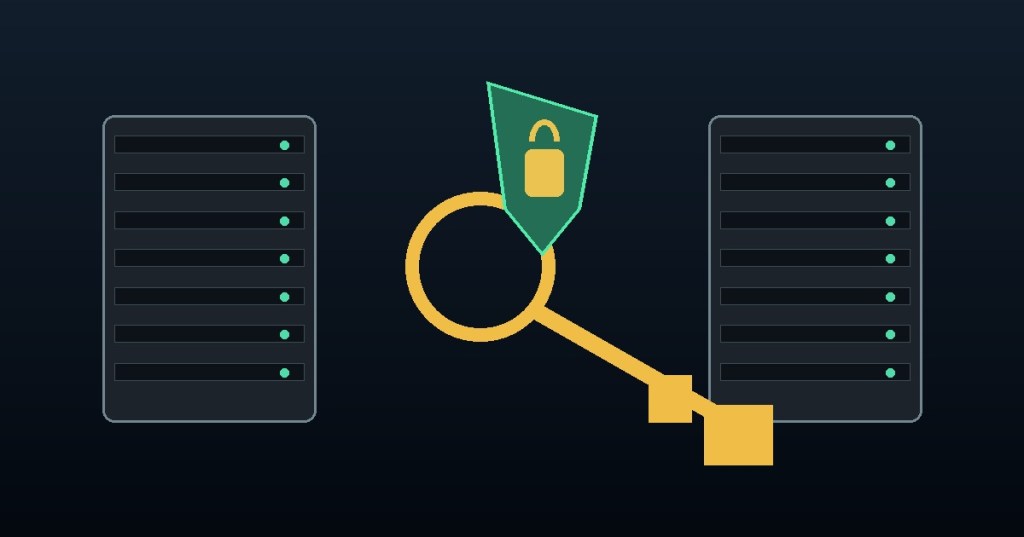
Passwords can be guessed, reused, phished, or exposed in a data breach. An SSH key gives you another way to prove that you are allowed to access a Linux server without sending a reusable account password across the login process.
What Is an SSH Key?
SSH stands for Secure Shell. It is a protocol for securely connecting to another computer, often a Linux server, over a network. SSH key authentication uses a matched pair of cryptographic keys: a private key that stays with you and a public key that you install on the server.
When you connect, the server challenges your SSH client to prove it controls the private key associated with an authorized public key. The private key is not uploaded to the server as part of authentication. That is the essential advantage.
Public Key vs. Private Key
- Public key: safe to share with servers you want to access; commonly stored in
~/.ssh/authorized_keyson the server. - Private key: must remain secret and protected on your device. Never paste it into a website, ticket, chat, or repository.
- Passphrase: optional additional protection that encrypts the private key at rest; strongly recommended.
Why SSH Keys Can Be Safer Than Passwords
A properly generated modern SSH key is not vulnerable to ordinary password guessing in the same way as a short or reused login password. An attacker who steals a public key cannot derive its matching private key using practical current methods. SSH keys also avoid typing your account password into every remote login.
They are not magic. A stolen unencrypted private key can grant access. Malware on your computer, weak key handling, untrusted host keys, and careless agent forwarding still create risk. Strong keys work best alongside device security, a passphrase, restricted permissions, and careful server configuration.
Create Your First SSH Key
On a current Windows, macOS, or Linux system with OpenSSH installed, open a terminal and run:
ssh-keygen -t ed25519 -C "my-laptop"Accept the suggested file path if you do not already have a key there, and set a strong passphrase. If the proposed file exists, choose a different filename rather than overwriting a key you still use. Ed25519 is a sensible modern default for general-purpose SSH authentication.
Typically the generated files are ~/.ssh/id_ed25519 (private) and ~/.ssh/id_ed25519.pub (public).
Install the Public Key on Your Server
On Linux or macOS, if your account and server permit password-based SSH for initial setup, the following helper can install the public key:
ssh-copy-id -i ~/.ssh/id_ed25519.pub username@server.example.comOtherwise, add the single-line contents of the .pub file to the correct remote account’s ~/.ssh/authorized_keys using your provider console or another authorized setup method. Never copy the private key to the server.
Connect and Test
ssh -i ~/.ssh/id_ed25519 username@server.example.comOn your first connection, SSH may ask you to trust the server’s host key. Verify the fingerprint through a trusted channel before accepting it; otherwise, you could connect to an impersonator. Once connected, the server authenticates your key, and you may be asked for the key’s passphrase locally.
Five Mistakes to Avoid
- Uploading
id_ed25519instead ofid_ed25519.pub. - Committing a private key to GitHub or another repository.
- Using the same unprotected private key on every shared machine.
- Ignoring the server host-key fingerprint warning.
- Disabling password login before verifying key-based access in a second terminal and preserving recovery access.
What About an SSH Agent?
An SSH agent can hold unlocked keys temporarily so you do not have to re-enter your passphrase on every connection. It is convenient, but you should avoid indiscriminate agent forwarding to machines you do not trust. Keep your operating system and OpenSSH tools updated.
Try It Yourself
- Check whether SSH is installed:
ssh -V. - Create an Ed25519 key with a passphrase.
- Identify which generated file is public and which is private.
- Install only the public key on a lab server or test VM.
- Connect using
ssh -iand verify the host fingerprint.
Knowledge Check
Which key goes on the server? The public key. Should you share your private key? No. Why use a passphrase? It protects the private key file if someone obtains a copy. Do SSH keys replace host verification? No; you still need to authenticate the server.
Further Reading
For authoritative command syntax and security guidance, see the OpenSSH ssh-keygen manual and OpenSSH client manual. For a related walkthrough, read How to Use SSH for Remote Access to Ubuntu from Windows.
Editor’s Note: Examples use placeholder hostnames and usernames. Practice on systems you own or are authorized to administer.


Leave a Reply