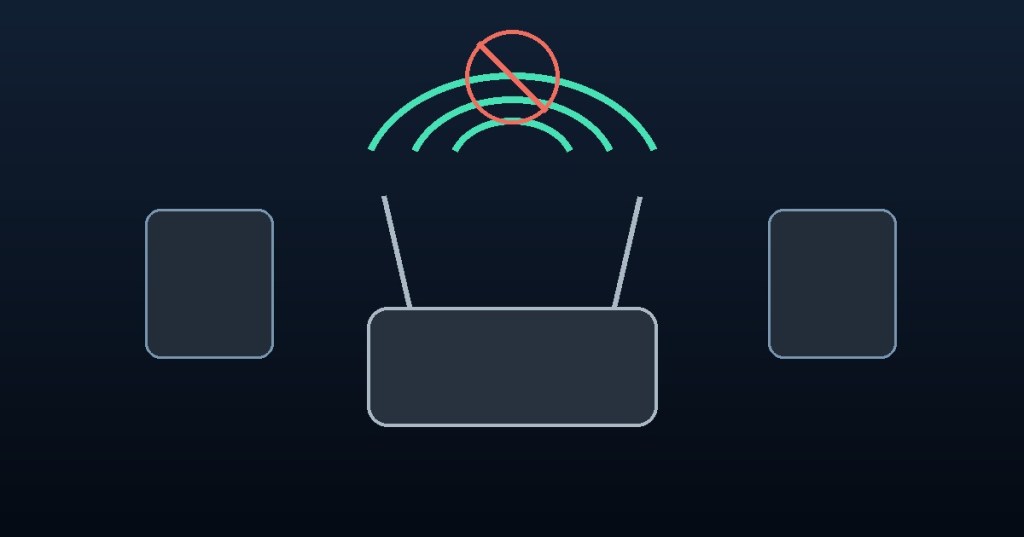
A Wi-Fi connection only proves that your device can communicate with a wireless access point. It does not prove that the router can reach the internet. That difference explains why a laptop or phone may show full Wi-Fi bars while websites refuse to load.
Wi-Fi and internet are two different connections
Wi-Fi carries data between your device and a local wireless network. Your internet connection carries traffic from that network to outside services. A working access point can keep local printers, file shares, and other devices reachable even when the modem or upstream provider is offline.
Five common causes
1. The internet provider is offline. A local router can continue broadcasting Wi-Fi during an upstream outage.
2. DNS is failing. Your device may have an internet route but cannot translate website names into IP addresses. DNS is one of the essential services explained in our guide to network ports.
3. The router has lost its upstream connection. A disconnected WAN cable, faulty modem, or incorrect gateway configuration can isolate an otherwise healthy wireless network.
4. A captive portal needs sign-in. Hotels, airports, and guest networks often require a browser-based acceptance or login step before allowing normal internet traffic.
5. The device has a local configuration problem. Incorrect IP addresses, gateways, DNS settings, VPNs, or firewall policies can break access for one device while others work.
How to troubleshoot it
First, try a second website and a second device. If every device fails, check the modem and router status indicators and your provider’s outage information. If only one device fails, reconnect to Wi-Fi and inspect its IP address, default gateway, DNS configuration, and VPN settings.
On Windows, use ipconfig /all to inspect the network configuration and nslookup example.com to test name resolution. On Linux, use ip route to inspect the default route and resolvectl status on systems that use systemd-resolved. A successful ping to a public IP with failing DNS lookups suggests a name-resolution issue, although some networks block ICMP traffic.
Watch: Troubleshoot Wi-Fi Without Internet
What the Wi-Fi icon actually tells you
Strong signal bars measure the wireless link, not end-to-end internet health. The best diagnosis separates wireless association, local IP connectivity, gateway access, DNS resolution, and upstream internet reachability. Testing each layer prevents unnecessary router replacements and helps pinpoint the real fault.
Editor’s Note
This article is an educational troubleshooting guide. Network behavior varies by device, operating system, and provider.


Leave a Reply