
sc.exe qfailureflag reads whether a Windows service is configured to run its recovery actions for qualifying non-crash failures. It is the read-only companion to Windows Command #44 – sc failureflag, which changes that setting.
What qfailureflag tells you
Windows services can have recovery actions such as restarting the service, running a command, or rebooting the computer after a failure. The failureflag setting controls whether those actions can also run when a service reports SERVICE_STOPPED with a nonzero Win32 exit code instead of simply crashing. qfailureflag lets you inspect that flag without changing it.
Basic syntax
Use sc.exe qfailureflag SERVICE_NAME. Replace SERVICE_NAME with the actual service name, not the friendly display name shown to users. For example:
sc.exe qfailureflag DemoServiceA successful query typically reports the service failure-actions flag as either TRUE or FALSE. A result of TRUE means qualifying non-crash failures are eligible to trigger the service’s configured recovery actions. FALSE means those recovery actions are limited to the normal crash-style failure condition.
TRUE does not mean recovery actions exist
This distinction is essential. qfailureflag reads only the flag that expands which failures can trigger recovery. It does not prove that restart, command, or reboot actions have been configured. Use sc.exe qfailure SERVICE_NAME to inspect the actual recovery policy.
A service can therefore report TRUE for qfailureflag while still having no useful recovery action configured. Conversely, a service can have recovery actions but report FALSE, meaning those actions apply only to the narrower failure condition.
Read the recovery configuration beside the flag
sc.exe qfailure DemoService
sc.exe qfailureflag DemoService
Running both commands gives you the full picture. qfailure shows actions, delay values, reset period, command, and reboot message when configured. qfailureflag shows whether non-crash failures are also eligible to trigger those actions.
sc.exe.Example interpretation
[SC] QueryServiceConfig2 SUCCESS
FAILURE_ACTIONS_ON_NONCRASH_FAILURES: TRUE
This output means Windows will consider qualifying non-crash service failures for the recovery actions already configured on that service. It does not tell you what those actions are. Query them separately with sc.exe qfailure SERVICE_NAME.
Query a remote computer
sc.exe can target another Windows computer when your account has the required remote Service Control Manager permissions and network access:
sc.exe \\SERVER01 qfailureflag DemoServiceRemote queries can fail because of firewall rules, RPC connectivity, service-control permissions, or administrative policy. An access-denied result is not evidence that the service lacks a failure flag; it means the query itself was not authorized.
Common mistakes
- Using the display name:
sc.exenormally expects the service name. - Assuming TRUE means restart: the flag does not define the recovery action.
- Skipping qfailure: always inspect the actual configured recovery actions too.
- Confusing query with configuration:
qfailureflagis read-only;failureflagchanges the setting. - Testing a critical service: learn with a disposable or noncritical service rather than production infrastructure.
Practice lab
- Choose a noncritical service that you are authorized to inspect.
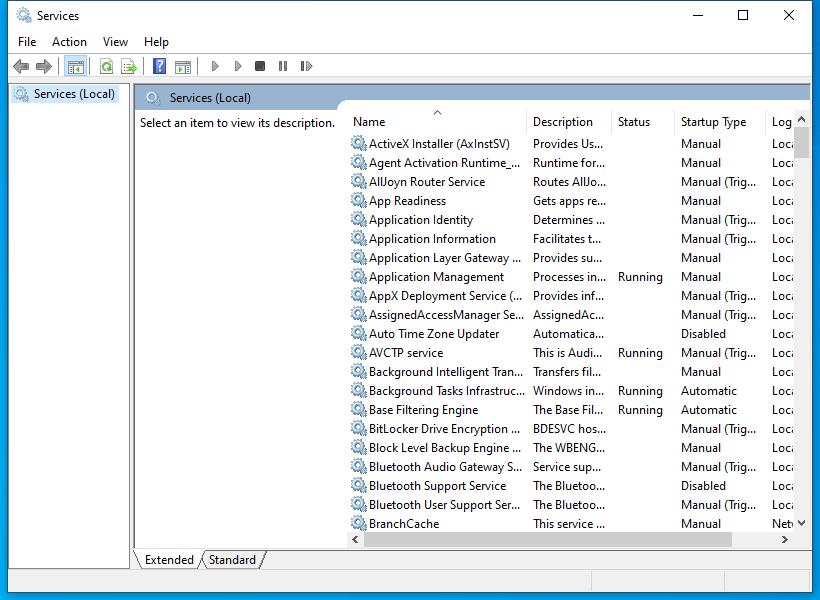
- Find its service name in
services.mscor withsc.exe query. - Run
sc.exe qfailure SERVICE_NAMEand record the recovery actions. - Run
sc.exe qfailureflag SERVICE_NAMEand record whether the flag is TRUE or FALSE. - Explain in one sentence what the flag changes and what it does not change.
- If you previously completed Windows Command #44 on a disposable service, compare the before-and-after query output.
Knowledge check
- What does
sc.exe qfailureflagread? - Does a TRUE result prove that restart actions are configured?
- Which command reads the service’s actual recovery actions?
- Which command changes the failure-actions flag?
- Why can a remote query return Access Denied?
- Should you use the service name or display name?
Answer guide
- Whether configured recovery actions can also run for qualifying non-crash failures.
- No. It only reports the flag.
sc.exe qfailure SERVICE_NAME.sc.exe failureflag SERVICE_NAME flag= 0orflag= 1.- The account may lack Service Control Manager permissions, or RPC/firewall policy may block remote access.
- The service name.
Key takeaway
sc.exe qfailureflag answers one focused question: are this service’s configured recovery actions eligible to run for qualifying non-crash failures? Pair it with sc.exe qfailure so you know both the trigger scope and the actual actions.
References
Primary references: Microsoft Learn — sc.exe qfailureflag, Microsoft Learn — Configuring a Service Using SC, and Microsoft Learn — SERVICE_FAILURE_ACTIONS_FLAG.
Advertisement
BitcoinVersus.Tech Editor’s Note:
We volunteer daily to ensure the credibility of the information on this platform is Verifiably True. If you would like to support our independent technical education work, please donate Bitcoin here: 3C9o19EH5HSiwEPyCTmEKzxhNCbo2X6TTb
BitcoinVersus.tech is not a financial advisor. This lesson is for informational and educational purposes.


Leave a Reply