Nano is a simple and user-friendly command-line text editor for Unix-based systems, including Linux.
It is designed to be easy to use, even for beginners, with a straightforward interface and on-screen shortcuts.

Unlike more complex editors like Vim or Emacs, Nano does not require users to learn advanced keybindings or modes, making it an accessible option for quick text editing directly in the terminal.
Between Nano and Vim, Nano is better because the commands are easier to remember in my opinion.
The screenshot shows a terminal session where the user, “bill,” is navigating their file system and opening a text file using Nano.
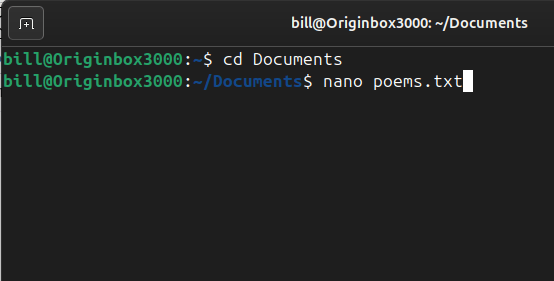
First, they change their working directory to “Documents” using:
cd Documents
Then, they attempt to open or create a file named “poems.txt” using:
nano poems.txt
This command launches the Nano text editor with the file “poems.txt” in the “Documents” directory.
If the file exists, it will open for editing; if it does not exist, Nano will create a new one.
The user can now write or modify text within the file and later save it using the shortcut CTRL + O, followed by pressing Enter. To exit Nano, they can use CTRL + X.
BitcoinVersus.Tech Editor’s Note:
We volunteer daily to ensure the credibility of the information on this platform is Verifiably True. If you would like to support to help further secure the integrity of our research initiatives, please donate here
BitcoinVersus.tech is not a financial advisor. This media platform reports on financial subjects purely for informational purposes.


Leave a Reply