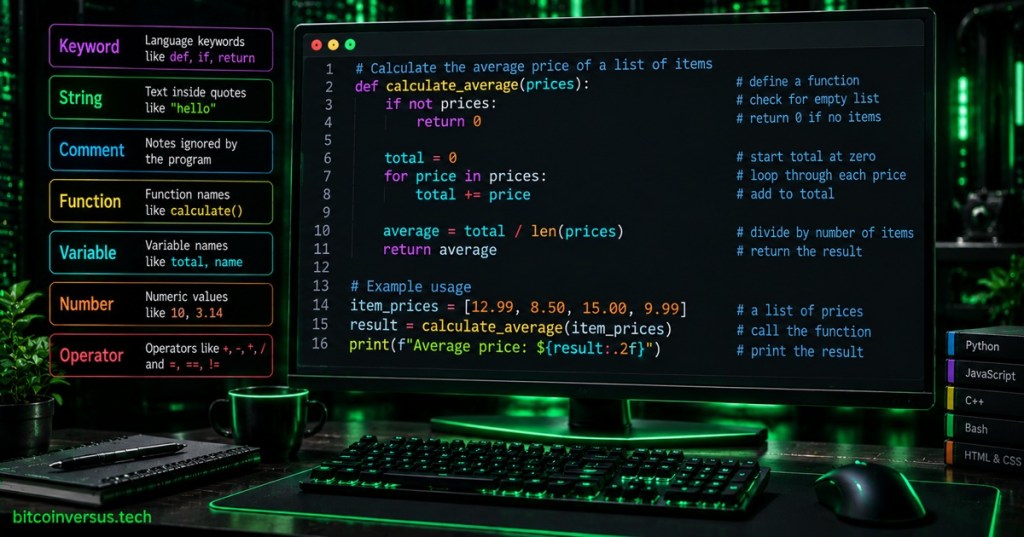
Open almost any modern code editor and the text is rarely one color. Keywords may be purple, strings green, numbers orange, function names yellow, and comments gray or blue. That color system is called syntax highlighting: the editor recognizes different parts of source code and displays them with different visual styles so humans can scan the structure more quickly.
Syntax highlighting does not normally change what the program means. A Python file still runs the same whether def appears purple, blue, or plain white. The colors belong to the editor interface, not the program itself. That is why the same file can look completely different in Vim, Visual Studio Code, or the simpler terminal editor nano.
The Basic Idea: Give Different Kinds of Code Different Visual Roles
Consider a small Python example. Even before running it, an editor may visually separate comments, language keywords, numbers, strings, function calls, and variable names. The goal is similar to punctuation and headings in ordinary writing: the formatting gives your eyes clues about the structure.
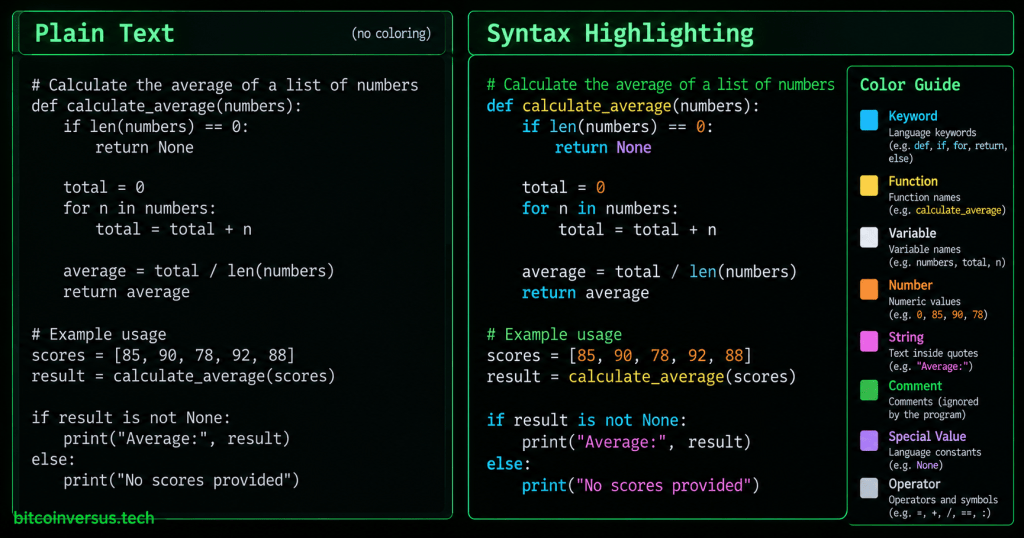
Common categories include keywords such as if, for, and return; strings such as "hello"; comments; numbers; operators; function names; types; and variables. The exact categories depend on the programming language and the highlighting engine.
Syntax Highlighting Has Two Main Jobs: Recognize, Then Style
A useful way to think about highlighting is as two separate steps. First, the editor has to recognize what pieces of text are. Then a theme decides how those pieces should look. Visual Studio Code’s official documentation describes these ideas as tokenization and theming.
- Tokenization: classify pieces of the text as things such as keywords, comments, strings, or numbers.
- Theming: map those classifications to colors, bold text, italics, or other styles.
This distinction explains why changing from a dark theme to a light theme does not normally change which text is recognized as a comment. The parser or grammar still identifies the comment; the theme simply chooses a different color for it.
How Does the Editor Know What Is a String or Keyword?
Different editors use different techniques. Some systems use grammar rules and regular expressions to break the file into tokens. VS Code, for example, uses TextMate grammars as a major part of its syntax-tokenization system. Other editors increasingly use real parsers such as Tree-sitter, which builds a syntax tree while you type and can identify language structures more precisely.
Tree-sitter’s own documentation describes highlighting queries that capture things such as keyword, function, type, property, and string, then let a theme map those categories to visual styles. That means the color you see is often the final result of several layers: source text → grammar/parser → token category → theme.
A Theme Is Mostly a Color Map
People often say “I changed my syntax highlighting” when they really changed the theme. The distinction is useful. Highlighting determines that a piece of text is a string; the theme might decide strings should be green. Another theme could make the exact same strings orange.
# Same Python code, different themes:
name = "Ada"
if name:
    print(name)
Dark themes, light themes, high-contrast themes, color-blind-friendly themes, and custom company themes can all display the same source code differently. This is similar to choosing fonts or interface colors elsewhere in software: the data remains the same while the presentation changes.
Semantic Highlighting Goes a Step Further
Basic syntax highlighting mainly recognizes the grammatical shape of text. Semantic highlighting can use deeper information from a language server or compiler-like analysis to understand what a symbol actually represents inside the project.
For example, two identifiers may both look like ordinary names to a simple grammar, but a language server may know that one is a class, another is a constant, and another is a function parameter. VS Code can layer semantic tokens on top of ordinary syntax tokens so a theme can style those cases differently.
Why Comments Are Often Dimmer
Comments are commonly given a quieter color because they are annotations for humans rather than executable instructions. Keywords may receive a stronger color because they define control flow or language structure. Strings and numeric literals may get distinct colors because they are easy to confuse with surrounding code at a glance.
Those choices are conventions, not laws. A theme can color every category however its designer wants. Good themes generally aim for enough contrast to separate roles without turning every line into a rainbow.
The File Type Matters
An editor needs to know what language or format it is looking at. A .py file suggests Python. A .json file suggests JSON. Extensions such as .html, .css, .js, .cpp, and .rs similarly help editors select the correct grammar or language support.
If an editor chooses the wrong language mode, the colors may suddenly look strange because the text is being interpreted using the wrong grammar. Most editors let you manually change the language mode when automatic detection gets it wrong.
Syntax Highlighting Can Reveal Obvious Mistakes—but It Is Not a Compiler
If a quote is never closed, a large section of the file may suddenly take on the string color. If a comment marker is malformed, the following text may appear unexpectedly. Those visual changes can provide a quick clue that something is wrong.
But syntax colors are not proof that code is correct. A line can be beautifully highlighted and still contain a logic bug, type error, security problem, or invalid runtime assumption. Highlighting is a reading aid; compilers, interpreters, linters, debuggers, tests, and language servers perform different jobs.
Why Syntax Highlighting Is Useful for Beginners
Beginners often see source code as one dense wall of punctuation. Colors can make the structure easier to separate mentally. Comments look like comments. Strings look like data. Keywords stand out from names the programmer invented. After enough practice, you begin recognizing these categories even when the colors change.
This is also why syntax highlighting pairs naturally with editors such as Vim and graphical environments such as VS Code: both can display the same text file while providing a much richer visual representation than raw monochrome text.
Can Too Much Color Be Bad?
Yes. If nearly every character has a different bright color, the highlighting can become visual noise. Very low contrast can be just as bad because important categories become difficult to distinguish. Accessibility also matters: color should not be the only way critical information is communicated.
A useful theme usually has a clear visual hierarchy. The exact palette is personal preference; the important part is that the editor remains readable for long sessions.
The Bottom Line
Syntax highlighting is a visual layer that classifies pieces of source code and displays them differently. An editor first recognizes tokens or syntax structures, then a theme decides how those categories should look. More advanced systems can add semantic information from language servers or parsers such as Tree-sitter.
The next adjacent rabbit hole does not need to stay inside code editors. A lighter follow-up could be “What Is a Monospace Font?”—why terminals, code editors, schematics, and old computer screens so often use letters that all occupy the same width.
Primary technical references: Microsoft’s VS Code Syntax Highlight Guide and the Tree-sitter syntax-highlighting documentation.
Editor’s Note
Different editors, themes, plugins, language servers, and versions can classify or color the same code differently. This overview focuses on the common ideas behind syntax highlighting rather than one editor’s exact palette.
We volunteer daily to ensure the credibility of the information on this platform is Verifiably True. If you would like to support our research initiatives, please donate here: 3C9o19EH5HSiwEPyCTmEKzxhNCbo2X6TTb
BitcoinVersus.tech is not a financial advisor. This media platform reports on financial and technology subjects purely for informational purposes.


Leave a Reply