Elementary Overview
C# source code does not run by itself. You need a toolchain that can understand the source, build it into .NET output, and run the resulting application. For a modern C# developer, the center of that toolchain is the .NET SDK. The SDK gives you the dotnet command, project templates, the build system, the C# compiler, package tooling, and the pieces needed to create and run .NET applications.
This first C# lesson connects directly to OSDotNet.001: What Is .NET? and OSDotNet.002: What the Common Language Runtime Does. It also builds on the practical idea behind PATH: when you type dotnet in a terminal, the operating system must be able to find the installed executable.
What You Should Learn
- What the .NET SDK contains and how it differs from the .NET runtime.
- How to verify that the SDK is installed and visible on your PATH.
- How to create a console project with
dotnet new. - What
Program.csand the project file do at a beginner level. - How
dotnet buildinvokes the C# compiler and produces build output. - How
dotnet runbuilds and executes an application. - What Roslyn, IL, metadata, and the .NET runtime are doing in the simplified compilation pipeline.
- How to diagnose the first common SDK and build failures.
Start With The .NET SDK
The .NET runtime is enough to run compatible applications, but the .NET SDK is what you normally install when you want to develop C# software. Microsoft describes the .NET CLI as a cross-platform toolchain included with the SDK for developing, building, running, and publishing .NET applications. Installing an SDK also installs its corresponding runtime.
After installing the SDK for your operating system, open a new terminal and verify it before you start writing code.
dotnet --info

dotnet --list-sdks

dotnet --version
dotnet --info gives a broad environment report. dotnet --list-sdks shows the installed SDK versions. dotnet --version reports the SDK version selected for the current environment. If the shell says that dotnet is not found, verify the installation and your PATH configuration before troubleshooting C# source code.
Create Your First C# Project
The .NET SDK includes a template engine. The command dotnet new console creates a console application from the installed console template. You can create the project in a new directory with:
dotnet new console -n HelloCSharp
cd HelloCSharp
A simple project normally includes Program.cs, which contains C# source code, and a .csproj project file, which tells the .NET build system important things such as the SDK style and target framework. As the project grows, the project file can also record package references and other build settings.
Modern console templates can be very small. You may see a one-line program such as:
Console.WriteLine("Hello, World!");That is valid modern C#. Top-level statements let beginners write executable code without manually declaring a namespace, class, and Main method first. Later lessons will explain the syntax and program structure in detail. If you use an editor such as Visual Studio Code, syntax highlighting and a monospace font can make source code easier to read, but the compiler does not care about those visual editor choices.
Build The Project
Run:
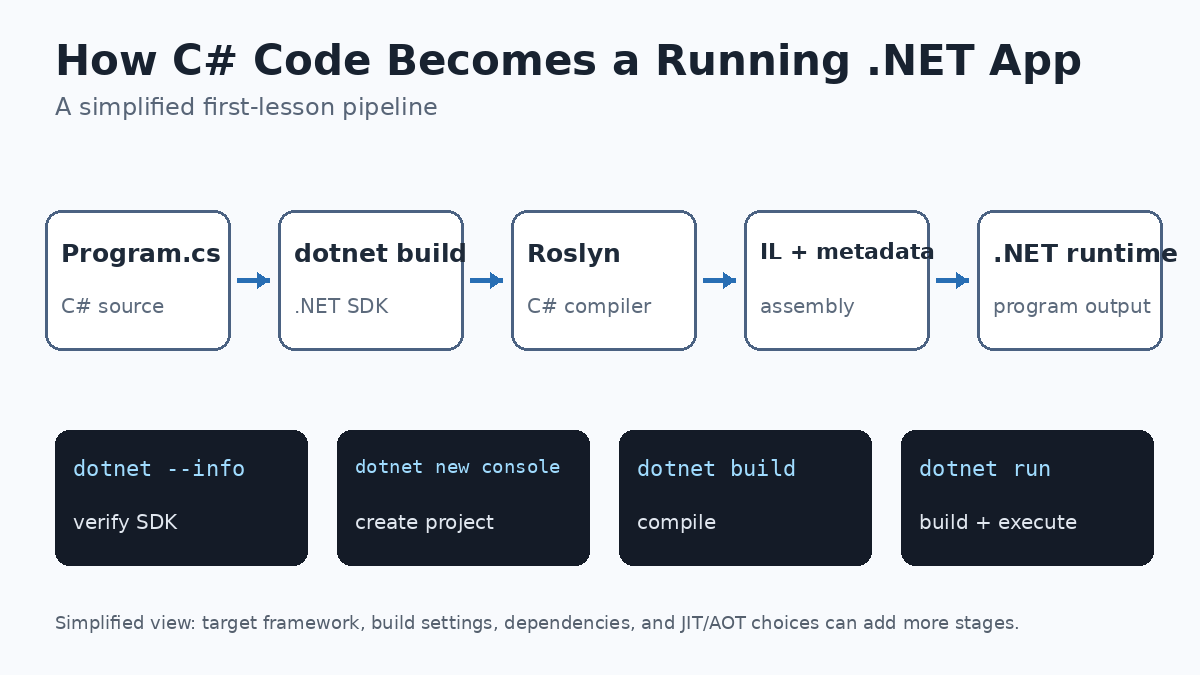
dotnet buildAt a high level, the SDK coordinates restore and build work, MSBuild evaluates the project, and the C# compiler processes the source. Microsoft’s C# compiler platform is commonly called Roslyn. The compiler parses the code, checks syntax and meaning, and produces .NET output containing Intermediate Language (IL) and metadata when the build succeeds.
Microsoft’s dotnet build documentation notes that normal build output can include the main assembly, debugging symbols, dependency information, runtime configuration, and referenced libraries. For a beginner console project, you will commonly see generated folders such as obj for intermediate build data and bin for build output.
dotnet build

# Example success pattern:
# Build succeeded.
#     0 Warning(s)
#     0 Error(s)
Understand The Compiler Pipeline
A useful beginner model is:
C# source (.cs)
      ↓
.NET SDK / build system
      ↓
Roslyn C# compiler
      ↓
IL + metadata in an assembly
      ↓
.NET runtime
      ↓
running program
This model is intentionally simplified. The runtime may use just-in-time compilation, ahead-of-time compilation, or other execution strategies depending on how the application is built and deployed. For the first lesson, the key distinction is enough: the C# compiler translates your source into .NET program output, and the .NET runtime is responsible for executing that output. For a deeper runtime explanation, revisit OSDotNet.002.
Run The Application
For normal development, the simplest command is:
dotnet rundotnet run is designed for the development loop. It runs source code without requiring you to type a separate explicit compile and launch sequence. If the project needs to be built first, the command handles that work as part of the run process.
You can also build first and then run the resulting application output separately. That distinction becomes more important later when you learn deployment, publishing, build configurations, and continuous integration.
Project-Based And File-Based C#
Modern .NET also supports file-based apps for small programs and experiments. In supported SDK versions, a single C# source file can be run directly, reducing project ceremony for quick work. Microsoft’s current beginner documentation shows a file-based workflow as well as project-based development.
dotnet hello-world.csDo not let that convenience blur the main lesson. Larger applications still benefit from project files because projects define framework targets, package references, build behavior, and other settings. Learn the project-based workflow first, then treat file-based apps as another tool in the same SDK.
dotnet run.The First Troubleshooting Order
- Can the shell find dotnet? Run
dotnet --info. - Is an SDK actually installed? Run
dotnet --list-sdks. - Are you in the project directory? Confirm that the
.csprojfile is present before running project commands. - Does the project build? Run
dotnet buildand read the first useful compiler error rather than only the final error count. - Did restore fail? Check network access, package sources, and package/version errors.
- Is the wrong SDK being selected? Compare
dotnet --info,dotnet --list-sdks, target framework settings, and anyglobal.jsonfile. - Did you change the source? Save the file, rebuild, and confirm you are running the intended project.
Mini Lab
- Run
dotnet --infoand identify the SDK version and operating system information. - Run
dotnet --list-sdksand note whether more than one SDK is installed. - Create a project with
dotnet new console -n FirstCSharpLab. - Enter the directory with
cd FirstCSharpLab. - Open
Program.csand change the message. - Run
dotnet build. - Run
dotnet run. - Find the
binandobjdirectories created by the build. - Introduce one deliberate syntax error, build again, read the compiler diagnostic, then fix the error.
Knowledge Check + Answers
- What is the difference between the .NET SDK and the .NET runtime? The runtime executes .NET applications; the SDK adds the development tools needed to create, build, test, package, and run them.
- Which command gives a broad report about the installed .NET environment?
dotnet --info. - Which command creates a console project?
dotnet new console. - What does
dotnet builddo? It builds the project and its dependencies, invoking the .NET build system and compiler to produce application output. - What is Roslyn? Microsoft’s open-source .NET compiler platform that includes the C# compiler and compiler APIs.
- What does the C# compiler produce in the normal managed build model? .NET assemblies containing IL and metadata, plus related build artifacts.
- What does
dotnet rundo? It builds as needed and runs the application from source during development. - Why can a correct SDK installation still produce “dotnet not found”? The shell may not be able to find the executable because PATH or the terminal environment is wrong or stale.
Primary References
- Microsoft Learn — .NET CLI overview
- Microsoft Learn — Check installed .NET versions
- Microsoft Learn — dotnet new
- Microsoft Learn — dotnet build
- Microsoft Learn — dotnet run
- Microsoft Learn — .NET Compiler Platform SDK
- Microsoft Learn — Get started with .NET
Elementary Review
Your first C# skill is not memorizing syntax. It is proving that the toolchain works. Install the .NET SDK, verify it with dotnet --info, create a project with dotnet new, build it with dotnet build, and run it with dotnet run. Once that loop works, every later C# lesson has a reliable place to start.
Editor’s Note
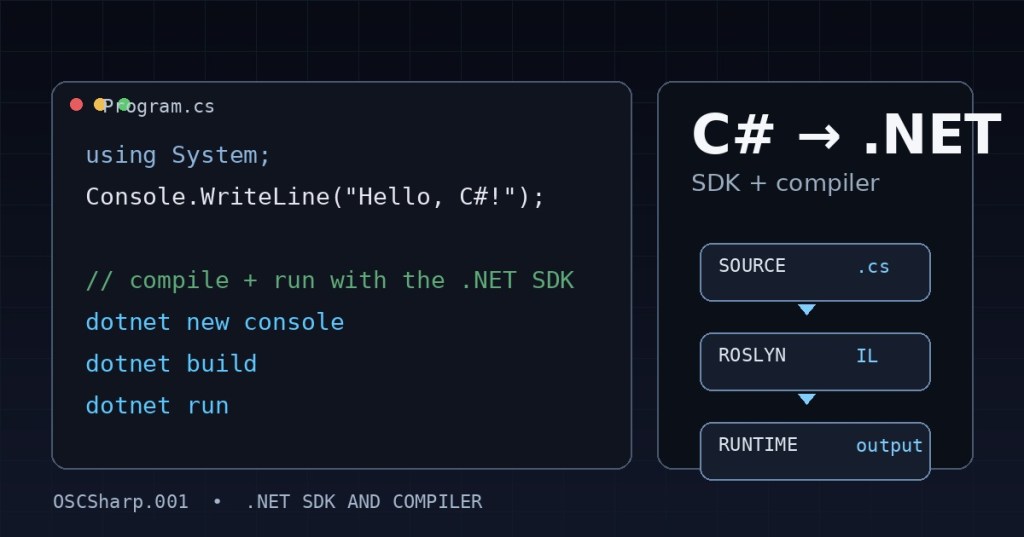
The featured image is an original 1200×630 BitcoinVersus.Tech cover created specifically for OSCSharp.001 and is not reused in the body. The lesson uses a separate original 1200×675 instructional build-pipeline diagram. The three YouTube videos use responsive native Gutenberg 16:9 embed blocks, and the social item uses a responsive native Gutenberg embed. Ordinary lesson prose is not placed inside bordered, shaded, card, callout, panel, or fixed-width text boxes.
BitcoinVersus.Tech content is provided for informational and educational purposes.


Leave a Reply