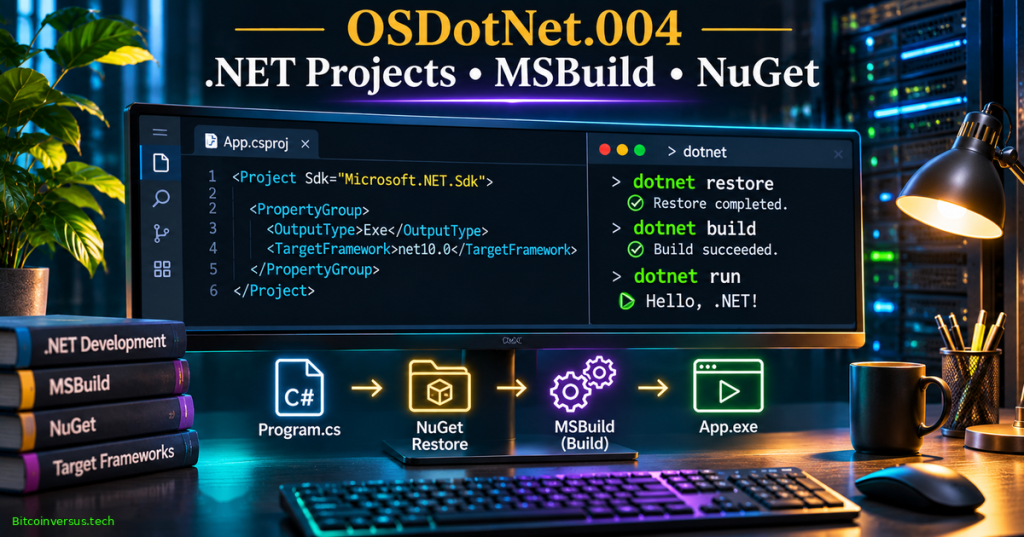
OSDotNet.004 explains how modern SDK-style .NET projects connect source files, target frameworks, NuGet dependencies, and MSBuild tasks into a repeatable build. The .csproj file is an XML-based specification of what an application is and how tools should process it; dotnet restore resolves dependency assets, dotnet build compiles a program, and dotnet publish prepares deployment output. The lesson follows OSDotNet.003 on CIL, metadata, and assembly manifests, moving from the inside of a compiled binary to the project and build system that produces it.
Learning Objectives and Prerequisites
- Identify the project file, source files, generated folders, and compiled outputs in an SDK-style .NET application.
- Explain the roles of
Project,PropertyGroup,ItemGroup,TargetFramework, andOutputType. - Distinguish the .NET SDK selected to perform a build from the target framework the compiled application uses.
- Describe how MSBuild evaluates properties, imports SDK targets, and executes a dependency-based build.
- Compare dependency restore, build, run, and publish, including when restore happens implicitly.
- Run a .NET 10 console example and examine its
binandobjartifacts. - Explain
PackageReference, version selection, security audits, and optional SDK version pinning withglobal.json. - Predict expected output and safely troubleshoot build errors without installing unverified packages.
Prerequisites: OSDotNet.001 on the platform, runtime and SDK, OSDotNet.002 on the common language runtime, and elementary knowledge of the .NET compiler and CLI. For hands-on work, install a supported .NET 10 SDK from Microsoft and use an ordinary user account with an empty practice directory. No third-party package is needed for the primary exercise.
Elementary Overview
A program is more than the lines of code its author types. A computer needs to know which files belong together, which version of .NET the program targets, and how to turn those files into something runnable. A project file is the instruction sheet. The SDK includes the tools that read the sheet. MSBuild coordinates the work, and NuGet finds additional software libraries if the project needs them.
The process resembles preparing a school science project: the source code is the work, the project file is the assignment checklist, restoring dependencies gathers required materials, building assembles the result, and publishing packages it for delivery. A program can sometimes run without a project file under .NET 10, but projects remain useful when code, dependencies, tests, or deployment requirements become more complex.
How .NET Project Files Developed
Earlier Microsoft .NET projects often required long explicit lists of source files and build settings. Modern SDK-style projects introduced a shorter XML format that imports common build logic and includes ordinary source files automatically. They use the Microsoft.NET.Sdk project SDK for a typical class library or console application, while Microsoft.NET.Sdk.Web adds ASP.NET Core web build conventions. Both rely on MSBuild, Microsoft’s extensible build engine. The project format and compiled assembly serve different purposes: the first describes the build, while the latter contains the result.
As of November 8, 2026, Microsoft lists .NET 10 as a supported long-term-support release through November 2028. .NET 8 and .NET 9 approach their November 2026 end-of-support dates. Use a supported target framework for new examples, but verify precise deadlines in the current Microsoft lifecycle documentation before planning production upgrades. Building a target does not guarantee deployment machines have its required runtime.
The Smallest Useful SDK-Style Project File
An SDK-style C# project is normally stored in a file ending with .csproj. Its outer Project element names the SDK, and the inner PropertyGroup collects settings. Here is a minimal executable project targeting .NET 10:
<Project Sdk="Microsoft.NET.Sdk">
  <PropertyGroup>
    <OutputType>Exe</OutputType>
    <TargetFramework>net10.0</TargetFramework>
    <ImplicitUsings>enable</ImplicitUsings>
    <Nullable>enable</Nullable>
  </PropertyGroup>
</Project>
OutputType with value Exe requests an executable application rather than a reusable library. TargetFramework tells the build which API contract and target framework to use. ImplicitUsings enables automatically generated common namespace imports; Nullable turns on C# nullable-reference analysis. TargetFramework is not a request to download a particular SDK installer. It also differs from a runtime identifier, such as linux-x64, which describes deployment architecture and operating system.
The SDK-style project implicitly imports Sdk.props before user project content and Sdk.targets afterward. Those imports supply properties, tasks, targets, and standard file inclusion rules. Microsoft’s SDK reference documents the implicit imports; they should not normally be copied verbatim into the short project file.
Properties and Items Play Different Roles
MSBuild separates properties, which are named values used to configure the build, from items, which represent files or other inputs. A property such as TargetFramework defines a build configuration. An item such as PackageReference requests an external dependency. A ProjectReference item instead identifies another local project. The XML element names and capitalization matter.
For example, a separate class-library project may be included with a project reference. The path shown below is illustrative and would require the referenced file to exist:
<ItemGroup>
  <ProjectReference Include="../SharedLib/SharedLib.csproj" />
</ItemGroup>
For external packages, NuGet uses PackageReference items with package IDs and version ranges. The next fragment illustrates the structure with a fictional package identifier, not something to paste into the runnable lab:
<ItemGroup>
  <PackageReference Include="Example.NotARealPackage" Version="1.2.3" />
</ItemGroup>
In a real project, select a verified package from a trusted repository, examine publisher identity, license, transitive dependencies, maintained versions, and security advisories. See Microsoft’s PackageReference reference. The absence of a PackageReference item does not mean a .NET project lacks any framework assemblies: the target framework and SDK provide implicit references.
What NuGet Restore Actually Does
dotnet restore reads project and NuGet configuration, resolves the dependency graph, obtains necessary package assets, and generates files used by later build stages. Dependency resolution can include direct and transitive packages. A typical generated file is obj/project.assets.json, which records resolved compile and runtime assets. Package files are usually cached in the user’s global NuGet packages directory; a project is not required to copy every restored package into its source folder.
Several common commands, including dotnet build, dotnet run, and dotnet publish, perform restore implicitly when needed. Explicit dotnet restore remains useful in CI pipelines where dependency resolution is audited and separated from compilation. The --no-restore flag skips that step, so it should only be used when a compatible restore already succeeded. Microsoft also documents NuGet vulnerability auditing during restore; security warnings should be evaluated rather than hidden. Official restore reference.
MSBuild Evaluates a Dependency Graph
MSBuild reads project XML, imports SDK build targets, evaluates properties and items, and then runs requested targets and dependent targets in the correct order. A build is not simply one compiler invocation. Targets may generate code, resolve references, compile source, copy resources, emit runtime configuration, and populate output directories. The build engine also supports incremental behavior: it can skip certain work when inputs and outputs show that the result is still current.
To inspect the complete XML project after imports, use dotnet msbuild -preprocess. To view a particular evaluated MSBuild property, use dotnet msbuild -getProperty:TargetFramework with a supported MSBuild version. The property command returns the project’s evaluated target framework, whereas preprocessing shows the imported build definitions. Source expansion is documentation, not a build itself.
dotnet msbuild -preprocess:expanded.xml
dotnet msbuild -getProperty:TargetFramework
Projects can also control behavior by configuration, most commonly Debug and Release. The project’s bin folder holds compiled outputs for a configuration and target framework, while obj holds intermediate assets and generated metadata. Avoid committing these generated directories as ordinary source code; configure repository ignore patterns accordingly.
Create and Inspect a .NET 10 Console Application
Open a terminal and confirm the installed SDK. The laboratory is intended for Windows, macOS, or Linux with the supported .NET 10 SDK. Run the following commands in a new disposable working directory. They create a conventional project with a .csproj file rather than a single file-based program:
dotnet --info
dotnet new console --name ProjectLab --framework net10.0
cd ProjectLab
The template normally creates ProjectLab.csproj, Program.cs, and generated directories after restore. Inspect the project file in a text editor. Template defaults can vary across SDK versions, so compare the actual generated XML with the earlier illustrative project file rather than assuming every line is identical.
Replace Program.cs with the following deliberately simple program, which writes exactly one message to standard output when the application starts:
Console.WriteLine("Project build pipeline ready.");Now restore explicitly, compile without another restore, and run the already-built Debug result. The command sequence keeps dependency resolution and compilation visible as separate actions for learning:
dotnet restore
dotnet build --no-restore
dotnet run --no-build
The expected application output is Project build pipeline ready. following build and command-line diagnostics. The output line is deterministic for the provided source, but the build has not been executed in the authoring environment because the .NET SDK is absent. Actual verification requires the learner to record SDK version, command exit statuses, output, and compiled file locations.
Inspect the Intermediate and Final Files
The build typically creates obj/Debug/net10.0/ and bin/Debug/net10.0/. In the latter directory, a standard console app generally contains the application assembly ProjectLab.dll, an executable launcher for the current platform in suitable configurations, plus ProjectLab.deps.json and ProjectLab.runtimeconfig.json. Exact file sets depend on SDK and host platform. .deps.json records runtime dependencies, and .runtimeconfig.json describes runtime framework requirements.
Review the obj/project.assets.json file only to understand resolution metadata; it is generated and should not be edited by hand. To understand the assembly itself, revisit OSDotNet.003 on CIL and manifests. The difference is important: the .csproj specifies how to build, the .dll contains compiled managed code, and project.assets.json helps the tooling locate dependencies.
Build Versus Publish
dotnet build produces artifacts suitable for building and running the project during development. dotnet publish produces a deployment-oriented output folder, with accompanying dependencies and configuration appropriate to publishing options. A framework-dependent publish expects a compatible shared .NET runtime on the destination; a self-contained publish includes the necessary runtime components for a selected platform and can be considerably larger. Self-contained does not automatically mean a single executable file.
On the practice project, build and publish a Release configuration without third-party packages. Inspect the contents of the created folder before distributing anything:
dotnet build --configuration Release
dotnet publish --configuration Release --output ./publish
dotnet ./publish/ProjectLab.dll
The final command assumes the published output is framework-dependent and that a compatible runtime is installed. Use the official publish command documentation to control runtime identifiers and deployment modes. Never infer that a binary from one operating system and CPU architecture will automatically run everywhere.
SDK Version Selection with global.json
A global.json file can control which installed .NET SDK performs build operations. It does not change the application’s target framework. For reproducible builds, a repository can specify an SDK version and a roll-forward policy. The example below asks for .NET SDK feature band 10.0.100 or a later compatible 10.0 feature band when installed. An environment without a matching SDK will fail rather than silently use a completely different major version:
{
  "sdk": {
    "version": "10.0.100",
    "rollForward": "latestFeature",
    "allowPrerelease": false
  }
}
A project can target net10.0 even when built with a later feature band of the .NET 10 SDK. A toolchain lock should be reviewed when security fixes or supported SDK updates arrive; strict pinning is a reproducibility tool, not permission to operate an outdated SDK indefinitely. See Microsoft’s global.json reference.
Multi-Targeting and Compatibility
Libraries sometimes compile against more than one framework using the plural TargetFrameworks property with a semicolon-separated list. A typical example could combine net10.0 and netstandard2.0 when the project’s APIs permit both, but additional package compatibility and target-specific build checks are required. The lab remains single-targeted to keep its outputs deterministic. TargetFrameworks should not be combined casually with the singular TargetFramework setting: the SDK interprets the latter as a single target if both are present.
<PropertyGroup>
  <TargetFrameworks>net10.0;netstandard2.0</TargetFrameworks>
</PropertyGroup>
Do not paste that snippet into the sample executable: it is intended to illustrate library compatibility, not a guaranteed supported console application configuration. Framework-specific APIs and third-party dependencies can fail to compile or restore for one target while working for another. Microsoft’s MSBuild property reference documents framework properties.
Security and Operational Considerations
- Trust boundaries: NuGet packages and MSBuild targets can influence a developer or CI environment. Review untrusted project files before executing builds.
- Dependencies: use established package feeds, review authors and licensing, avoid secrets in project XML, and investigate NuGet audit warnings.
- Reproducibility: control dependency versions and restore policies; consider
packages.lock.jsonand locked restore for projects that require stricter repeatability. - Credentials: never commit personal access tokens, private feed passwords or cloud keys into
NuGet.Config, source files or command history. - Configuration: distinguish build-time values from runtime environment variables and confidential deployment configuration.
- Deployment: test target OS, processor, runtime availability and dependency packaging before distributing binaries.
- Code provenance: the cover is a conceptual illustration; it must not be interpreted as proof that the example compiled successfully.
Troubleshooting Common Failures
- SDK not found: run
dotnet --list-sdksand compare the installed versions with anyglobal.jsonrequirements. - Unsupported target: verify that the installed SDK supports the
net10.0target and required reference packs. - Restore failure: inspect NuGet sources, authentication, package compatibility, proxies, and network access; do not hide audit findings to force success.
- Build succeeds but run fails: distinguish the generated DLL, launcher, runtime configuration, and whether the destination has the required .NET runtime.
- Unexpected compile input: inspect SDK default file inclusion rules and the complete preprocessed MSBuild project.
- Stale outputs: review generated
binandobjartifacts, then usedotnet cleanor a controlled rebuild if appropriate. - Release versus Debug: make sure the configuration and directory being inspected match the build command that actually ran.
Practice and Knowledge Check
- Which file specifies the project SDK and target framework?
- Explain the difference between
dotnet restoreanddotnet build. Why does build sometimes perform restore without a separate command? - Why is
TargetFrameworkdifferent from the selected SDK version? - What is the purpose of
ProjectReference, compared withPackageReference? - Which generated folder normally contains
project.assets.json, and should it be edited manually? - Compare a framework-dependent publish with a self-contained publish.
- What happens if
dotnet build --no-restoreruns before a suitable restore? - How can
global.jsonimprove repeatability, and what happens if the selected SDK is unavailable?
Answer key: A .csproj project file describes project-level SDK and build properties. Restore resolves dependency assets, while build compiles and packages project outputs; build normally restores implicitly. The target framework selects API and runtime contracts, whereas the SDK selects the development toolchain. ProjectReference points to another project, while PackageReference points to NuGet package dependencies. obj/project.assets.json is generated restore metadata, not a hand-maintained source file. Framework-dependent publishing requires a compatible installed runtime; self-contained output includes an appropriate runtime. --no-restore can fail without matching assets. global.json constrains toolchain selection and can cause a deliberate failure if no compatible SDK is installed.
Official Documentation and Further Reading
- Microsoft Learn — .NET project SDK overview.
- Microsoft Learn — SDK-style MSBuild properties.
- Microsoft Learn — dotnet restore.
- Microsoft Learn — dotnet build.
- Microsoft Learn — dotnet publish.
- Microsoft Learn — global.json SDK version selection.
- Microsoft Learn — NuGet PackageReference.
- Microsoft Learn — .NET lifecycle and support.
- Microsoft Learn video — Installing a NuGet Package using the .NET CLI.
Elementary Conclusion
The .NET project file is a concise build instruction sheet, not the application itself. The SDK reads that sheet, NuGet gathers dependencies, MSBuild organizes compilation, and the resulting assembly contains executable managed code. A project can be built locally, run for development, and published for deployment with different commands. Learning these distinctions helps developers locate errors, explain generated files, and keep repeatable software builds organized.
Editor’s Note: OSDotNet.004 continues the verified OSDotNet.003 curriculum. Sources are official Microsoft Learn documentation, supplemented by two Microsoft educational videos. The standalone console program and project XML have been prepared for .NET 10; the local authoring environment does not have the .NET SDK, so compiling, running, and publishing the project have not been independently executed. The expected console output is a prediction, not a claimed test pass. The featured 1200 × 630 cover is original branded editorial art, not a genuine test screenshot. The two YouTube embed identities are sourced; rendered-player presence and live playback require separate verification.

We volunteer daily to ensure the information on this platform is Verifiably True. If you would like to support the research, please scan the QR code. Verify the recipient and amount independently before making a payment.
The programming lab is educational. Revalidate commands, package sources, and target framework support in your own environment before deploying to shared or production systems.


Leave a Reply