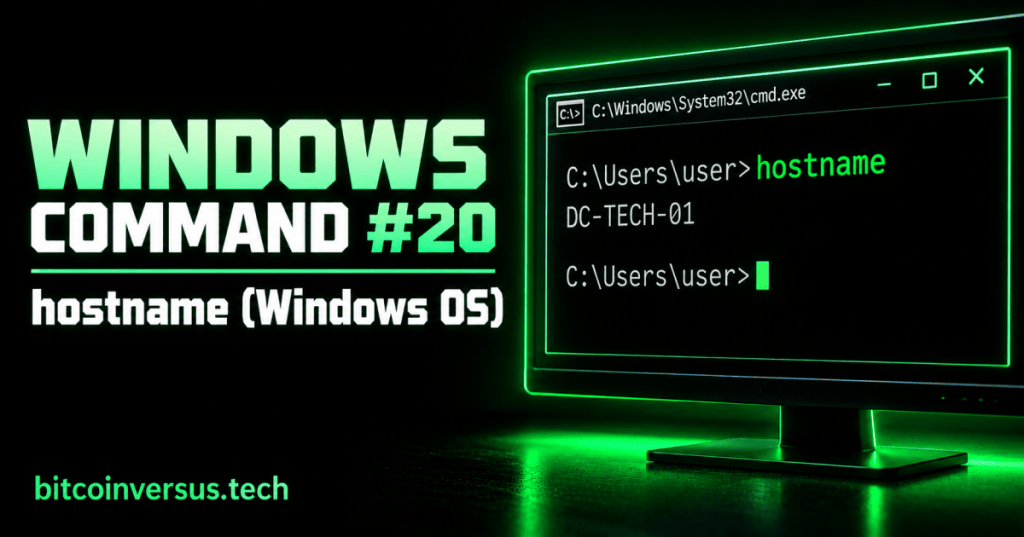
The Windows hostname command answers a very simple but important technician question: what is this computer called on the network?
This lesson follows Windows Command #19 – arp (Windows OS).
Run hostname
hostnameA computer might return:
DC-TECH-01That text is the computer’s host name. Windows uses computer names to help identify machines, and technicians often need the name when checking inventory, remote systems, network records, or support tickets.
Video: Find a Windows Host Name
This short Windows tutorial explains what a host/device name is and demonstrates finding it from Command Prompt.
Another Way to Check
Windows also has a COMPUTERNAME environment variable. In Command Prompt, try:
echo %COMPUTERNAME%Microsoft notes that this usually prints the same computer name as hostname, commonly in uppercase.
Data Center Example
You are standing at a Windows workstation in a data center and need to confirm which machine is listed in a maintenance ticket. Open Command Prompt, run hostname, and compare the returned name with the ticket or asset record before making changes.
Networking Example
If several Windows computers are connected to the same network, their host names help people distinguish one system from another. A clear name such as DC-TECH-01 is easier to recognize than guessing which physical computer a record refers to.
Practice
- Open Command Prompt.
- Run
hostname. - Write down the returned computer name.
- Run
echo %COMPUTERNAME%. - Compare the two results.
Key Takeaway
hostname quickly displays the name of the Windows computer you are working on. It is a simple identification command that is useful before troubleshooting, documenting, or remotely working with systems.


Leave a Reply