Your Windows computer knows a router’s IP address, but an Ethernet frame needs a local hardware address too. The ARP cache keeps that pairing handy. Reading it can help you investigate the local connection before you trace a path across the internet.
A simple definition
ARP stands for Address Resolution Protocol. For IPv4 communication on a local link, it discovers the MAC address associated with a next-hop IP address. A MAC address is a link-layer address; a cache is a stored set of mappings that can be reused.
Plain English: an IP address identifies where a packet is going; the local MAC address tells the network interface where to send the next frame. If the destination is outside your subnet, that next frame usually goes to your gateway, rather than directly to the distant server.
In this Open CERT lesson, you will display the cache, read a sample entry, and look for your own gateway. Use Command Prompt on Windows 10 or 11. The viewing commands normally work without an administrator window.
Display the cache
Open Start, search for Command Prompt, and enter:
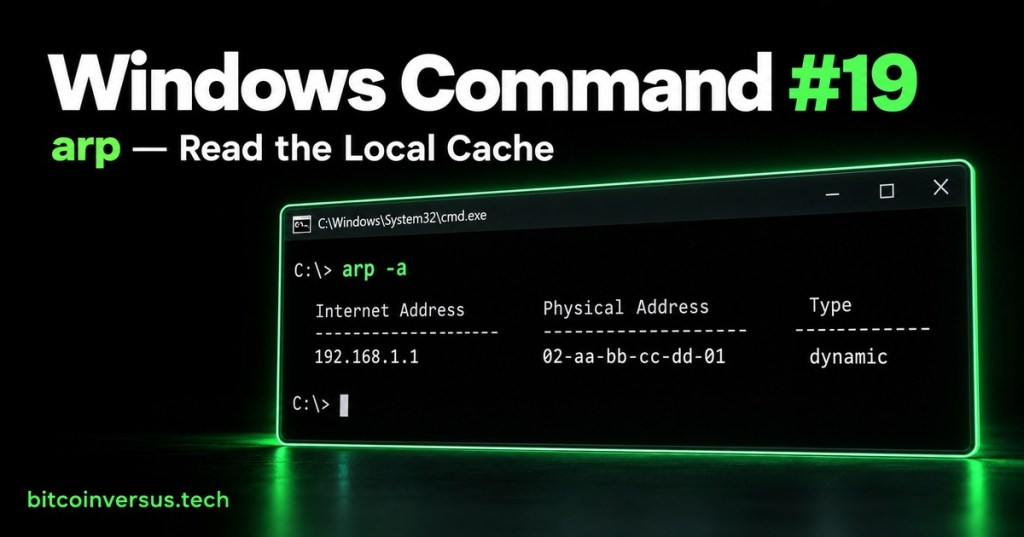
arp -a
The command prints tables grouped by network interface. In each table, Internet Address is the IPv4 address, Physical Address is the associated MAC address, and Type describes the entry.
Example only: 192.168.1.1 paired with 02-aa-bb-cc-dd-01, marked dynamic. Those invented addresses match the cover illustration; they are not a discovery from your computer.
A dynamic entry was learned and can age out. A static entry is not aged in the same way. Some displayed static rows are multicast or broadcast mappings supplied by the system, so static does not automatically mean someone configured a device.
Watch ARP work
PowerCert’s animation explains the request-and-reply exchange behind the table. Watch how a sender learns a local address, then return to inspect your own cache.
Practice: find your gateway
Start with ipconfig, covered in the earlier Windows ipconfig lesson. Find the connected Ethernet or Wi-Fi adapter and record its IPv4 address and Default Gateway. Ignore disconnected adapters.
Suppose your actual gateway is 192.168.1.1. Run the following, replacing that example with the gateway shown on your computer:
ping -n 1 192.168.1.1arp -a 192.168.1.1
Sending local traffic can cause Windows to resolve the gateway’s MAC address. Compare the table with your notes. A ping reply confirms an ICMP response; a cache entry only shows an address mapping. Even if ping times out, a mapping may exist because ARP and ICMP are separate exchanges.
With multiple adapters, narrow the display to one interface. If your computer’s own IPv4 address is 192.168.1.20, the example is:
arp -a -N 192.168.1.20
Replace that value with your adapter’s own IPv4 address. The capital -N matters. It selects the interface, not the remote device you want to inspect.
Understand the limits
The cache is not a complete inventory of every connected device. It reflects mappings available to that computer, and entries can disappear. An absent entry alone does not prove a device is offline.
For an ordinary routed internet connection, expect a local next-hop mapping, usually the gateway, rather than the remote website’s MAC address. IPv6 uses Neighbor Discovery instead of ARP. VPNs and virtual adapters can make the output look different.
A changed MAC address is a clue to investigate, not automatic proof of an attack. Equipment replacement, gateway redundancy, or virtualization can explain changes. Confirm against trusted network records.
After checking the local hop, use Windows Command #18 – pathping to investigate the wider route. These tools answer different troubleshooting questions.
Quick review
1. Which command displays the cache? 2. Does a cached mapping prove a device answers ping? 3. What address goes after -N?
Answers: 1. arp -a. 2. No. 3. Your own interface’s IPv4 address.
Takeaway: Use arp -a to inspect local IPv4-to-MAC mappings. Read the correct interface, compare the gateway entry, and interpret the result alongside other evidence.
References: Microsoft’s arp command reference and the ARP specification, RFC 826. Command syntax was checked against Microsoft documentation; the practice sequence is provided for you to run on Windows.


Leave a Reply