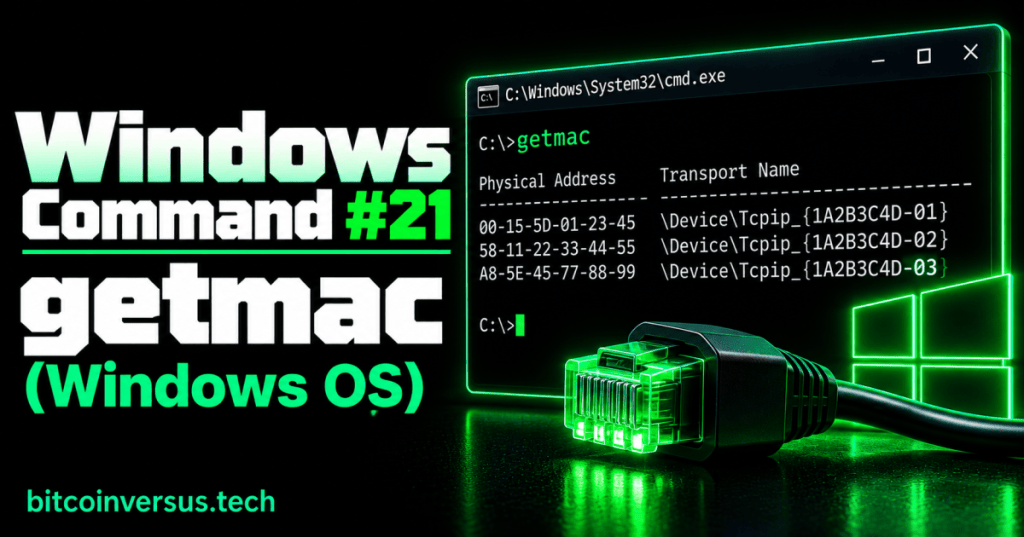
The Windows getmac command displays the MAC addresses associated with network adapters on a computer. A MAC address is a hardware-level identifier used by network interfaces, and technicians often need it when troubleshooting switches, DHCP reservations, device inventory, or adapter identity.
Basic Syntax
getmacRunning the command without options lists the physical addresses detected for local network adapters.
What the Output Means
The most important field for a beginner is Physical Address. That value is the MAC address for a network interface. A computer can show more than one MAC address because it may have Ethernet, Wi-Fi, virtual, Bluetooth, VPN, or other adapters.
Verbose Output
getmac /vThe /v option adds more detail so you can better match a MAC address to its adapter.
Video: Windows getmac Command
This short Windows networking walkthrough demonstrates the getmac command and how it can be used to identify adapter MAC addresses.
Table Output
getmac /fo table /v/fo table asks Windows to display the results in table format, while /v keeps the extra adapter details visible.
Simple Troubleshooting Example
Suppose a switch or DHCP server shows a device by MAC address and you need to confirm which Windows computer it belongs to. Running getmac /v gives you the local adapter addresses so you can compare them with the address seen on the network.
Data Center Example
During rack-and-stack work, a technician may need to confirm which Ethernet interface is connected to a particular switch port. Matching the server’s MAC address with the switch’s learned address can help verify the connection.
MAC Address vs. IP Address
An IP address and a MAC address are not the same thing. An IP address identifies a device logically on an IP network and can change. A MAC address identifies a network interface at the data-link layer, although software, virtualization, and privacy features can sometimes change or randomize the address that appears.
Practice
- Open Command Prompt.
- Run
getmac. - Count how many physical addresses appear.
- Run
getmac /v. - Identify which address belongs to your active Ethernet or Wi-Fi adapter.
Key Takeaway
getmac is a fast Windows command for identifying the MAC addresses associated with network adapters. For technicians, it is especially useful when matching a computer to switch, DHCP, inventory, or troubleshooting information.


Leave a Reply