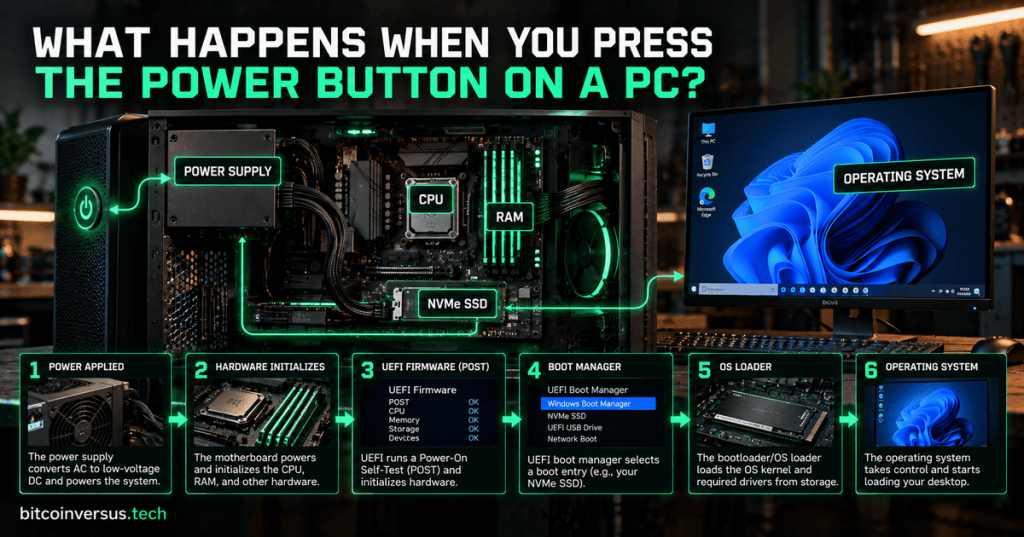
Pressing the power button on a PC feels instant, but the computer has to complete a chain of hardware and software steps before the desktop appears.
The easy version is: power arrives, the hardware wakes up, firmware checks the machine, a boot manager finds the operating system, the kernel starts, and the OS takes control.
1. The Power Supply Starts the Chain
When you press the case button, the signal reaches the motherboard, which tells the power supply unit to begin delivering the DC voltages the computer needs.
The PSU does not simply dump power into every component at random. It has to provide stable power so the CPU, RAM, storage devices, fans, chipset, and other hardware can initialize safely.
2. The CPU Starts Running Firmware
At this point there is no Windows desktop and no Linux shell yet. The CPU begins executing startup instructions from the computer’s firmware.
On a modern PC, that startup firmware is usually UEFI. Older systems commonly used BIOS. Both exist to perform the earliest initialization before the operating system is ready to run.
3. POST Checks the Hardware
The firmware performs startup checks commonly grouped under POST, or Power-On Self-Test. The exact checks vary by system, but the goal is to confirm that essential hardware is present and usable enough to continue booting.
That can include initializing the processor, detecting memory, discovering storage, bringing up display hardware, and checking other motherboard devices.
If something critical is missing, the PC may stop here and show a diagnostic LED, beep code, POST code, or error message instead of loading the operating system.
4. UEFI Looks for a Boot Target
Once the hardware is initialized, the UEFI firmware follows its configured boot order. The official UEFI specification describes a firmware boot manager that loads boot entries according to platform boot variables and policy.
On a normal desktop, the target is usually the operating system’s boot application stored on an SSD or other storage device. The machine could also be configured to boot from USB, network storage, recovery media, or another device.
For the formal description of this stage, see the UEFI Specification boot-manager chapter.
5. The Bootloader Loads the Operating System
The next handoff goes to a bootloader or OS boot manager. Its job is to locate the operating system and prepare it to start.
On Windows, Microsoft documents the sequence as firmware, Windows Boot Manager, the Windows OS loader, and then the Windows kernel. Other operating systems use their own bootloaders, but the broad idea is similar: firmware hands control to a program that knows how to load the OS.
Microsoft’s Windows startup-process documentation is a useful reference because it separates startup into preboot, boot manager, OS loader, and kernel phases.
6. The Kernel Takes Control
The bootloader places the operating-system kernel into memory and starts it. The kernel is the central software layer that manages the CPU, memory, devices, processes, and hardware access after firmware has finished its job.
This is the moment the machine shifts from “firmware-controlled computer” to “operating-system-controlled computer.” Drivers begin initializing more devices, services start, filesystems mount, and the OS builds the environment you actually use.
7. The Operating System Finishes Startup
The operating system now loads the rest of the drivers, starts background services, prepares networking, detects attached devices, and eventually presents the login screen or desktop.
By the time you see the desktop, the system has already moved through power conversion, motherboard initialization, processor startup, memory detection, storage discovery, firmware execution, boot selection, bootloader execution, kernel startup, and service initialization.
Secure Boot Can Add a Trust Check
Many modern PCs also use TPM and UEFI security features such as Secure Boot. These features help the system verify trusted startup software before handing control deeper into the operating-system boot chain.
The Simple Mental Model
Power button → PSU → motherboard → CPU → UEFI/POST → boot manager → bootloader → kernel → operating system → desktop.
If a PC refuses to start, that sequence also gives you a troubleshooting map. No lights at all points toward power. Lights but no POST point toward early hardware or firmware initialization. A “no boot device” message points toward the boot target. A bootloader or kernel error means the system made it farther down the chain.
That is why understanding startup is useful even for beginners: every boot problem happens somewhere along this chain.
BitcoinVersus.Tech
Advertisement
Editor’s Note
BitcoinVersus.Tech publishes technical explainers and reporting for informational and educational purposes.
BitcoinVersus.tech is not a financial advisor. Content is provided for informational purposes.


Leave a Reply