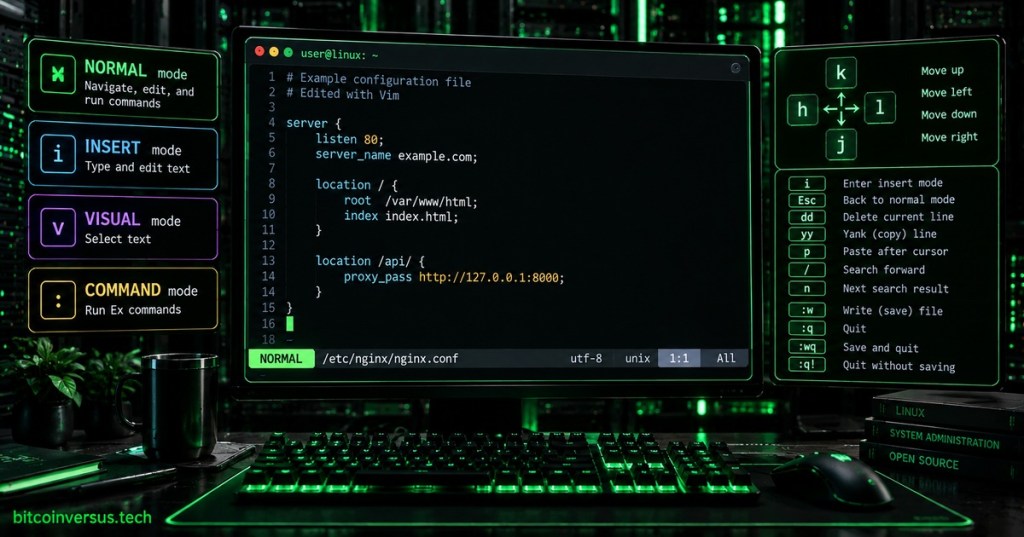
Vim is a keyboard-driven text editor built around a different idea from editors such as Notepad, Visual Studio Code, or the simpler terminal editor nano. Instead of treating every keypress as text input, Vim gives keys different meanings depending on the current mode. That initially feels unusual, but it is also the reason experienced users can navigate, delete, copy, transform, search, and repeat edits without constantly reaching for a mouse.
Vim stands for Vi IMproved. It grew from the older Unix vi editor and remains closely associated with Linux and Unix systems. The official Vim project describes it as a highly configurable text editor designed to make changing text efficient, with features including multi-level undo, plugins, powerful search and replace, syntax support, and integration with external tools.
The First Thing to Understand: Vim Has Modes
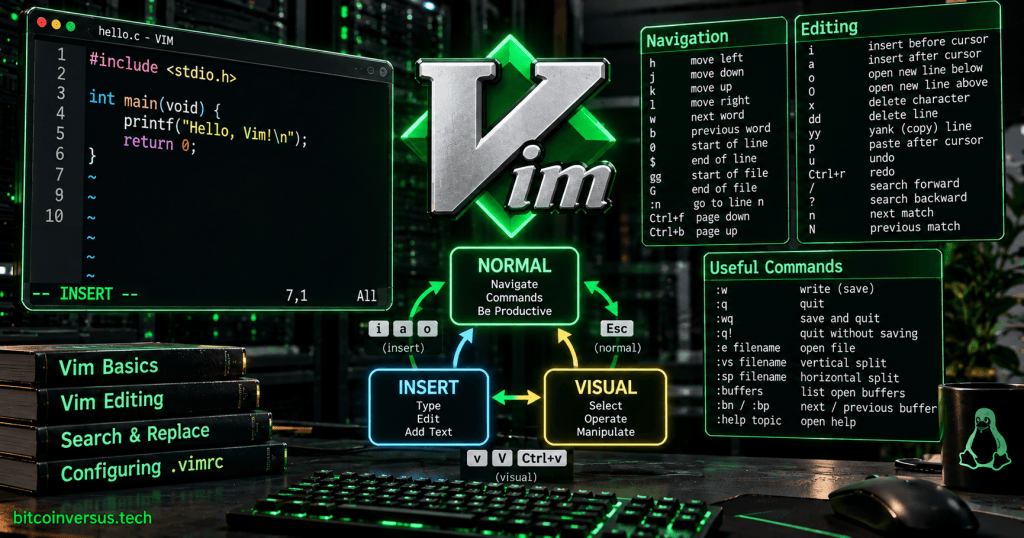
If Vim ever seemed confusing because typing letters did not simply insert letters, the reason was probably Normal mode. Vim starts there because Normal mode is where keys act as editing commands rather than ordinary text. Pressing i changes into Insert mode; pressing Esc returns to Normal mode.
- Normal mode — navigation and editing commands.
- Insert mode — ordinary text entry.
- Visual mode — select text, then operate on that selection.
- Command-line mode — commands beginning with
:, plus searches beginning with/or?.
That mode system is the core mental model. You normally spend short bursts typing in Insert mode, then return to Normal mode to move or manipulate text. Vim’s own documentation recommends learning through vimtutor, and its built-in :help system is an extensive cross-referenced manual.
Opening Vim and Opening a File
vim
vim notes.txt
vim /etc/hosts
vim script.py
Launching Vim with no filename opens the editor with an empty buffer. Supplying a pathname loads that file into a buffer. Editing files under directories such as /etc is a common system-administration use case because many Linux services are configured with plain-text files.
Entering Text: i, a, o, and O
From Normal mode, several commands enter Insert mode at slightly different locations. Learning just four covers most beginner needs:
i   insert before the cursor
a   append after the cursor
o   open a new line below
O   open a new line above
Esc return to Normal mode
The most important habit is pressing Esc when you finish typing. Once you are back in Normal mode, the keyboard becomes a command surface again.
Moving Around Without Arrow Keys
The famous Vim movement keys are h, j, k, and l. Arrow keys usually work too, but Vim’s native motions keep your hands in the main typing area.
h   left
j   down
k   up
l   right
w   next word
b   previous word
0   beginning of line
$   end of line
gg  beginning of file
G   end of file
5G  go to line 5
The deeper idea is not memorizing dozens of shortcuts. Vim treats movement as a reusable language. A motion such as w means “move one word.” That same motion can be combined with an operator such as delete or change.
Vim Commands Behave Like a Small Editing Language
One of Vim’s strongest ideas is the combination of operators + motions. For example, d means delete and w means move to the next word. Put them together and dw means delete to the next word. d$ deletes to the end of the line. c means change, so cw changes a word and enters Insert mode.
x    delete character
dd   delete current line
dw   delete word
d$   delete to end of line
cw   change word
yy   yank (copy) current line
p    paste after cursor
u    undo
Ctrl+r redo
.    repeat the last change
The . command is particularly important: it repeats the last change. That encourages users to think in repeatable edits rather than one-off keystrokes.
How to Save and Quit Vim
The “how do I exit Vim?” joke exists because quitting is performed from Normal mode through command-line commands rather than a conventional close button. Press Esc, type one of these commands, then press Enter:
:w    write (save)
:q    quit
:wq   save and quit
:x    save if changed, then quit
:q!   quit and discard unsaved changes
If Vim warns that the file has unsaved changes, :q intentionally refuses to discard them. Use :w to save or :q! only when you deliberately want to throw the changes away.
Searching Inside a File
Vim search begins with / for forward search and ? for backward search. After searching, n moves to the next match and N moves to the previous one.
/server_name
n
N

?error
Search is especially useful when editing large configuration or source files because it turns the file into something navigable by concept rather than just line number.
Search and Replace
Vim’s substitution command uses a compact pattern:
:s/old/new/       replace first match on current line
:s/old/new/g      replace every match on current line
:%s/old/new/g     replace every match in the file
:%s/old/new/gc    replace every match, asking for confirmation
The % means the entire file range, while g means all matches within each selected line. Regular expressions can make these substitutions substantially more powerful.
Visual Mode: Select, Then Act
Press v in Normal mode to begin character-wise Visual mode. Press V for whole lines, or Ctrl+v for blockwise selection. After selecting text, use commands such as d, y, c, >, or < to delete, copy, change, indent, or unindent the selected region.
Buffers, Windows, and Tabs Are Different Things
Vim uses a vocabulary that can confuse new users. A buffer is an in-memory representation of a file. A window is a viewport displaying a buffer. A Vim tab page is a collection of windows—not simply the same concept as a browser tab.
:e file.txt      edit/open a file
:buffers         list buffers
:bn              next buffer
:bp              previous buffer
:sp file.txt     horizontal split
:vs file.txt     vertical split
Ctrl+w w         move between windows
This allows Vim to operate as much more than a one-file terminal editor. It can keep several files loaded and display multiple files side by side without leaving the keyboard.
The .vimrc Configuration File
Vim is highly configurable. On Unix-like systems, personal settings have traditionally been stored in ~/.vimrc, although modern versions also support XDG-oriented configuration locations. A small configuration might enable line numbers, syntax highlighting, search highlighting, indentation behavior, or key mappings.
set number
set relativenumber
set ignorecase
set smartcase
set expandtab
set shiftwidth=4
set tabstop=4
syntax on
Configuration files are another reason terminal editors remain useful to Linux administrators. Rather than launching a full graphical IDE, you can SSH into a machine, inspect a file, make a targeted change, save it, and return immediately to the shell.
Vim vs. nano vs. VS Code
There is no universal “best” editor. nano is easier when you simply need to edit a small file immediately because its shortcuts are shown on screen and typing works as expected. VS Code provides a richer graphical development environment with extensions, debugging, project browsing, and integrated tooling. Vim trades that immediate familiarity for keyboard efficiency, portability, composability, and deep control inside terminal environments.
Use vimtutor Before Memorizing a Cheat Sheet
If Vim is installed, try:
vimtutorThe official Vim documentation specifically points beginners toward Vim Tutor because it teaches movement and editing interactively. Inside Vim itself, :help opens the built-in documentation, and targeted commands such as :help motion, :help visual-mode, or :help :substitute jump directly to a topic.
:help
:help motion
:help insert
:help visual-mode
:help :write
:help :substitute
A Small Beginner Workflow
- Open a practice file with
vim notes.txt. - Press
iand type a few lines. - Press
Esc. - Move with
h j k landw b 0 $. - Delete a line with
dd, undo withu, then redo withCtrl+r. - Copy a line with
yyand paste withp. - Search with
/wordand move through matches withn. - Save with
:w. - Quit with
:q.
If those commands become comfortable, you already understand enough Vim to edit configuration files, scripts, notes, source code, and remote-server files without feeling trapped inside the editor.
The Bottom Line
Vim is best understood as a modal editing language wrapped around a text editor. Insert mode types text. Normal mode combines operators and motions. Visual mode selects text. Command-line mode handles actions such as saving, quitting, substitution, buffer management, and configuration. Once that mental model clicks, the commands stop feeling like disconnected shortcuts and begin behaving like a consistent system.
The next useful Vim rabbit holes are text objects, registers, macros, marks, buffers and splits, and the configuration/plugin system. Those should be separate focused articles rather than cramming the entire editor into one overview.
Primary reference: the official Vim documentation, including its built-in :help system and Vim Tutor.
Editor’s Note
Vim is not the only vi-style editor. Neovim and other editors can provide Vim-compatible keybindings or related modal workflows. This article focuses specifically on the core Vim model and commands that transfer well across many vi-style environments.
We volunteer daily to ensure the credibility of the information on this platform is Verifiably True. If you would like to support our research initiatives, please donate here: 3C9o19EH5HSiwEPyCTmEKzxhNCbo2X6TTb
BitcoinVersus.tech is not a financial advisor. This media platform reports on financial and technology subjects purely for informational purposes.


Leave a Reply