
A USB hub turns one USB connection into several ports so a computer can talk to more devices at once. Plug the hub into one upstream USB port, then connect keyboards, mice, flash drives, external storage, cameras, audio gear, card readers, and other peripherals to the hub’s downstream ports.
The important part is that a hub is not just a passive cable splitter. USB hubs are recognized devices in the USB architecture. The USB Implementers Forum lists hub devices under USB class code 09h, and the host uses the hub to discover and manage devices connected behind it.
One Port, More Devices
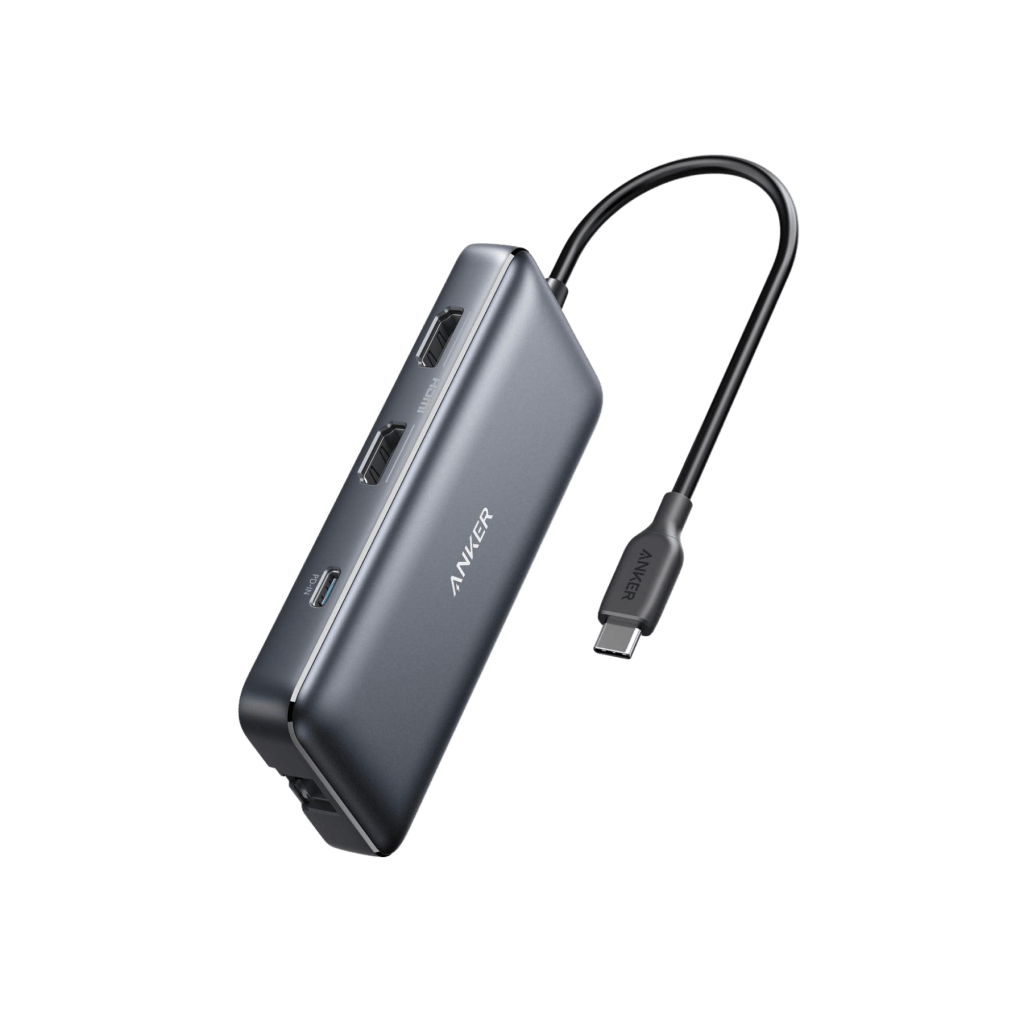
A simple four-port hub may take one USB-A or USB-C port and give you four usable USB ports. A more complex USB-C hub may also contain Ethernet, HDMI, DisplayPort, SD card, audio, or charging hardware. That is why many modern hubs look more like tiny expansion stations than simple port multipliers.
If you are still sorting out connector shapes, start with our older USB-C cable overview. USB-C describes the connector, not one guaranteed speed or feature set. A USB-C port may support different combinations of USB data, charging, display output, or newer USB4 capabilities depending on the device.
Bandwidth Is Shared
A hub can add ports, but it does not magically multiply the bandwidth of the computer’s upstream connection. If a hub connects to a 5 Gbps USB link, several active devices may need to share that link. A keyboard and mouse barely matter, but multiple fast SSDs can compete for the same upstream bandwidth.
The exact ceiling depends on the host port, hub controller, cable, protocol generation, and connected devices. USB-IF’s USB 3.2 documentation covers multiple generations and interoperability procedures for hosts, peripherals, and hubs. In practice, the slowest important part of the path can become the bottleneck.
Power Is Shared Too
USB hubs can be bus-powered or self-powered. A bus-powered hub draws its operating power from the computer. That is usually fine for low-power devices such as keyboards, mice, and many flash drives. External hard drives, audio interfaces, cameras, and other demanding devices can expose the limits of a bus-powered setup.
A powered hub has an external power source, so it can supply more power to connected devices without asking the laptop or desktop port to do all the work. Some USB-C hubs also accept USB Power Delivery input and pass power back to the laptop while the same cable carries data. The details vary by product, so always check which USB-C port is power input, which ports carry data, and what wattage is actually available.
For a concrete example, the Anker 553 USB-C Hub combines USB data, Ethernet, HDMI, card readers, and pass-through charging. It is a good illustration of how a modern “hub” can contain several different interface functions behind one upstream cable.
Hub vs. Docking Station
The line between a hub and a dock is blurry. A basic hub usually emphasizes portable port expansion. A docking station is more likely to be designed as a permanent desk connection with stronger charging, multiple displays, Ethernet, audio, and more ports.
That distinction is easier to understand alongside our 2025 guide to docking stations and port replicators. In both cases, the goal is the same: reduce cable swapping and let one host connection reach more peripherals.
A Hub Does Not Make Every Port Identical
This is where many buying mistakes happen. Two USB-C-shaped ports on the same hub can have completely different jobs. One may be power input only. Another may carry data. A third may support display output. Some hubs expose 5 Gbps ports while others support 10 Gbps or faster links. The connector alone does not tell you enough.
The same principle applies across ordinary computer peripherals: compatibility depends on the interface, power needs, driver support, and what the host can provide. For hands-on setup, our older guide to installing common workstation devices adds useful context.
What to Check Before Buying
- Connector: USB-A, USB-C, or both.
- Upstream speed: 5 Gbps, 10 Gbps, 20 Gbps, USB4, or Thunderbolt where applicable.
- Downstream ports: how many are data ports and what each one supports.
- Power: bus-powered, externally powered, or USB-C Power Delivery pass-through.
- Displays: HDMI or DisplayPort resolution and refresh-rate limits.
- Ethernet: whether you need wired networking.
- Storage: SD, microSD, or fast external-drive support.
- Cable length and whether the upstream cable is detachable.
- Operating-system and device compatibility.
If your goal is to share the same keyboard, monitor, and mouse between multiple computers rather than simply add ports to one computer, that is a different job. Our newer explainer on KVM switches covers that use case.
The Simple Version
A USB hub gives one computer more places to connect USB devices. The tradeoff is that those devices still depend on one upstream path, so bandwidth, power, display support, and charging capability are not unlimited. Choose a hub by the capabilities of the entire connection path, not by the number of holes in the case.
Editor’s Note: This evergreen reference is written for practical IT use and may be updated as USB standards and common hardware change.
Disclosure: BitcoinVersus.Tech is not affiliated with USB-IF, Anker, Reddit, or YouTube. Product imagery and embedded media are included for editorial explanation.


Leave a Reply