
PowerShell conditional statements let a script evaluate a value and choose an appropriate action. The if, elseif, and else keywords check conditions in order, while switch offers a readable way to match several possible values. Combined with comparison operators such as -eq and -ge, conditional logic can classify inventory records and produce reports without changing actual infrastructure.
The lesson follows PowerShell arrays and hashtables. Earlier units on variables, the object pipeline, object properties, and cmdlets provide background. Microsoft documents the exact rules in about_If and about_Switch.
Elementary Overview
Think of a technician deciding which label to attach to a fictional equipment reading. A reported value of 650 watts receives a Review label, 350 receives Monitor, and 200 receives Normal. Another decision evaluates the reported status: Online means Continue, Offline means Investigate, and Maintenance means Wait. Such labels are instructional categories only, not electrical safety thresholds or manufacturer specifications.
Learning Objectives
- Write conditional branches using
if,elseif, andelse. - Use
-eq,-ge, and-oraccurately. - Compare a
switchstatement with a chain of conditions. - Understand case-insensitive matching and the purpose of
break. - Read a PowerShell 7 script and reproduce its stated example results in a local runtime.
CodeLucky, “PowerShell If-ElseIf-Else Tutorial: Master Multiple Conditions for Beginners,” published October 24, 2025. An identifiable explanation of branch order and multiple conditions. Original video. Actual playback inside the published page requires browser testing.
If, ElseIf, and Else
PowerShell evaluates an if condition first. If the expression is true, its script block runs and subsequent elseif conditions are skipped. Otherwise, PowerShell examines each elseif in sequence. The final else runs only when no prior condition succeeds. Threshold order matters: a 650-watt example must be tested against 600 before the broader 300 threshold or it would receive the lower category.
The comparison operators -eq and -ne mean equal and not equal; -gt, -ge, -lt, and -le compare magnitude. The logical -or combines conditions. PowerShell string comparisons are case-insensitive by default, although variants such as -ceq enforce case-sensitive equality. Collection comparisons require particular care, because comparing a collection can return matching elements rather than a single Boolean. See Microsoft’s comparison-operator reference.
Switch Handles Named States
A switch statement can match named status values without repeating lengthy conditions. By default, PowerShell compares text without case sensitivity, so offline matches an Offline case. Unlike a conventional first-match-only assumption, PowerShell can run multiple matching switch clauses. The sample includes break to stop after the selected case; its default branch handles unrecognized names. The official switch deep dive explains multiple matches, wildcards, and regular expressions.
HardReset_Pro, “Windows PowerShell: How to use switch statements,” published April 15, 2026. Covers the switch cases, default matching, and break behavior. Original video.
Complete Read-Only PowerShell Example
Save the following program as ospowershell-006-conditions.ps1. The parameters use validation attributes and the output is a structured PowerShell object, with an optional JSON presentation. The code does not connect to services, modify settings, collect passwords, or touch hardware. All readings are fictional:
#requires -Version 7.0
# OSPowerShell.006: read-only educational decision lab.
[CmdletBinding()]
param(
    [ValidateNotNullOrEmpty()]
    [string]$Status = 'Online',

    [ValidateRange(0, 1000)]
    [int]$Watts = 250,

    [switch]$AsJson
)

Set-StrictMode -Version Latest
$ErrorActionPreference = 'Stop'

$band = if ($Watts -ge 600) {
    'Review'
} elseif ($Watts -ge 300) {
    'Monitor'
} else {
    'Normal'
}

$action = switch ($Status) {
    'Online'      { 'Continue'; break }
    'Offline'     { 'Investigate'; break }
    'Maintenance' { 'Wait'; break }
    default       { 'Verify'; break }
}

$report = [pscustomobject][ordered]@{
    Status = $Status
    Watts = $Watts
    Band = $band
    Action = $action
    NeedsAttention = ($band -eq 'Review' -or $action -eq 'Investigate')
}

if ($AsJson) {
    $report | ConvertTo-Json -Depth 3
} else {
    $report
}
Use PowerShell 7 locally to run a sample with an Offline state and 650 fictional watts:
pwsh -NoProfile -File ./ospowershell-006-conditions.ps1 -Status Offline -Watts 650 -AsJsonThe expected JSON properties are Status: Offline, Watts: 650, Band: Review, Action: Investigate, and NeedsAttention: true. Supplying -Status maintenance -Watts 300 should produce Monitor and Wait. An unsupported state enters Verify; values outside zero through 1,000 should be rejected during parameter binding.
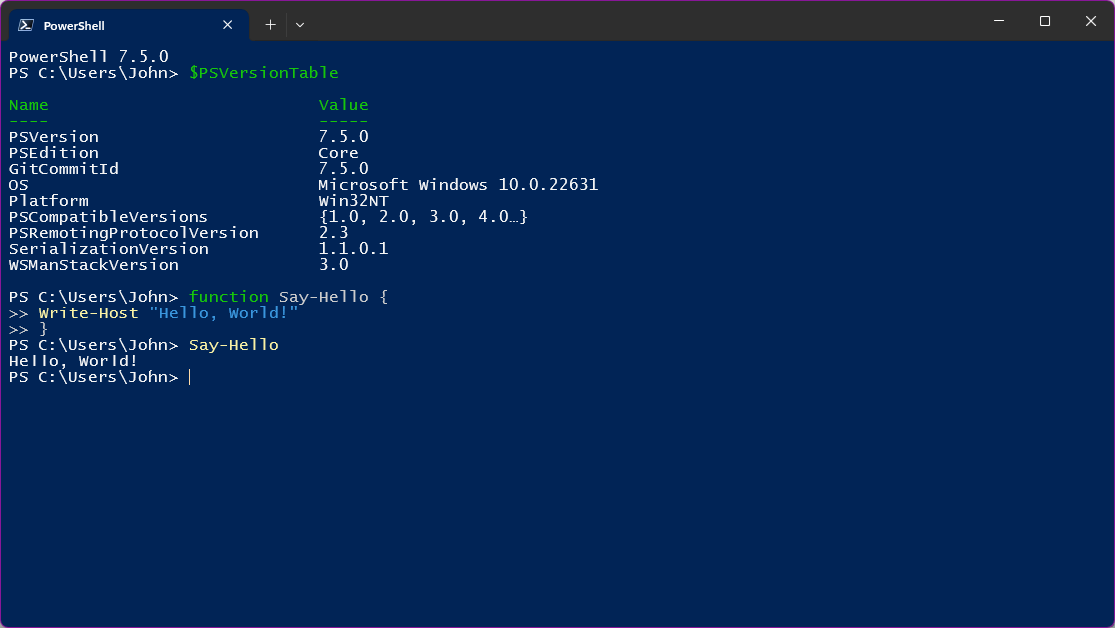
Validation and Testing Boundaries
The saved source passed 23 static structural checks, including the expected keywords, both thresholds, four switch branches, input-range attributes, balanced braces, JSON output, and absence of commands that change systems. However, PowerShell was not installed in the preparation environment. Compilation through the PowerShell parser, execution, and the expected output scenarios have not been verified, so readers should perform the example commands in their own PowerShell 7 environment before trusting the results.
Common Errors
- Using
=for equality instead of the PowerShell operator-eq. - Checking the broad lower threshold before the narrower high threshold.
- Assuming a
switchalways stops automatically after one matched clause. - Confusing default case-insensitive string comparisons with strict text identity.
- Treating fictional classification values as equipment operating limits or live readings.
Knowledge Check
- What happens after a successful
ifcondition? Later branches in the chain are skipped. - What does
-gemean? Greater than or equal to. - How can a matched switch branch stop further processing? Use
break. - Does
offlinematchOfflineby default? Yes, ordinary switch matching is case-insensitive.
Sources and Further Reading
- Microsoft Learn: about_If.
- Microsoft Learn: about_Switch.
- Microsoft Learn: about_Comparison_Operators.
- Microsoft Learn: Everything About If.
- Microsoft Learn: Everything About Switch.
Elementary Conclusion
PowerShell conditions make automation more predictable by showing how a script chooses among known outcomes. Use ordered if branches for thresholds, switch for named states, validation for expected input ranges, and structured objects for reusable results. Classification examples should be tested against real requirements before a script is used in operational systems.
Editor’s Note: Curriculum identifier OSPowerShell.006 follows the published collections lesson OSPowerShell.005 and the Bash entry OSBash.007 in the established subject rotation. The cover is original AI-generated colored-pencil editorial art of a fictional systems administrator, not a real operations photograph or code-execution screenshot. The in-body PowerShell image is authentic Wikimedia-sourced media. Two educational YouTube video identities were verified by public source pages, but their embedded playback and mobile visual presentation have not been independently tested. The 23 checks concern static program structure; no PowerShell parser or runtime was available to validate behavior. No SmartChart was created because the topic presents no verifiable quantitative dataset.

On mobile, show the original QR on another screen or use a compatible wallet’s saved-image scanner. Confirm the recipient and the requested 5,000 satoshis before authorizing payment.
We volunteer daily to ensure the information on BitcoinVersus.Tech is Verifiably True. If you would like to support our work and help further secure the integrity of our research initiatives, please scan the QR code above.
BitcoinVersus.Tech publishes programming education for informational purposes. Examples are not operating procedures, audited security controls, or substitutes for real-world equipment verification.


Leave a Reply