
Key Takeaways
- PowerShell passes objects, not just displayed text.
- An object has a type and members. Members include properties that describe the object and methods that can act on it.
Get-Membershows the type, properties, and methods available on objects.Select-Objectchooses properties from objects.- The formatted table you see is only a view of the object. More properties can exist than PowerShell displays by default.
OSPowerShell.001 introduced cmdlets, Verb-Noun command names, Get-Command, and Get-Help. It also introduced an important idea that separates PowerShell from many traditional shells: cmdlets commonly return objects.
This lesson focuses on that one idea. If objects make sense, the PowerShell pipeline becomes much easier to understand later because you stop thinking of commands as merely printing lines of text and start thinking of them as producing structured values that other commands can inspect and use.
Get-Member and how PowerShell exposes object properties and methods.What Is an Object?
An object is a structured value that represents something. A process object can represent a running program. A service object can represent a system service. A file object can represent a file. Each object carries information about itself in a predictable structure.
The official Microsoft Learn object-discovery material teaches this through Get-Member: run a command, pass its output to Get-Member, then inspect the object’s type and members.
Get-Process | Get-MemberThe output begins with a type name such as System.Diagnostics.Process. That tells you what kind of objects Get-Process produced.
Properties Describe an Object
A property stores information about an object. A process object can expose properties such as its name, ID, CPU time, start time, and working-set memory.
Get-Process | Get-Member -MemberType PropertyYou can then request selected properties:
Get-Process | Select-Object Name, Id, CPUSelect-Object does not merely hide text columns. It creates output objects containing the properties you selected. That distinction matters later when those objects continue through a pipeline.
Methods Describe Actions Available on an Object
A method represents an operation associated with an object. Use Get-Member to list methods separately:
Get-Process | Get-Member -MemberType MethodMethods are called with parentheses. A simple safe example is a string object:
$message = "PowerShell"
$message.ToUpper()
The string is an object. ToUpper() is one of its methods. You can inspect the same object directly:
$message | Get-MemberThe Screen Shows a View, Not the Whole Object
When you run Get-Process, PowerShell usually displays a table with only a handful of properties. That does not mean those are the only properties on the object.
Get-Process | Select-Object -First 1 | Format-List *This exposes many properties for one process. The formatted table from the original command was simply PowerShell choosing a convenient default view.
This idea prevents a common beginner mistake: assuming that because a property is not visible on the screen, the property does not exist.
Get-Member.Get-Member Is Your Object Inspection Tool
Whenever you are unsure what a command returned, pipe one of its objects to Get-Member.
Get-Service | Get-Member
Get-ChildItem | Get-Member
Get-Date | Get-Member
Each command can return a different object type. That is why the same property name cannot be assumed to exist everywhere.
A useful habit is:
- Run the command.
- Pipe the output to
Get-Member. - Read the type name.
- Find the properties you need.
- Use
Select-Objectto display or pass only the useful properties.
Select-Object Works With Properties
Suppose you only care about service names and status:
Get-Service | Select-Object Name, StatusYou can also select only the first few objects:
Get-Process | Select-Object -First 5Or expand one property so the result is the property values themselves:
Get-Process | Select-Object -ExpandProperty NameThat last form is useful when another command needs plain property values instead of the larger process objects.
Dot Notation Accesses a Member Directly
If a variable contains an object, use a dot followed by a property or method name.
$process = Get-Process | Select-Object -First 1
$process.Name
$process.Id
$process.GetType()
The first two lines after assignment read properties. The method call GetType() asks the object for its runtime type.
Collections Contain Multiple Objects
Commands often return more than one object. Get-Process may return dozens of process objects, while Get-Service may return hundreds of service objects. PowerShell treats these as a stream or collection of objects depending on context.
$processes = Get-Process
$processes.Count
$processes[0]
Understanding the distinction between one object and a collection becomes important when you start using loops and the pipeline.
Get-Member, Select-Object, and pipeline input.PowerShell Objects Are Why the Pipeline Is Powerful
Traditional command-line pipelines often pass text. PowerShell’s pipeline can pass objects. That means the next command can receive structured properties instead of reparsing columns from formatted text.
Get-Process | Select-Object Name, Id, CPUThe next canonical PowerShell lesson can build directly on this idea by studying the pipeline itself. For now, remember that formatting is usually the last presentation step, not the data model underneath the command.
This also connects to the broader IT troubleshooting habit used throughout BitcoinVersus.Tech. For example, OSITC.003: Windows Process Troubleshooting treats process IDs, CPU use, and memory as structured system facts. PowerShell gives you programmatic access to many of those same facts through objects.
Common Beginner Mistakes
- Thinking PowerShell output is only text: the screen is often a formatted view of structured objects.
- Guessing property names: use
Get-Memberinstead. - Assuming every object has the same properties: properties depend on the object’s type.
- Confusing a property with a method: properties describe state; methods represent actions and are called with parentheses.
- Formatting too early: commands such as
Format-Tableare meant for presentation, usually near the end of a pipeline. - Forgetting that a command may return many objects: collections behave differently from a single object in some expressions.
- Using a property that is not in the default table: a hidden property can still exist and be selected.
Practice
- Run
Get-Process | Get-Memberand write down the type name. - List only process properties with
Get-Member -MemberType Property. - Run
Get-Process | Select-Object Name, Id, CPU. - Select the first process, store it in
$process, and read$process.Name. - Call
$process.GetType(). - Run
Get-Service | Get-Memberand compare the type with the process type. - Run
Get-ChildItem | Get-Memberin a directory containing files. - Use
Select-Object -ExpandProperty Nameon process output. - Use
Format-List *on one object and compare the properties with the default display.
Knowledge Check + Answers
- What is a PowerShell object? A structured value with a type and members.
- What is a property? Information describing an object.
- What is a method? An operation associated with an object.
- Which cmdlet reveals an object’s members?
Get-Member. - How do you see only properties with Get-Member? Use
-MemberType Property. - Which cmdlet selects properties from objects?
Select-Object. - Does the default table show every property? Usually not.
- How do you access a property stored in a variable? Use dot notation, such as
$process.Name. - Why are objects important to the PowerShell pipeline? They let commands exchange structured data rather than relying only on formatted text.
Elementary Review
PowerShell commands commonly return structured objects. Learn to inspect them with Get-Member, recognize properties and methods, select useful properties with Select-Object, and remember that the table on the screen is only a formatted view of the underlying object.
Next PowerShell Lesson
OSPowerShell.003: The Pipeline will show how PowerShell passes objects from one command to another and how pipeline input changes command workflows.
Editor’s Note
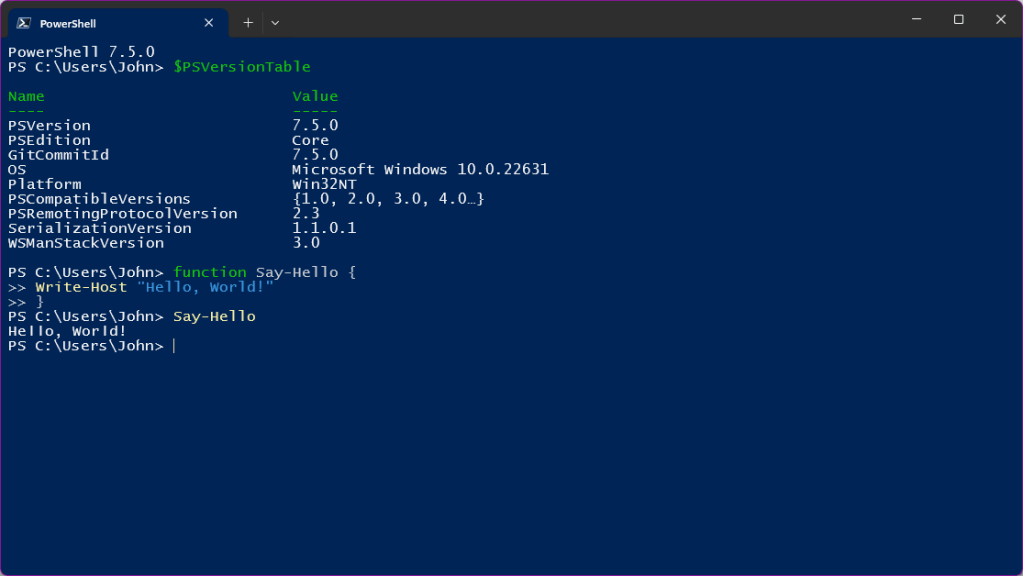
The featured artwork is a unique 1200×630 wordless graphic-novel illustration created specifically for OSPowerShell.002 and is not reused in the body. The separate body image is a real PowerShell 7.5 screenshot from Wikimedia Commons under the MIT/Expat license.
BitcoinVersus.Tech content is provided for informational and educational purposes.


Leave a Reply