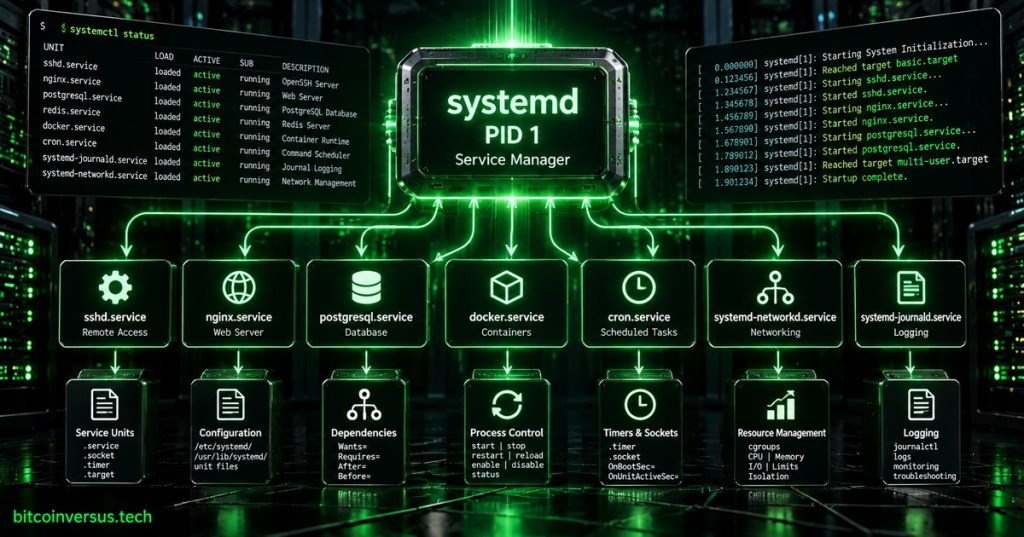
On many modern Linux distributions, one program starts before almost everything else in userspace and then spends the rest of the boot managing what runs: systemd. In its system-manager role, systemd normally runs as PID 1, starts services, tracks processes, orders dependencies, activates sockets and timers, records service state, and helps administrators stop or restart software cleanly.
The easiest mental model is this: the Linux kernel starts the first userspace process; on a systemd-based machine that process is systemd. From there, systemd reads configuration called units and turns the machine from “kernel is running” into a usable server, desktop, appliance, or embedded system. The systemd project describes itself as a system and service manager that runs as PID 1 and starts the rest of the system.
systemd, a Service, and a Daemon Are Not the Same Thing
A daemon is simply a long-running background process. SSH servers, web servers, database servers, logging processes, and network managers are common examples. A service is the managed job or workload that a service manager controls. systemd is the manager that knows how a service should start, stop, restart, log, depend on other services, and behave when it fails.
That distinction becomes clearer if you already understand processes and threads. A process is an executing program with its own process ID and resources. systemd does not replace the process model; it supervises groups of processes and gives them declared operating rules. Tools such as top show the processes consuming CPU and memory, while systemctl shows the higher-level service state systemd is managing.

Why PID 1 Matters
Every Linux process has a process ID. PID 1 is special because it is the first userspace process started during boot and becomes the ancestor or supervisor context for the rest of userspace. On a typical systemd machine, running ps -p 1 -o comm= returns systemd.
ps -p 1 -o pid,comm,args=

# Typical output:
#   PID COMMAND  COMMAND
#     1 systemd  /sbin/init
The location of /sbin/init also connects systemd to the Linux filesystem hierarchy. BitcoinVersus.Tech has covered /sbin, /usr, and /etc; systemd touches all three because binaries, vendor unit files, and local administrator configuration are intentionally separated.
Units Are systemd’s Building Blocks
systemd manages objects called units. The most familiar type is a .service unit, but systemd also understands .socket, .timer, .target, .mount, .automount, .path, .slice, .scope, and other unit types. The official systemd documentation describes service units as the objects that start and control daemons and the processes that belong to them.
- .service — starts and supervises a service or daemon.
- .socket — represents an IPC or network socket and can activate a service when traffic arrives.
- .timer — schedules activation by time, similar in purpose to cron; see BitcoinVersus.Tech’s systemd timers explainer.
- .target — groups units into a desired system state such as multi-user or graphical operation.
- .mount — represents a filesystem mount, connecting directly to Linux concepts covered in the mount command.
A unit file is plain-text configuration. Vendor-provided units commonly live under locations such as /usr/lib/systemd/system/, while local administrator units and overrides commonly live under /etc/systemd/system/. The exact vendor directory can vary by distribution.
[Unit]
Description=Example Service
After=network-online.target

[Service]
ExecStart=/usr/local/bin/example-app
Restart=on-failure

[Install]
WantedBy=multi-user.target
systemctl Is the Control Panel
systemctl is the command-line interface most administrators use to talk to systemd. It can inspect units, start and stop services, restart them, enable or disable boot-time activation, reload unit definitions, and report failures. Commands that only inspect state often work as a normal user; changing system-wide services usually requires privileges, commonly through sudo.
systemctl status sshd
sudo systemctl start sshd
sudo systemctl stop sshd
sudo systemctl restart sshd
sudo systemctl enable sshd
sudo systemctl disable sshd
systemctl is-active sshd
systemctl is-enabled sshd
One of the most important beginner distinctions is start versus enable. start changes what is running now. enable changes whether a unit is wired into the boot dependency graph so it can start automatically later. A service can therefore be running but disabled, or enabled but currently stopped.
daemon-reload Does Not Restart Your Service
After changing or adding a unit file, administrators commonly run sudo systemctl daemon-reload. Despite the name, this does not mean “restart all daemons.” It tells the systemd manager to reload its unit-file configuration. If the actual service also needs to restart to pick up application changes, that is a separate operation.
sudo systemctl daemon-reload
sudo systemctl restart example.service
This separation is useful because systemd configuration and application runtime state are different things. An administrator can safely update a unit definition, reload systemd’s view of it, inspect the resulting configuration, and decide when the workload itself should restart.
journalctl Answers “Why Did It Fail?”
systemd is closely integrated with the system journal. When a service fails, systemctl status provides a quick summary and recent log lines, while journalctl provides deeper history. This is one reason service management and troubleshooting feel tightly connected on a systemd machine.
systemctl status nginx.service
journalctl -u nginx.service
journalctl -u nginx.service -f
journalctl -u nginx.service --since today
The -u option filters by unit, and -f follows new log messages live. That workflow is especially useful on servers where a failed web server, SSH daemon, database, network service, or monitoring agent may need immediate diagnosis.
Dependencies Tell systemd What Must Happen First
Services rarely live alone. A web application may need networking, storage, a database, secrets, or another socket before it can function. systemd unit directives such as Requires=, Wants=, After=, and Before= let administrators describe those relationships instead of relying on one giant sequential boot script.
This is also why systemd can start independent work in parallel. If two services do not depend on each other, they do not necessarily need to wait in line. The result is a dependency graph rather than a single list of shell commands.
Sockets, Ports, and On-Demand Activation
systemd can own a socket before the final service process starts. When traffic arrives, the corresponding service can be activated on demand. That connects directly to the networking idea of a network socket: an endpoint identified through an address, protocol, and port can be managed independently from the application process that eventually handles the connection.
Socket activation is not required for every service, but it demonstrates why systemd is broader than “the thing that starts programs during boot.” It can coordinate when programs appear based on events, sockets, files, devices, timers, and dependencies.
systemd Can Also Limit and Isolate Services
systemd tracks service processes using Linux control groups, commonly called cgroups. That lets the service manager keep related processes together and apply resource or isolation rules. A unit can constrain CPU, memory, filesystems, privileges, namespaces, devices, and other execution properties depending on the system and configuration.
This matters in production because “start this binary” is only the beginning of service management. Operators also want restart policies, timeouts, resource limits, least privilege, logging, dependencies, health visibility, and a reliable way to stop every process that belongs to the service.
A Practical Five-Command Troubleshooting Loop
When a Linux service is not behaving, a simple sequence solves a surprising number of problems:
systemctl status example.service
systemctl cat example.service
systemctl show example.service
journalctl -u example.service -b
systemctl list-dependencies example.service- Status: Is it active, inactive, failed, or still starting?
- Cat: What unit configuration is systemd actually loading?
- Show: What resolved properties and runtime state does systemd see?
- Journal: What happened during this boot?
- Dependencies: What else must be available?
If the service uses networking, the next checks may involve network monitoring, sockets, DNS, or clock synchronization. BitcoinVersus.Tech’s NTP explainer is a good example of another background infrastructure function that often runs under a service manager.
The Bottom Line
systemd is easiest to understand as the control plane for Linux userspace services. The kernel gets the machine running; systemd, commonly as PID 1, organizes how userspace comes alive and stays manageable. Units describe the work, systemctl controls it, journalctl helps explain it, targets group desired states, timers schedule it, sockets can activate it, dependencies order it, and cgroups help systemd keep track of the processes involved.
For beginners, the next rabbit hole is what exactly happens between typing systemctl start nginx and the kernel creating the nginx process? That path leads naturally into fork/exec, environment variables, permissions, signals, cgroups, namespaces, and the file descriptors a service inherits or opens after it starts.
Primary technical references: the systemd project documentation and the official systemctl manual.
Editor’s Note
Linux does not require every distribution or environment to use systemd. Other init and service-management systems exist, and containers may use different supervisors. Commands and unit-file locations can also vary by distribution. This explainer describes the common systemd-based Linux model.
We volunteer daily to ensure the credibility of the information on this platform is Verifiably True. If you would like to support our research initiatives, please donate here: 3C9o19EH5HSiwEPyCTmEKzxhNCbo2X6TTb
BitcoinVersus.tech is not a financial advisor. This media platform reports on financial and technology subjects purely for informational purposes.


Leave a comment