
chown changes the user ownership of a file or directory and can optionally change its group ownership at the same time. It follows Linux Command #48 — chgrp, which changes only the group owner. At the most elementary level, remember the distinction this way: chown answers who owns this object?; permission tools such as chmod answer what may the owner, group, and others do with it?
This lesson stays focused on chown: its ownership syntax, safe verification, recursive operation, reference copying, guarded changes, and symbolic-link behavior. For the broader model of read, write, and execute bits, review Linux File Permissions and Ownership.
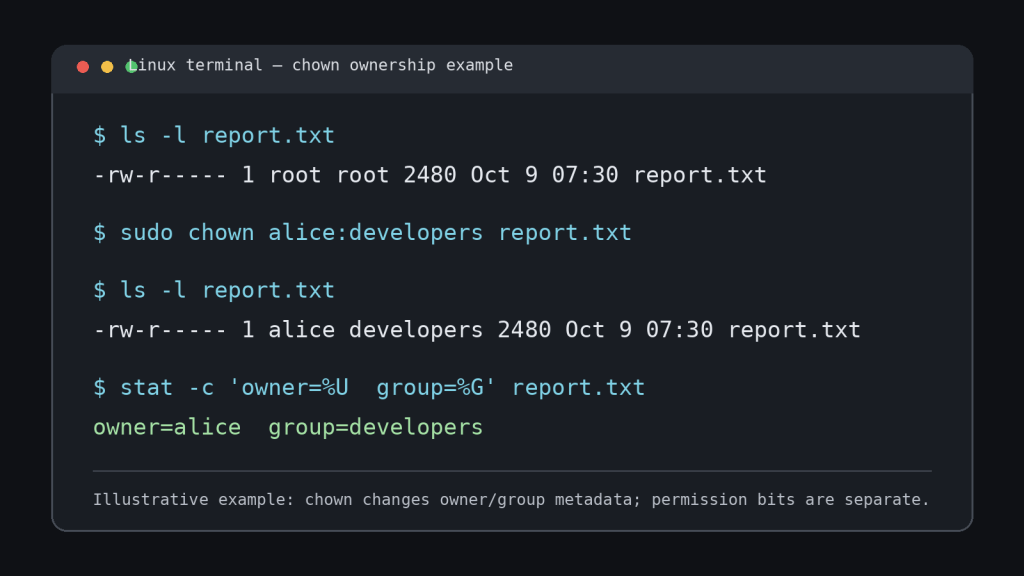
chown changes the recorded user and group ownership, while ls -l and stat verify the result. This body image is original to this lesson and is separate from the featured cover.What You Should Learn
- What user ownership and group ownership mean.
- How to change only a file’s user owner.
- How to change the user owner and group owner together.
- How to verify ownership with
ls -landstat. - When
sudoor root privileges are normally required. - How to use
-R,--reference, and--fromsafely. - Why symbolic links matter during recursive ownership changes.
Basic Syntax
chown [OPTION]... [OWNER][:[GROUP]] FILE...The GNU Coreutils form allows an owner, a group, or both. The most common beginner operation is changing a file’s user owner:
sudo chown alice report.txtThis assigns alice as the user owner of report.txt. The file’s group ownership is left unchanged. On a normal multiuser Linux system, changing a file to another user usually requires elevated privilege, which is why administrative examples often use sudo.
Read Ownership Before You Change It
ls -l report.txt
stat report.txt
id alice
ls -l gives a quick ownership view. stat shows detailed file metadata, including user and group IDs. id verifies that the target account exists and shows its numeric user ID and groups. If you need a compact view of a user’s supplementary groups, groups provides that context.
A strong administration habit is inspect → change → verify. Do not begin an ownership change by guessing the current owner, the target account, or the path.
Change the User Owner Only
sudo chown alice report.txt
ls -l report.txt
When the operand contains only an owner name, chown changes the user owner and preserves the existing group owner. This is useful when a file belongs to the wrong account but its group assignment is already correct.
Change the User and Group Together
sudo chown alice:developers report.txtThe colon separates the new user owner from the new group owner. In this example, alice becomes the user owner and developers becomes the group owner. The same operation can be useful after creating service directories, restoring files from backup, or correcting files copied by an administrative account.
If the owner field is omitted and only a group is supplied, chown can change just the group:
sudo chown :developers report.txtThat overlaps with chgrp developers report.txt. Use chgrp when group ownership is the only thing you intend to change and you want the command itself to communicate that narrow intent.
Ownership Is Not Permission
Changing ownership does not automatically grant read, write, or execute access. Linux evaluates ownership together with permission bits and, on systems that use them, additional access-control mechanisms. A file can be owned by alice:developers while the group still has no write permission. That is why chown and chmod solve different problems.
ls -l report.txt
# -rw-r----- 1 alice developers ... report.txt
In that example, the owner can read and write, the group can read, and others have no permission. The names alice and developers identify ownership; the characters rw-r----- describe permission.
chown changes.Why sudo Is Common with chown
Linux intentionally restricts arbitrary ownership transfer. An ordinary user generally cannot give a file away to another user simply by naming that account in chown. Allowing unrestricted ownership transfer would undermine quotas, accountability, and security assumptions. Administrative ownership changes therefore commonly run through root or sudo.
Do not use sudo automatically. First confirm the path and intended ownership. A privileged ownership mistake can break application access, package-managed files, SSH configuration, home directories, or service data even when the command itself reports success.
Recursive Ownership with -R
sudo chown -R alice:developers /srv/project-R or --recursive walks through a directory tree and changes ownership on the directory and the entries below it. This is powerful and therefore one of the easiest ways to turn a small typo into a large system change.
Before a recursive command, inspect the exact target:
pwd
ls -ld /srv/project
find /srv/project -maxdepth 2 -ls | head
Then run the ownership change only after the starting directory is unambiguous. Avoid broad patterns such as chown -R ... / or an unverified shell variable. Recursive chown is not a repair command to run blindly.
Copy Ownership with –reference
When a known-good file already has the ownership you want, GNU chown can copy its owner and group:
sudo chown --reference=known-good.conf new.conf
stat known-good.conf new.conf
This reduces manual transcription and is especially useful in scripts or repair work where matching an established neighboring file is safer than guessing an account or group name.
Guard a Change with –from
GNU chown also supports --from=CURRENT_OWNER:CURRENT_GROUP. The command changes an object only when its current ownership matches the condition you supplied.
sudo chown --from=root:root alice:developers report.txtThis means: change report.txt to alice:developers only if it is currently owned by root:root. The guard is useful in automation because it narrows the set of files eligible for modification rather than changing every matching pathname regardless of its existing state.
Verbose and Changes-Only Output
-vor--verbose— report every file processed.-cor--changes— report only files whose ownership actually changes.-f,--silent, or--quiet— suppress most error messages.
sudo chown -v alice:developers report.txt
sudo chown -c -R alice:developers /srv/project
Output options improve visibility but do not replace post-change verification. For important work, inspect representative files or the complete intended set afterward with ls, find, or stat.
Symbolic Links and Recursive Traversal
Recursive ownership changes become more subtle when symbolic links are present. GNU chown provides -H, -L, and -P to control how recursive traversal handles symlinks. -P is the conservative default: do not traverse symbolic links encountered during the recursive walk.
-P— do not traverse symbolic links encountered during recursive processing; this is the default.-H— if a command-line argument is a symbolic link to a directory, traverse that referenced directory.-L— traverse every symbolic link to a directory encountered during recursive processing.
Use -L only when following linked directories is explicitly intended. The GNU manual warns that recursive link following can create security problems if an attacker can introduce a symlink that redirects the traversal into a sensitive part of the filesystem.
A Practical Service-Directory Example
sudo chown -R www-data:www-data /var/www/example
stat /var/www/example
This pattern is common in documentation because web services often need ownership of application files. It is not a universal command. Distribution defaults, web-server users, deployment models, containers, package ownership, and security policies differ. Verify the actual service account and intended path before applying ownership recursively.
Quick Lab
Use a disposable directory in your own home folder. The privileged steps are optional if your account does not have sudo.
- Create the lab:
mkdir -p ~/chown-lab && touch ~/chown-lab/demo.txt. - Inspect the starting state with
ls -l ~/chown-lab/demo.txtandstat ~/chown-lab/demo.txt. - Record your user and primary group with
id. - If you have
sudo, runsudo chown root:root ~/chown-lab/demo.txt. - Verify the change with
ls -l. - Restore the file to yourself with
sudo chown "$USER":"$(id -gn)" ~/chown-lab/demo.txt. - Verify again with
stat. - Remove the lab with
rm -rf ~/chown-labafter confirming the path.
Common Mistakes
- Confusing ownership with permissions:
chownchanges owner/group metadata; it does not directly setrwxbits. - Running
-Rfrom the wrong path: recursive mistakes can affect thousands of files. - Guessing a service account: verify users with
idor the system account database first. - Using
sudoreflexively: privileged ownership changes can break functioning software. - Ignoring symlinks: traversal choices can expand the operation beyond the directory you intended.
- Failing to verify: always inspect the result after the change.
Knowledge Check + Answers
- What does
chown alice file.txtchange? The file’s user owner toalice; its group is preserved. - What does
chown alice:developers file.txtchange? Both the user owner and group owner. - What does
chown :developers file.txtchange? Only the group owner, overlapping withchgrp. - Does
chownautomatically grant read or write permission? No. Permission bits are separate metadata. - Which option recursively processes a directory tree?
-Ror--recursive. - How can you copy ownership from a known-good file? Use
--reference=FILE. - What does
--fromadd? A condition requiring the current ownership to match before a change is applied. - Which recursive symlink mode is the conservative default?
-P. - What three-step habit should surround ownership work? Inspect, change, verify.
Prior Linux Command Lessons
- #31 —
stat - #34 —
id - #35 —
groups - #39 —
usermod - #40 —
groupadd - #42 —
groupmod - #46 —
gpasswd - #47 —
newgrp - #48 —
chgrp
Primary References
Elementary Review
chown changes who owns a file or directory. Write an owner name to change the user owner; add :group when you also need to change the group. Inspect the current state first, use recursion carefully, and verify the result afterward.
Editor’s Note
The featured image is a unique 1200×630 realistic-photo lesson cover and is not reused in the body. The body uses a separate original command-specific terminal illustration showing chown, ls -l, and stat. The lesson uses responsive native Gutenberg paragraphs, headings, lists, code, image, YouTube, and Twitter embed blocks only; no ordinary lesson prose is placed inside bordered, shaded, fixed-width, callout, card, or panel-style text boxes.
BitcoinVersus.Tech content is provided for informational and educational purposes.


Leave a Reply