
Key Takeaways
- Prove basic IP connectivity before blaming DNS. If an IP address works but the hostname does not, name resolution becomes the primary suspect.
- Check which resolver the client is actually using. A correct DNS server elsewhere does not help a client pointed at the wrong one.
nslookupanddiglet you query DNS directly. Query both the configured resolver and a known alternate resolver to isolate the fault.- Read the failure type.
NXDOMAIN,SERVFAIL, timeout, and a wrong answer point to different problems. - DNS is more than A records. CNAME, AAAA, MX, PTR, NS, TXT, and other records can all affect troubleshooting.
- Packet capture can prove where the exchange stops. DNS commonly uses UDP or TCP port 53.
OSNTC.006: DNS Basics introduced the Domain Name System and the purpose of name resolution. The previous networking lesson, OSNTC.025: DHCP Troubleshooting, moved the technician track from basic service operation into fault isolation. DNS troubleshooting is the natural next step because a host can have a perfectly valid IP address and still appear “offline” to users if names do not resolve.
The central troubleshooting rule is simple: separate connectivity from name resolution. Do not start by clearing random caches or changing DNS servers. First prove what layer is failing.
First Prove Whether the Network Works Without DNS
If a user says “the internet is down,” test an IP address separately from a hostname. DNS problems can make web browsing, email, package managers, APIs, authentication, and cloud applications fail even though routing is fine.
ping 1.1.1.1
ping example.com
If the IP address is reachable but the hostname fails to resolve, you have strong evidence that the problem is in name resolution rather than basic Layer 3 reachability. That connects directly to OSNTC.010: ICMP and Ping Basics.
If neither the IP address nor the hostname works, DNS may not be the first problem. Recheck the client address, subnet mask, default gateway, VLAN, routing path, and physical link before going deeper into DNS.
Check Which DNS Server the Client Is Actually Using
A resolver problem often begins with a simple configuration mismatch. The client may be using an old DNS server, a VPN-provided resolver, a home router, an unreachable internal server, or a stale DHCP option.
On Windows, inspect the current network configuration:
ipconfig /allLook for the active adapter and its listed DNS servers. PowerShell can also expose resolver configuration:
Get-DnsClientServerAddressOn Linux, the exact command depends on the resolver stack. Common checks include:
cat /etc/resolv.conf
resolvectl status
nmcli device show
The important question is not “What DNS server should this network use?” It is “What DNS server is this client actually asking right now?”
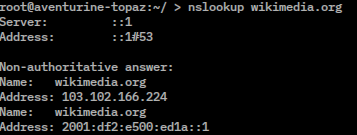
nslookup query showing resolver and answer information. Source: VulcanSphere / Wikimedia Commons; free software screenshot under MPL 2.0.Use nslookup to Test the Configured Resolver
nslookup is available on Windows and many Unix-like systems. A basic query asks the currently configured resolver for a name:
nslookup example.comPay attention to two things: the server that answered and the answer itself. A successful response proves that this resolver can return something for the name, but it does not automatically prove the answer is correct or current.
You can bypass the configured resolver and query another server directly:
nslookup example.com 1.1.1.1
nslookup example.com 8.8.8.8
If the configured resolver fails but a known public resolver answers correctly, the local resolver path deserves attention. On a corporate network, however, internal names may intentionally exist only on internal DNS servers, so public DNS is a comparison tool—not an automatic replacement.
Microsoft documents the command syntax and interactive query options in its nslookup reference.
Use dig When You Need More Detail
dig provides detailed DNS response information and is especially common on Linux and Unix-like systems. A basic query looks like this:
dig example.comQuery a specific resolver by placing it after @:
dig @1.1.1.1 example.com
dig @192.168.1.53 internal.example.com
Ask for a particular record type:
dig example.com A
dig example.com AAAA
dig example.com MX
dig example.com TXT
dig example.com NS
The BIND tools documentation from the Internet Systems Consortium is the authoritative reference for dig and its query options.
dig specifically to troubleshoot and isolate DNS problems.Learn the Difference Between NXDOMAIN, SERVFAIL, Timeout, and a Wrong Answer
Not all DNS failures mean the same thing. The exact response is evidence.
| Symptom | Meaning | What to investigate |
|---|---|---|
NXDOMAIN | The resolver reports that the queried name does not exist. | Spelling, search suffixes, authoritative zone data, stale negative cache, split DNS. |
SERVFAIL | The resolver could not complete the query successfully. | Upstream resolver failure, DNSSEC validation, broken delegation, authoritative-server problems. |
| Timeout / no response | The query was sent but no usable reply arrived before the timeout. | Firewall, routing, resolver service state, blocked UDP/TCP 53, packet loss. |
| Wrong IP address | DNS answered, but the answer does not match the expected destination. | Stale cache, wrong zone, split-horizon view, hosts-file override, bad record. |
| Works on one resolver only | Different resolvers see different data or have different reachability. | Propagation, cache state, policy, internal zones, delegation, DNSSEC. |
A technician who records the exact failure code is already ahead of someone who reports only “DNS is broken.”
A Successful Ping by IP but Failed Hostname Is a Classic DNS Clue
ping 93.184.216.34
ping example.com
If the first test works and the second fails before sending ICMP packets because the name cannot be resolved, routing is probably not the immediate blocker. Move the investigation toward resolver configuration, DNS reachability, and the requested records.
Do not overinterpret ping, however. A server can block ICMP and still serve DNS, HTTPS, or another application. Use the correct test for the service you are troubleshooting.
Check the Record Type You Actually Need
A user may say “the domain resolves,” but the failing application may depend on a record other than an IPv4 A record.
- A: hostname to IPv4 address.
- AAAA: hostname to IPv6 address.
- CNAME: alias to another canonical name.
- MX: mail exchange destination.
- NS: authoritative name servers for a zone.
- PTR: reverse lookup from an address to a name.
- TXT: arbitrary text used by many verification, email, and security mechanisms.
- SRV: service-location information used by technologies such as Active Directory and some VoIP systems.
Query the record type the application actually requires instead of stopping after one A-record lookup.
Check Local Cache and Overrides
DNS answers can be cached at several layers: the application, operating system, local caching resolver, enterprise DNS server, ISP resolver, or public recursive resolver. A stale answer on one layer can make two nearby computers behave differently.
On Windows, inspect and clear the local DNS client cache when appropriate:
ipconfig /displaydns
ipconfig /flushdns
On systems using systemd-resolved, a common cache command is:
resolvectl flush-cachesAlso check the local hosts file when one machine resolves a name differently from everyone else. A manual hosts entry can override normal DNS resolution for that device.
TTL Explains Why Corrected Records May Not Change Everywhere Immediately
DNS records carry a time to live, or TTL, that tells caching resolvers how long they may reuse an answer. If a record was recently changed, different resolvers can temporarily return different answers because their caches expire at different times.
This is not always “propagation” in the vague sense. Often the authoritative record is already correct while a recursive resolver is legitimately serving the previous answer until its TTL expires.
Split DNS Can Make Internal and External Answers Intentionally Different
Corporate networks frequently use split DNS or split-horizon DNS. The same hostname can return one address to internal clients and another answer—or no answer—to public resolvers.
This matters during VPN troubleshooting. A laptop may resolve an internal hostname correctly on the corporate VPN but fail on home Wi-Fi because the internal resolver is not reachable. Conversely, a VPN client that keeps using a public resolver may fail to resolve private corporate names even though the tunnel itself is established.
dig, and test the local resolver path.DNS Uses UDP and TCP Port 53
Basic DNS queries commonly use UDP port 53, but TCP port 53 is also part of normal DNS operation. Large responses, retries after truncation, zone transfers, and other cases can require TCP. A firewall rule that permits only one transport can create intermittent or confusing failures.
This builds on OSNTC.014: TCP and UDP Transport Basics. When troubleshooting DNS across a routed or filtered boundary, verify both reachability and the relevant transport behavior rather than assuming “port 53” means only UDP.
Packet Capture Shows What the Resolver Exchange Actually Did
When command-line tools are not enough, capture the traffic. Wireshark display filters can isolate DNS directly:
dns
udp.port == 53 || tcp.port == 53
Then reproduce the failure and ask:
- Did the client send a DNS query?
- Which DNS server received it?
- Was the question name spelled correctly?
- What record type was requested?
- Did a response return?
- What response code was returned?
- Was the reply truncated?
- Did the client retry over TCP?
- Did the answer contain the expected record and TTL?
A packet capture turns “DNS sometimes fails” into an observable transaction.
Do Not Forget Routing to the DNS Server
An internal DNS server may live on another VLAN or remote network. A client can be configured with the correct DNS server IP address and still fail because routing, an ACL, a VPN policy, or a firewall blocks the path.
Use the routing principles from OSNTC.024: Static Routing and Routing Tables. Test the resolver IP directly before assuming the DNS software itself is broken.
A Repeatable DNS Troubleshooting Workflow
- Define the symptom. One hostname, all hostnames, one user, one VLAN, one site, or everyone?
- Test basic IP connectivity. Verify the client can reach its gateway and a known IP destination.
- Inspect resolver settings. Confirm the DNS server addresses the client is actually using.
- Query the configured resolver. Use
nslookupordig. - Query a second resolver when appropriate. Compare results without bypassing required internal DNS policy.
- Query the exact record type. A, AAAA, MX, CNAME, PTR, SRV, or another required type.
- Read the failure code. Record
NXDOMAIN,SERVFAIL, timeout, or the returned data. - Check local cache and overrides. Include hosts files, browser/application cache, and local resolver cache.
- Check routing and filtering. Confirm UDP/TCP 53 can reach the intended resolver.
- Capture packets if the path remains unclear. Observe the actual query and response.
- Retest after the change. Confirm both name resolution and the application itself work.
Hands-On Lab
Use a Windows or Linux workstation with normal internet access. Record your current DNS servers first. Then complete these tests without changing production network policy.
- Query
example.comusing the default resolver. - Query the same name against a second resolver directly.
- Query A, AAAA, MX, and NS records with
digornslookup. - Query a deliberately nonexistent hostname and record the response code.
- Inspect the local resolver cache.
- Start Wireshark and capture a normal DNS lookup.
- Identify the client IP, resolver IP, query name, query type, response code, answer, and TTL.
- If you have a safe lab firewall, block DNS to the resolver and compare the timeout behavior with an
NXDOMAINresponse.
Common Beginner Mistakes
- Assuming every internet failure is DNS: prove basic IP connectivity first.
- Testing only one resolver: compare the configured resolver with another appropriate resolver.
- Testing only A records: the application may need AAAA, MX, SRV, CNAME, or another record type.
- Clearing caches before observing the failure: you may erase useful evidence.
- Treating NXDOMAIN and timeout as the same thing: one is an explicit DNS answer; the other may indicate no usable response.
- Replacing corporate DNS with a public resolver: internal names and split DNS may require the organization’s resolver.
- Forgetting TCP 53: DNS is not exclusively UDP.
- Ignoring VPN and search-suffix behavior: client resolver policy can change when a tunnel connects.
- Stopping after DNS resolves: resolution success does not prove the application service itself is healthy.
Practice
- Use
ipconfig /allor the appropriate Linux tools to identify your active resolver. - Run
nslookup example.comand identify the answering DNS server. - Run
dig example.comand identify the status, answer section, and TTL. - Query the same name against a second resolver.
- Query an MX record and explain why it differs from an A record.
- Generate an
NXDOMAINresult with a nonexistent hostname. - Explain the difference between
SERVFAILand timeout. - Capture one DNS query in Wireshark and identify the source, destination, query type, response code, and answer.
Knowledge Check + Answers
- What is the first major distinction in DNS troubleshooting? Whether basic IP connectivity works independently of name resolution.
- What tools can directly test DNS resolution?
nslookupanddig. - What does NXDOMAIN indicate? The responding resolver reports that the queried name does not exist.
- What does SERVFAIL indicate? The resolver could not successfully complete the query.
- What does a DNS timeout suggest? No usable response returned in time; investigate reachability, filtering, resolver state, and packet loss.
- Which port does traditional DNS use? Port 53 over UDP and TCP.
- Why might internal and public resolvers return different answers? Split DNS, policy, different cache state, or different authoritative visibility.
- Why can a changed DNS record appear stale? Caching resolvers may continue using the prior answer until its TTL expires.
- What Wireshark display filter isolates DNS?
dns.
Elementary Review
DNS troubleshooting is a process of comparison. Prove IP connectivity, identify the resolver the client is actually using, query it directly, compare another resolver when appropriate, read the exact response code, verify the required record type, inspect caches and overrides, then use packet capture when the transaction remains unclear.
Next Network Technician Lesson
The next Network Technician lesson will continue the canonical troubleshooting progression after DNS and will be selected against the live sequence and archives to avoid duplication.
Editor’s Note
The featured image is a unique 1200×630 anime-style DNS troubleshooting workspace created specifically for OSNTC.026 and is not reused in the body. The separate body image is a real nslookup terminal screenshot from Wikimedia Commons.
BitcoinVersus.Tech content is provided for informational and educational purposes.


Leave a Reply