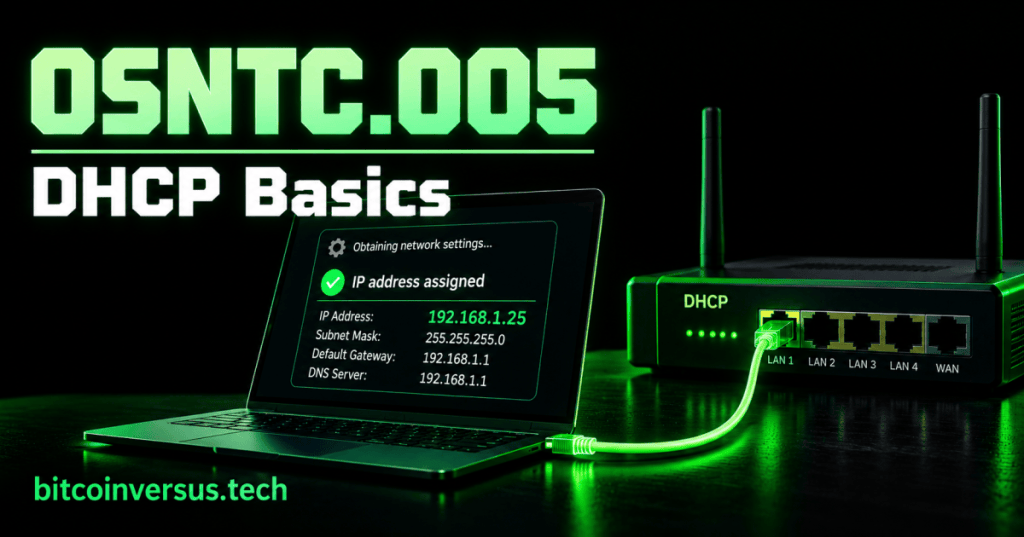
DHCP stands for Dynamic Host Configuration Protocol. Its basic job is simple: DHCP automatically gives a device the network settings it needs instead of making a technician type every setting by hand.
This lesson builds on OSNTC.001: IP Addresses, OSNTC.002: Subnet Masks, OSNTC.003: Default Gateway, and OSNTC.004: VLAN Basics.
A Simple Example
You connect a laptop to a network. A few seconds later, it has settings such as:
IP address:      192.168.1.25
Subnet mask:     255.255.255.0
Default gateway: 192.168.1.1
DNS server:      192.168.1.1
If you did not enter those values yourself, DHCP may have supplied them automatically.
DHCP Server and Client
The device asking for settings is the DHCP client. The device or service supplying those settings is the DHCP server. On a small network, the router often provides DHCP. Larger networks may use a dedicated server.
Video: DHCP Explained
PowerCert Animated Videos demonstrates DHCP, including automatic addressing and the difference between dynamic and static IP addresses.
Dynamic vs. Static
A dynamic address is assigned automatically and may change later. A static address is intentionally kept at a specific value. For beginner troubleshooting, the important question is whether the device is supposed to receive its settings automatically or use manually configured settings.
What Is a DHCP Lease?
DHCP usually lends an address to a device for a period of time. That assignment is called a lease. The client can renew the lease while it remains on the network.
Technician Check
Suppose a laptop should use DHCP but cannot reach the network. Start by checking whether it actually received an IP address, subnet mask, gateway, and DNS server. Missing or unexpected values can point you toward the next troubleshooting step.
Data Center Example
A technician may connect a service laptop to a management network and receive an address automatically. Some infrastructure devices may instead use fixed addresses or DHCP reservations so technicians can reliably find them again.
Practice
- Connect a computer to a network that uses DHCP.
- Find its IP address.
- Find its subnet mask.
- Find its default gateway.
- Identify whether those settings were entered manually or assigned automatically.
Key Takeaway
DHCP automatically supplies network settings to clients. For a technician, it reduces manual configuration and provides an important place to look when a device does not receive the expected network settings.


Leave a Reply