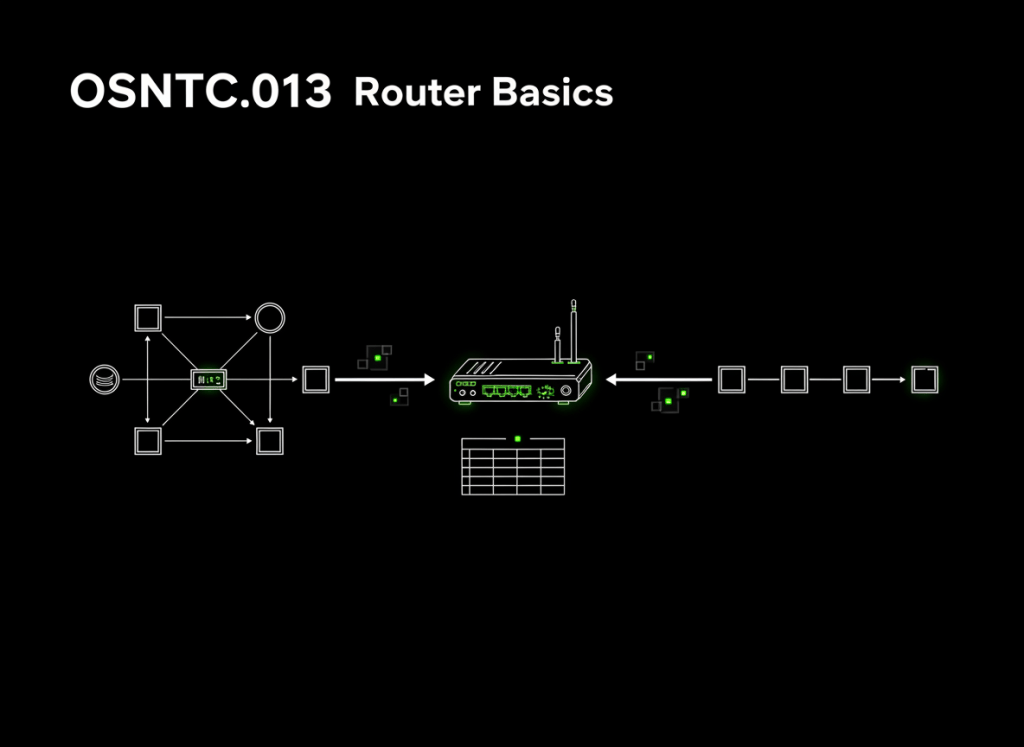
A router connects different IP networks and forwards packets from one network toward another.
This lesson follows OSNTC.012: Network Switch Basics. A switch mainly helps devices communicate inside a local Layer-2 network. A router is what gives traffic a path between IP networks.
Start with one simple picture
Network A                     Network B
192.168.10.0/24               192.168.20.0/24

PC ── Switch ── Router ── Switch ── Server
               ↑      ↑
          one interface
          in each network
The router has a connection into both networks. When a packet must travel from Network A to Network B, the router examines the destination IP address and decides where to send the packet next.
A switch and a router solve different problems
- Switch: usually forwards Ethernet frames inside a LAN using MAC-address information.
- Router: forwards IP packets between networks using destination IP addresses and a routing table.
This distinction is important because home equipment often combines routing, Ethernet switching, Wi-Fi, DHCP, NAT, and firewall functions in one box. The box may be called a “router,” but those are still separate networking functions.
Video 1: Switches and routers in the same picture
How does a computer know it needs a router?
A host first asks a simple question: Is the destination IP local, or is it on another network?
The host uses its own IP address and subnet mask to make that decision. Review OSNTC.002: Subnet Masks if that step is not yet comfortable.
Destination is local
        ↓
Send directly on the local LAN

Destination is remote
        ↓
Send the packet toward the default gateway
The default gateway is normally a router interface on the same local network as the host. That is why OSNTC.003: Default Gateway comes directly into play here.
The router needs addresses too
A router interface connected to an Ethernet network normally has its own IP address and its own Layer-2 address. A router connecting two Ethernet networks therefore has addressing information for each side.
Network A
192.168.10.0/24

Router interface: 192.168.10.1
        │
      ROUTER
        │
Router interface: 192.168.20.1

Network B
192.168.20.0/24
Those addresses let hosts reach the router locally and let the router participate in each connected IP network.
The routing table is the router’s map
A router does not blindly send every packet to the internet. It consults a routing table.
A beginner-friendly routing table can be imagined like this:
Destination network       Send toward
192.168.10.0/24           directly connected
192.168.20.0/24           directly connected
10.0.0.0/8                next-hop router
0.0.0.0/0                 default route
The router compares the packet’s destination IP address with routes it knows. If it has a matching route, it forwards the packet using that route. If it has no usable route, it cannot correctly forward the packet toward that destination.
Cisco describes the same core behavior: routers read destination IP information and use routing information to direct packets between networks.
Reference: Cisco — What Is a Router?
Video 2: Routing tables and route decisions
A packet crossing a router, step by step
Suppose a PC at 192.168.10.25 wants to reach a server at 192.168.20.50.
- The PC compares the server’s IP address with its own local subnet.
- The PC determines that
192.168.20.50is remote. - The PC sends the traffic toward its default gateway.
- The local switch forwards the Ethernet frame toward the router interface.
- The router receives the frame and processes the IP packet.
- The router checks the destination IP address against its routing table.
- The router chooses the outgoing interface or next hop.
- The router builds the appropriate Layer-2 frame for the next Ethernet link.
- The packet continues toward the destination network.
One important idea is hidden in step 8: the IP packet is being routed, but the Ethernet frame is local to each link. The incoming Layer-2 frame is not simply carried unchanged across every router.
Host A
  │ Ethernet frame #1
  ▼
Router
  │ Ethernet frame #2
  ▼
Host B

The IP packet is forwarded.
The Layer-2 frame changes for the next link.
ARP still matters around a router
On an IPv4 Ethernet LAN, a device may need ARP to learn the MAC address associated with the next local IPv4 hop. For a remote destination, the sending host normally needs the Layer-2 address of its local default gateway—not the MAC address of the remote server across the internet.
That connects directly to OSNTC.009: ARP Basics: ARP resolves information needed for the local link, while routing moves the packet toward a different IP network.
Video 3: Watch a router forward the packet
Directly connected, static, and dynamic routes
A router can learn routes in several ways. At this stage, remember only the categories:
- Directly connected route: the network is attached directly to one of the router’s active interfaces.
- Static route: an administrator manually configures the route.
- Dynamic route: routing protocols allow routers to exchange reachability information automatically.
- Default route: a catch-all route used when a more specific known route is not available.
You do not need OSPF or BGP yet. First understand what a route means: for this destination, send the packet this way.
Router vs. default gateway
These words are related but not identical.
- A router is a device or software function that forwards packets between IP networks.
- A default gateway is the local next-hop address a host uses when it needs to reach a destination outside its own local network and has no more specific host route.
In a small LAN, the default gateway is commonly an IP address assigned to a router interface.
A home router is really several devices in one
A typical home Wi-Fi router may perform several jobs at once:
- IP routing
- Ethernet switching
- Wi-Fi access point
- DHCP server
- NAT
- Basic firewalling
Do not let the all-in-one box blur the concepts. In enterprise and data-center networks, these functions may be split across many separate devices and systems.
Data-center example
Imagine one server VLAN uses 10.20.10.0/24 and another uses 10.20.20.0/24. A Layer-2 switch can carry each VLAN, but traffic moving between those IP networks needs a Layer-3 routing function somewhere in the path.
Server VLAN 10
10.20.10.0/24
       │
       ▼
 Layer-3 routing
       │
       ▼
Server VLAN 20
10.20.20.0/24
That routing function might exist on a dedicated router, a Layer-3 switch, a firewall, or another device capable of IP forwarding. The basic routing logic is still the same.
Basic technician troubleshooting
If a host can reach local devices but cannot reach a different network, work in a simple order:
- Check the host IP address.
- Check the subnet mask.
- Check the configured default gateway.
- Ping the local gateway if policy allows.
- Check whether the router interface is up.
- Check whether the router has a route toward the destination.
- Check the return path. The remote side also needs a way back.
- Check ACL/firewall policy if routing appears correct but traffic is still blocked.
Useful commands without pretending the output is universal
The exact appearance of command output depends on the operating system and environment. These are plain-text command examples, not simulated terminal screenshots.
Windows:
ipconfig
ping <gateway-address>
tracert <destination>
Linux:
ip addr
ip route
ping <gateway-address>
traceroute <destination>
No colors are assigned here because these are code examples, not claims about a specific terminal’s default color scheme.
Common beginner mistakes
- Thinking a switch and a router do the same job.
- Thinking every device called a “router” is only doing routing.
- Forgetting that a host decides local vs. remote using its subnet information.
- Assuming the remote server’s MAC address is needed across the entire routed path.
- Forgetting that routers need a valid return path too.
- Changing DNS when the real problem is a missing gateway or route.
- Assuming “ping fails” automatically means “router is broken.”
Quick practice
- Draw two different /24 networks with one router between them.
- Give the router one IP address in each network.
- Explain why a switch alone does not automatically route between the two IP networks.
- Explain what a routing table tells a router.
- Explain why the sending host uses its default gateway for a remote destination.
- Describe what happens to the Ethernet frame when a packet crosses a router.
Knowledge check
1. What is the primary job of a router?
To forward IP packets between networks.
2. What information does a router primarily use for a basic forwarding decision?
The destination IP address together with its routing table.
3. What does a host normally do when the destination is outside its own local network?
It sends the traffic toward an appropriate gateway, commonly its configured default gateway.
4. Does the same Ethernet frame remain unchanged across every router?
No. A router forwards the IP packet and uses the appropriate Layer-2 framing for the next link.
Key takeaway
A router connects IP networks. A host sends remote traffic toward a gateway, and the router uses the destination IP address plus its routing table to choose where the packet goes next.
Once this is clear, routing tables, static routes, dynamic routing protocols, NAT, and troubleshooting become much easier to understand.


Leave a Reply