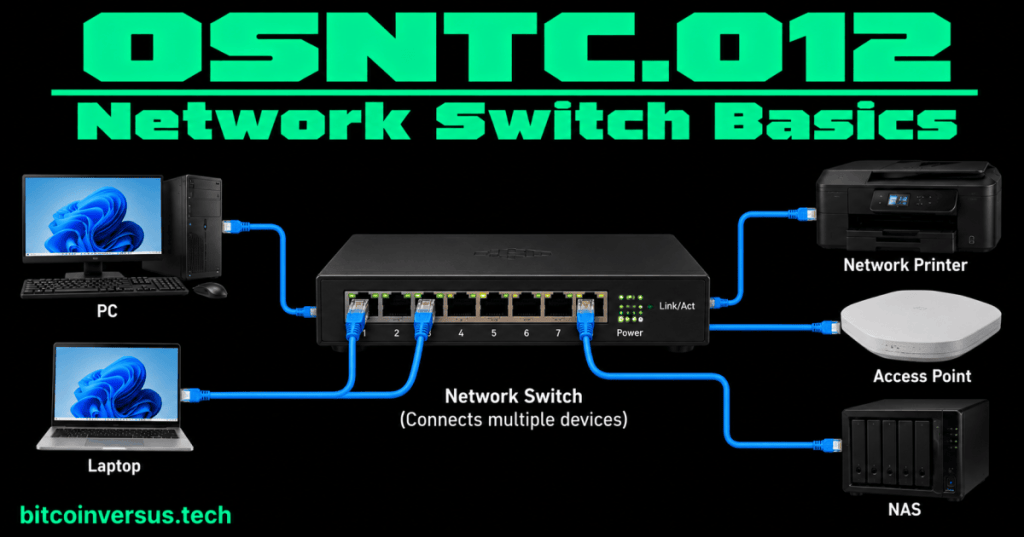
A network switch connects devices on a local network and forwards Ethernet frames between its ports.
Think of a small office. A PC, printer, server, and Wi-Fi access point can all plug into the same Ethernet switch. The switch gives those wired devices a place to exchange local network traffic.
Start with one simple picture
PC ─────┐
Printer ─┼── Network Switch
Server ──┤
AP ──────┘
Each cable connects to a switch port. A port is simply a connection point on the switch.
What does the switch actually do?
For basic Ethernet switching, remember three actions:
- A frame arrives on a switch port.
- The switch learns the source MAC address and associates it with the port where the frame arrived.
- The switch uses its learned MAC-address information to decide where to forward Ethernet frames.
You do not need to memorize an advanced table yet. Just remember: MAC address → switch port.
Video 1: How a switch learns MAC addresses
A tiny example
Suppose a PC is connected to port 1 and a printer is connected to port 4.
Port 1 → PC
Port 4 → Printer
As traffic arrives, the switch can learn which source MAC addresses appear on those ports. When it knows where the destination MAC address is, it can forward the frame toward the appropriate port instead of sending that known unicast frame everywhere.
What if the switch does not know the destination yet?
If the destination MAC address is unknown, a basic Ethernet switch can flood that frame out other appropriate ports in the same VLAN. When devices reply, the switch learns more MAC-to-port information.
“Flood” does not mean the network is broken. It is a normal switching behavior for certain traffic, including an unknown unicast destination.
Video 2: Layer-2 switching fundamentals
Switch vs. router
Beginners often mix these up.
- Switch: commonly connects devices within a LAN and makes Layer-2 forwarding decisions using MAC addresses.
- Router: connects IP networks and makes routing decisions using IP addresses.
A home “Wi-Fi router” often combines several functions in one box, such as routing, Ethernet switching, and wireless access. That does not make the functions identical.
How this connects to earlier OSNTC lessons
OSNTC.007: MAC Address Basics introduced the address a switch uses for basic Layer-2 forwarding decisions.
OSNTC.008: Ethernet Frame Basics introduced the frame that moves through the Ethernet LAN.
OSNTC.011: Network Interface Card (NIC) Basics introduced the network interface that connects an endpoint to the network.
Now those ideas fit together:
Computer
   ↓
NIC
   ↓
Ethernet cable
   ↓
Switch port
   ↓
Ethernet frame
   ↓
MAC-based forwarding
Video 3: Switch learning and forwarding
Link lights are a useful first check
Many Ethernet switch ports and NICs have link/activity indicators. The exact LED colors and blink patterns are not universal; they depend on the hardware manufacturer and model.
For troubleshooting, do not assume “green always means one exact speed” or “amber always means an error.” Read the device documentation. The useful beginner question is simply: does the port show the expected physical link state for this hardware?
Simple technician troubleshooting
Imagine a workstation cannot reach anything on the LAN. Start with the physical path before changing advanced settings:
- Is the Ethernet cable connected at both ends?
- Does the NIC show a link?
- Does the switch port show the expected link state?
- Is the cable plugged into the intended switch port?
- Is the port enabled and in the expected VLAN?
- Does the computer have the expected IP configuration?
This gives you a clean troubleshooting order: physical connection first, then switching configuration, then IP configuration.
Common beginner mistakes
- Calling every network box a router.
- Thinking a switch normally forwards based on the destination IP address instead of the Ethernet destination MAC address.
- Assuming every switch LED color means the same thing on every model.
- Assuming a connected cable proves the switch port is correctly configured.
- Forgetting that VLANs can logically separate ports even when they are on the same physical switch.
Quick practice
- Draw one switch with four ports.
- Connect a PC to port 1 and a printer to port 4.
- Write “PC MAC” beside port 1 and “Printer MAC” beside port 4.
- Explain in one sentence what the switch learns.
- Explain the basic difference between a switch and a router.
- Name three physical things you would check if a switch-connected PC had no network access.
Key takeaway
A network switch connects devices on a LAN and forwards Ethernet frames between ports. At the beginner level, remember the relationship: the switch learns which source MAC addresses are reachable through which ports, then uses destination MAC information to make forwarding decisions.


Leave a Reply