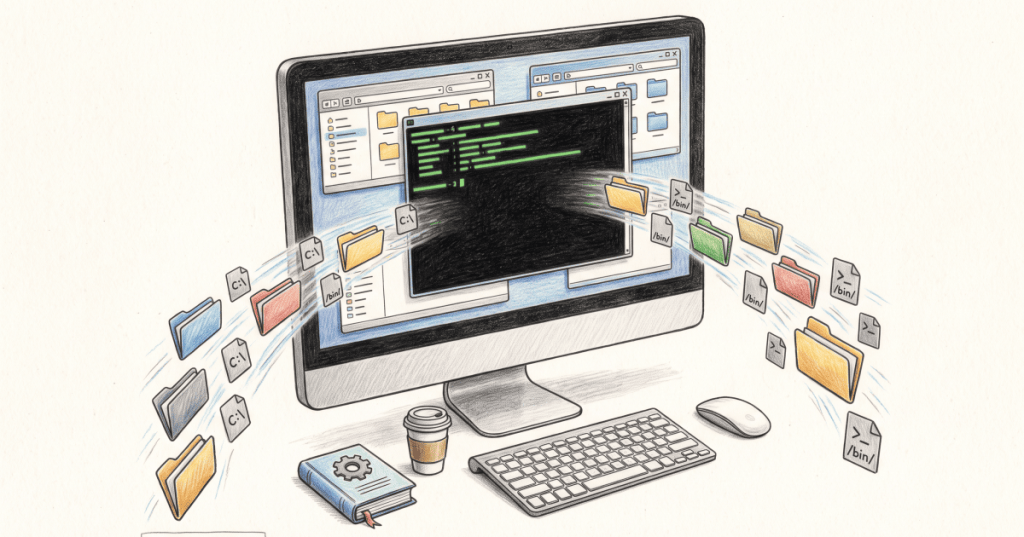
When you type a command such as python, git, or ssh into a terminal, the operating system does not magically know where that program lives. One of the main tools that helps the shell find it is the PATH environment variable.
PATH is essentially an ordered list of directories. When a shell or script asks to run a command without specifying its full location, the system searches those directories until it finds a matching executable.
What Is an Environment Variable?
An environment variable is a named value that programs can inherit from the operating environment in which they run. Examples can describe the current user, home directory, temporary-file location, language settings, executable search paths, and application-specific configuration.
The GNU Bash manual describes a process environment as a collection of name-value pairs passed to programs when they are launched. PATH is one of the most important of those variables because it directly affects command execution.
What PATH Actually Contains
PATH contains directory locations, not a list of individual applications. On Linux, a typical PATH might include directories such as /usr/local/bin, /usr/bin, and /bin. On Windows, it might include directories belonging to Windows itself plus installed applications such as Visual Studio Code, Python, Git, or administrative tools.
Windows normally separates PATH entries with semicolons. Unix-like systems such as Linux use colons. The Microsoft PATH command documentation defines PATH as the set of directories Windows uses when searching for executable files, while the Bash reference manual defines PATH as a colon-separated list of directories in which the shell looks for commands.
Why PATH Exists
Without PATH, you would often have to type a program’s complete filesystem location every time you wanted to run it. Instead of typing something like C:\Program Files\Example\tool.exe or /usr/bin/python3, you can simply type tool or python3 when its directory is searchable.
This is one reason command-line administration scales so well. IT technicians can work through Windows Server, Linux hosts, developer workstations, and remote systems without memorizing the absolute path of every commonly used executable.
How Windows Uses PATH
In Windows Command Prompt, you can display the current PATH with:
echo %PATH%The where command can help identify which executable Windows is resolving:
where python
where git
where ssh
That is useful when troubleshooting systems that have several versions of the same tool installed. Windows administration often combines commands like these with the broader command-line workflow used for service management, networking, installation, and Windows service troubleshooting.
How PowerShell Sees PATH
In PowerShell, environment variables are exposed through the Env: provider. To inspect PATH:
$env:PathTo ask PowerShell which command will run:
Get-Command python
Get-Command git
You can temporarily append a directory for the current PowerShell process with:
$env:Path += ";C:\Tools"That change disappears when the process ends unless PATH is modified persistently through Windows environment-variable settings or administrative tooling.
How Linux and Bash Use PATH
In Bash, display PATH with:
echo "$PATH"To see which executable the shell resolves:
command -v python3
command -v ssh
command -v git
To temporarily put a personal executable directory at the front of PATH:
export PATH="$HOME/bin:$PATH"A permanent user configuration may be placed in an appropriate shell startup file such as ~/.bashrc, depending on the distribution and login method. This becomes especially useful when using SSH to administer Ubuntu or other Linux systems remotely.
PATH Is Searched in Order
The order of PATH entries matters. If two directories contain executables with the same command name, the shell generally resolves the first applicable match it encounters according to its command-search rules.
For example, a user might have a system Python installation and a separate Python inside a development environment. The command python could therefore point to different executables depending on which directory appears first. This is closely related to how Python virtual environments temporarily adjust command resolution so the environment’s interpreter and tools take priority.
Why “Command Not Found” Often Means a PATH Problem
If an application is installed but the terminal says the command is not recognized or cannot be found, PATH is one of the first places to investigate. The executable may exist, but its directory may not be listed in PATH, the terminal may need to be reopened after an installer changed the environment, or another executable with the same name may be taking priority.
A basic troubleshooting sequence is: confirm the software is installed, find the actual executable, inspect PATH, determine what command is resolving, and then decide whether PATH needs to change. This is safer than repeatedly reinstalling software when the real issue is command discovery.
PATH and Software Installation
Many installers offer an option such as “add to PATH.” That usually means the installer will add the application’s executable directory to the environment so terminals and other programs can launch it by name.
This is common with programming languages, package managers, Git, developer tools, and administrative utilities. It is also why an application can launch correctly from a desktop shortcut yet fail from a command shell: the shortcut knows the program’s exact location, while the shell may depend on PATH.
PATH, Scripts, and Automation
Automation depends heavily on predictable command resolution. A deployment script that calls python, git, ssh, or another utility assumes the intended executable can be found. If PATH changes between machines, the same script can behave differently.
This becomes important in IT workflows such as remote administration, software deployment, build systems, CI/CD, and network-based operating-system deployment. Production automation often reduces ambiguity by validating dependencies, controlling PATH, or calling critical programs with explicit locations.
PATH Is Also a Security Boundary
PATH is not only about convenience. It can affect security. If an untrusted or user-writable directory is placed before a trusted system directory, a malicious executable with the same name as a legitimate command could be found first.
That is why administrators should avoid casually inserting unknown directories at the beginning of PATH, especially on servers or privileged accounts. The question is not simply “does the command work?” but also “which executable is actually running?” Commands such as where, Get-Command, and command -v help answer that question.
PATH Is Different From the Filesystem Itself
Adding a directory to PATH does not move files, install software, mount storage, or grant permissions. It only changes where command resolution looks. The underlying executable still lives on a normal filesystem such as NTFS or ext4, and ordinary access-control rules still apply.
Likewise, removing a directory from PATH does not uninstall the program. The executable may remain fully usable when launched through its complete path.
The Simple Way to Remember PATH
PATH tells the shell where to look for commands when you do not type the command’s full location.
For IT technicians, that one idea explains a surprising number of everyday problems: why a freshly installed tool is not recognized, why one version of Python launches instead of another, why a script works on one server but not another, and why checking the resolved executable is an important troubleshooting and security step.
Editor’s Note
PATH behavior can vary by operating system, shell, process, and application. Always inspect the active environment in the exact terminal or service context you are troubleshooting.
Support and donation options are available through BitcoinVersus.Tech.
BitcoinVersus.tech is not a financial advisor. Content is provided for informational purposes.


Leave a Reply